Compare and synchronize scripts folders and static data
A scripts folder is a collection of scripts that define a database schema and, optionally, static data. Each database object is represented by an individual script file. These files can be organized into user-defined subfolders, typically grouped by object type.
Scripts folders can be used for:
- Store script files in a version control system to track and manage changes to database objects.
- Compare database objects between servers that are not directly connected.
- Copy or transfer database schema and static data.
A scripts folder stores the following components:
- Database object scripts: Organized into subfolders by object type, such as Programmability, Security, Storage, Tables, and Views. Each subfolder contains individual .sql files with
CREATEstatements for the objects in that category. - Static data scripts: A dedicated folder containing .sql files with
INSERTstatements for static data, organized by table. - config.xml file: Stores metadata about the scripts folder, including the SQL Server version, database collation, and associated database name (entity).
- Database-level script: A single .sql file containing
ALTER DATABASEstatements that apply to the entire database.
What is static data?
Static data refers to information that remains constant and unchanged over time. It does not require regular updates and is typically used for reference purposes. Examples of static data include lists of countries, time zones, or product categories. This data can also be used to populate reference or lookup tables in a database.
Warning
When a scripts folder is used as the target, any comments within a table definition will be lost if the table is modified and the object creation script is regenerated.
Compare and synchronize scripts folders
dbForge Studio can compare scripts folders even if their structures differ or when all objects are stored in a single .sql file.
Note
Scripts folders can be created using dbForge tools or third-party utilities. During synchronization, however, dbForge Studio organizes objects according to its standard folder structure, regardless of the original layout.
Each object must be stored in its own .sql file, and multiple DDL tables cannot be combined into a single file.
When you compare and synchronize scripts folders as either the source or the target, dbForge Studio generates a synchronization script.
- If the scripts folder is the source, you can execute the synchronization script directly on the target database.
- If the scripts folder is the target, you can update the folder after synchronization or generate a migration script.
Warning
Updating a scripts folder may overwrite local changes. Back up or commit your changes before deployment.
To compare and synchronize scripts folders:
1. Open the New Data Comparison wizard in one of these ways:
- In the top menu, select Comparison > New Data Comparison.
- On the Start Page, select Database Sync > New Data Comparison.
2. On the Source and Target page:
2.1. Select Scripts Folder as the source or target type.
2.2. In the Database scripts folder field, select one of the following options:
-
From the list, select the previously added scripts folder.
-
Click
 to create a scripts folder and add it to schema comparison.
 -
Click the ellipsis (…) and select the scripts folder.
2.3. Select the target data source to compare with the scripts folder, then configure the data source settings.
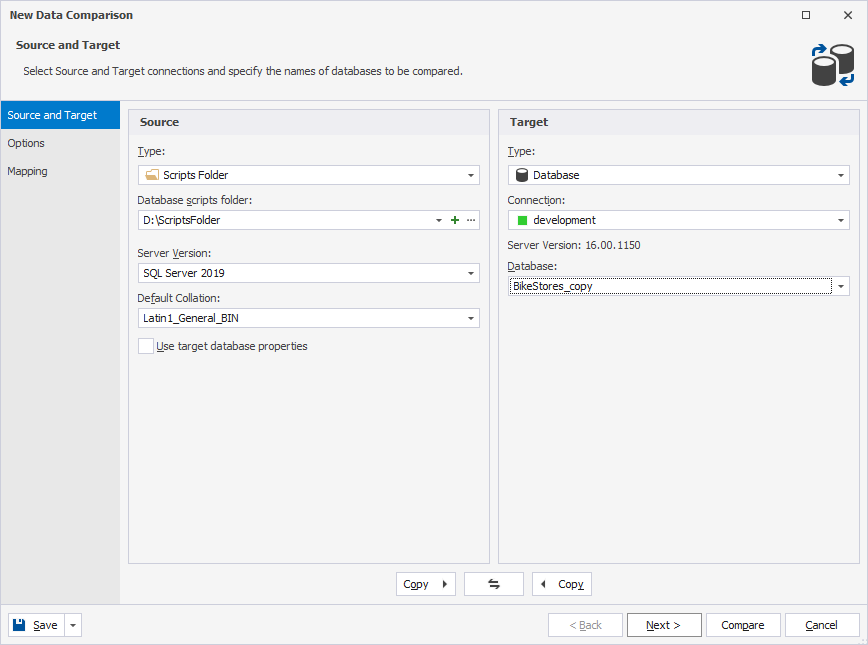
3. To use a scripts folder as a data source, on the Options page, select the Ignore spaces in object name and Ignore trailing spaces options.
4. Click Compare.
5. In the Data Comparison document, select the objects for synchronization.
6. Run data comparison.
7. Select an output option to generate a synchronization script, and optionally configure the synchronization settings.
8. Click Synchronize.