Restore individual rows from a backup
This topic describes how to restore specific rows from a backup that were accidentally deleted or modified. By restoring only the affected rows, you can minimize the impact on the rest of the database.
Restore rows from a backup
1. Open the New Data Comparison wizard in one of these ways:
- In the top menu, select Comparison > New Data Comparison.
- On the Start Page, select Database Sync > New Data Comparison.
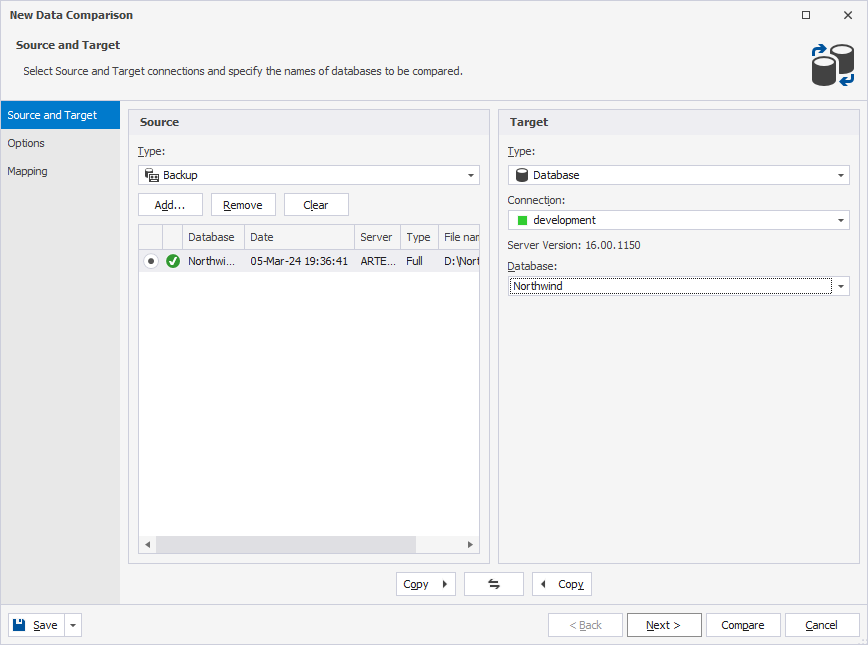
2. Select the source and target data sources:
-
Under Source:
1. Select Backup as the source type.
2. Click Add to add an existing backup file.
-
Under Target:
1. Select Database as the target type.
2. Select the server connection for the target database.
3. Select the database to be compared.
3. Optional: On the Options page, configure the data comparison options.
4. On the Mapping page, map tables, views, and columns you want to compare.
5. Click Compare.
The Data Comparison document opens, displaying the comparison results. Use checkboxes to include or exclude objects and records for synchronization.
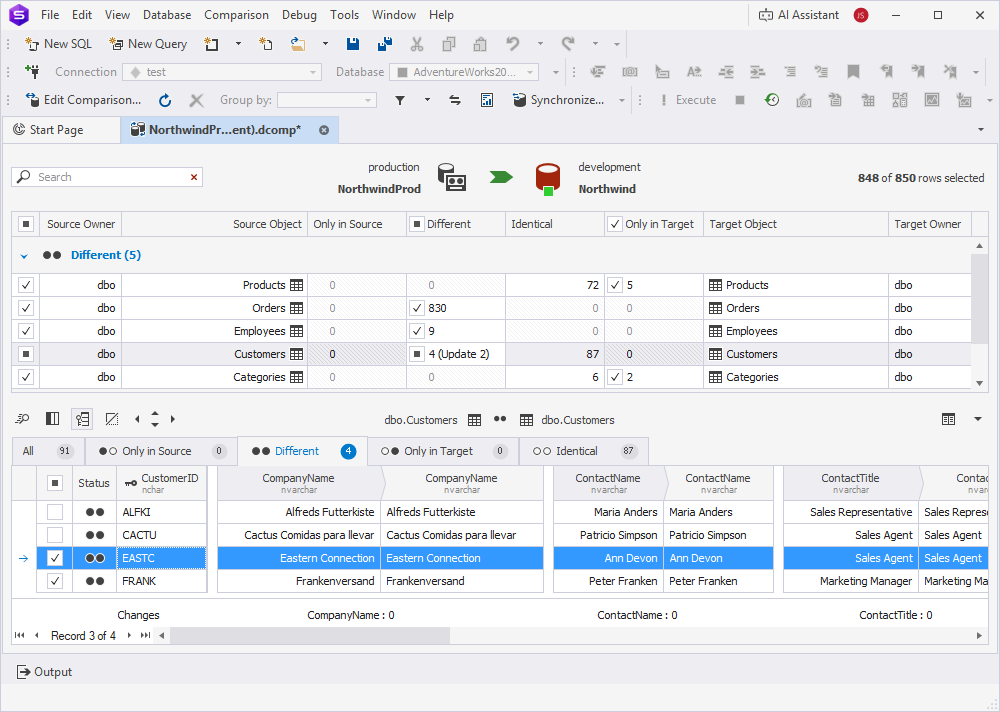
6. At the top of the document, click  to open the Data Synchronization Wizard.
7. Select the output option to generate a synchronization script and, optionally, configure the synchronization options.
8. Click Synchronize.