Bidirectional data synchronization
The guide describes how to perform bidirectional data synchronization between two databases in dbForge Studio for SQL Server. This may be useful for users who need to keep both databases up to date, even when each database receives new or modified data independently.
The two-way data synchronization workflow in dbForge Studio involves:
- Adding new records from Database1 to Database2.
- Adding new records from Database2 to Database1.
- Updating records that differ between the databases.
While the process of adding new records can be automated, updating existing records must be done manually.
Manual two-way synchronization
The synchronization process includes:
1. Adding new records and updating the existing ones in the target database.
2. Synchronizing data in both directions.
Add new records and update the existing ones in the target database
1. Open the New Data Comparison wizard in one of these ways:
- In the top menu, select Comparison > New Data Comparison.
- On the Start Page, select Database Sync > New Data Comparison.
2. Select the source and target server connection and databases.
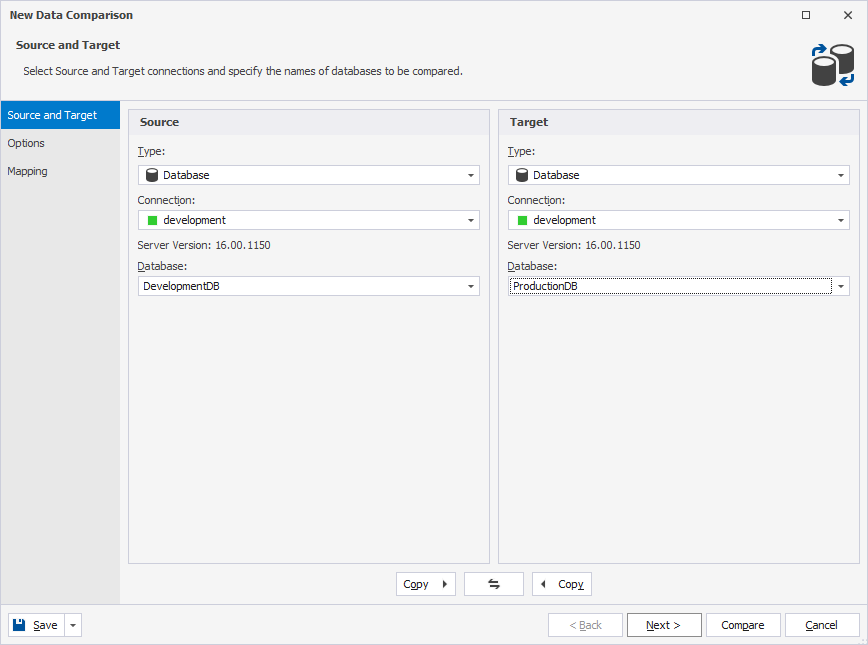
3. Click Compare to run the data comparison.
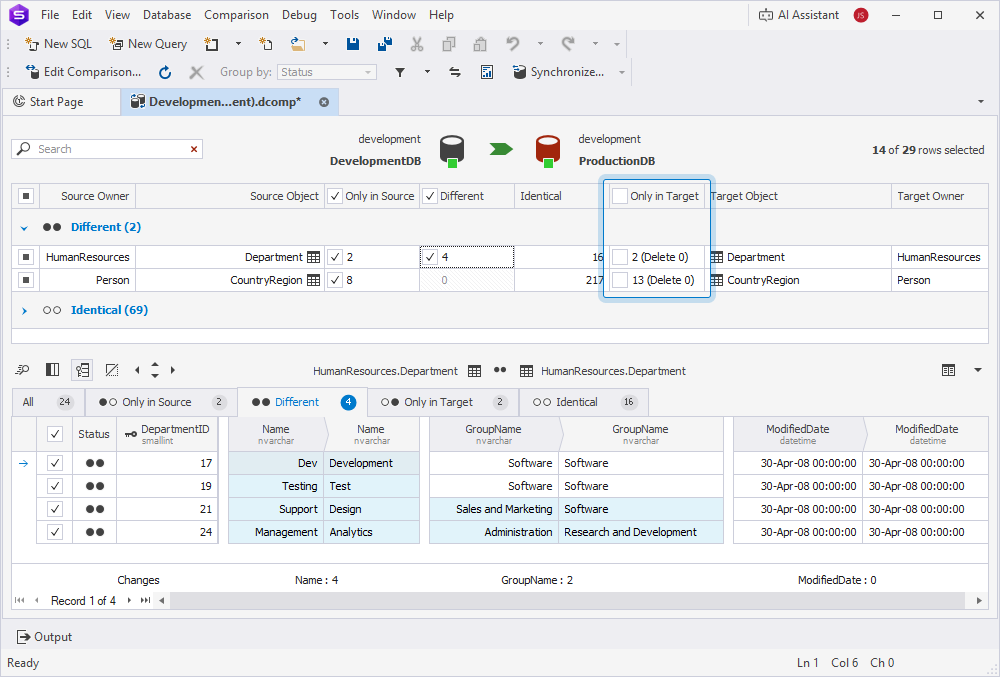
4. In the Data Comparison document (.dcomp), clear the Only in Target checkbox to prevent the deletion of that exist only in the target database.
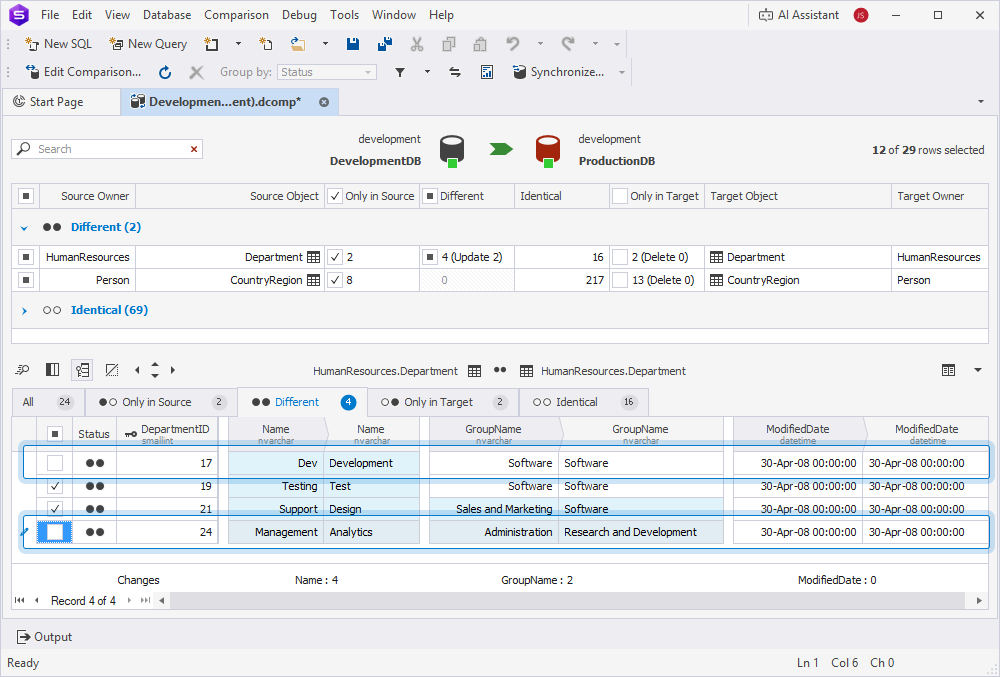
5. In the Row differences grid, select the Different tab and clear the checkboxes for the records you want to exclude from data synchronization.
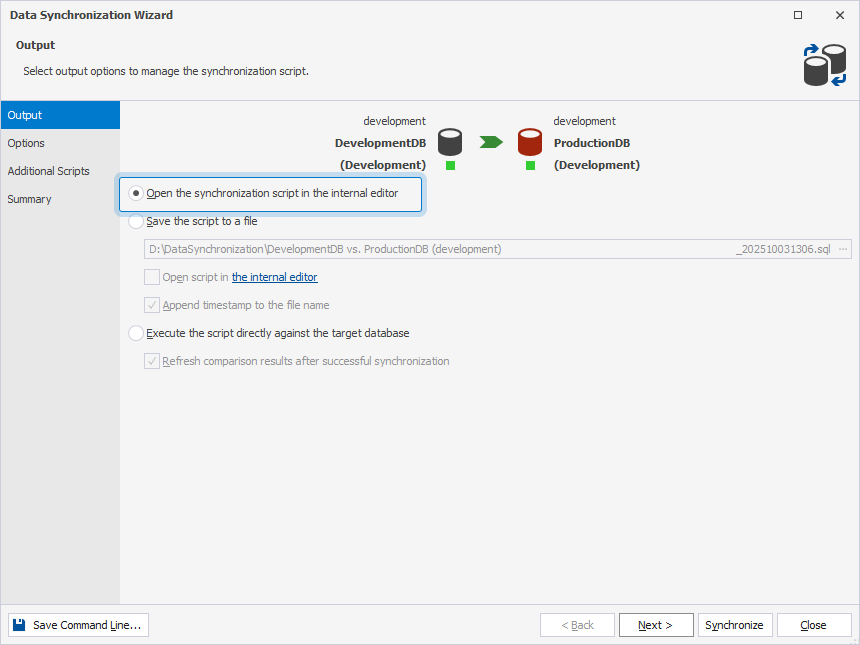
6. At the top of the document, click  to open the Data Synchronization Wizard.
7. Select Open the synchronization script in the internal editor and, optionally, configure the synchronization options.
8. Click Synchronize.
Synchronize data in both directions
To synchronize data in both directions, use one of the following methods.
Method 1: Synchronization with re-running data comparison
1. On the toolbar, click  or press F5 to refresh the .dcomp document.
The .dcomp document now contains the up-to-date records in the Only in Target and Different columns, which you can migrate to the source database.
2. Right-click the data comparison grid and select Change Synchronization Direction.
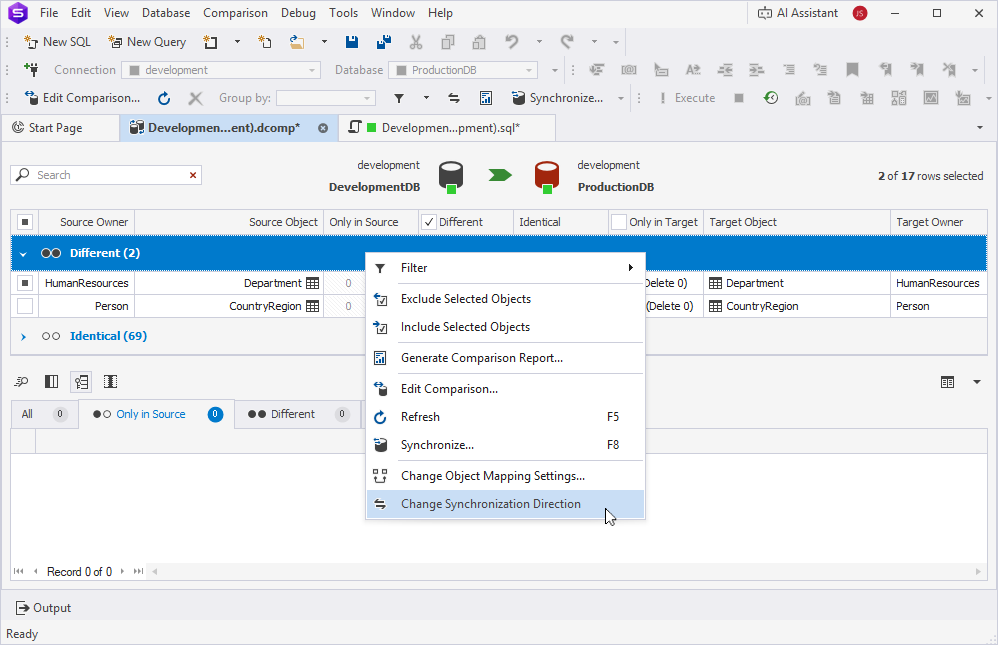
3. At the top of the document, click  (now reversed) to open the Data Synchronization Wizard.
4. Select Open the synchronization script in the internal editor and, optionally, configure the synchronization options.
5. Click Synchronize.
6. On the toolbar, select Execute or press F5 to execute the synchronization script.
Method 2: Synchronization without re-running the data comparison
1. Return to the data comparison document.
Note
This method does not require you to refresh the data comparison document.
2. In the Data Comparison results grid, clear the checkbox for Only in Source and select the checkbox for Only in Target to prevent the deletion of records that exist only in the source database.
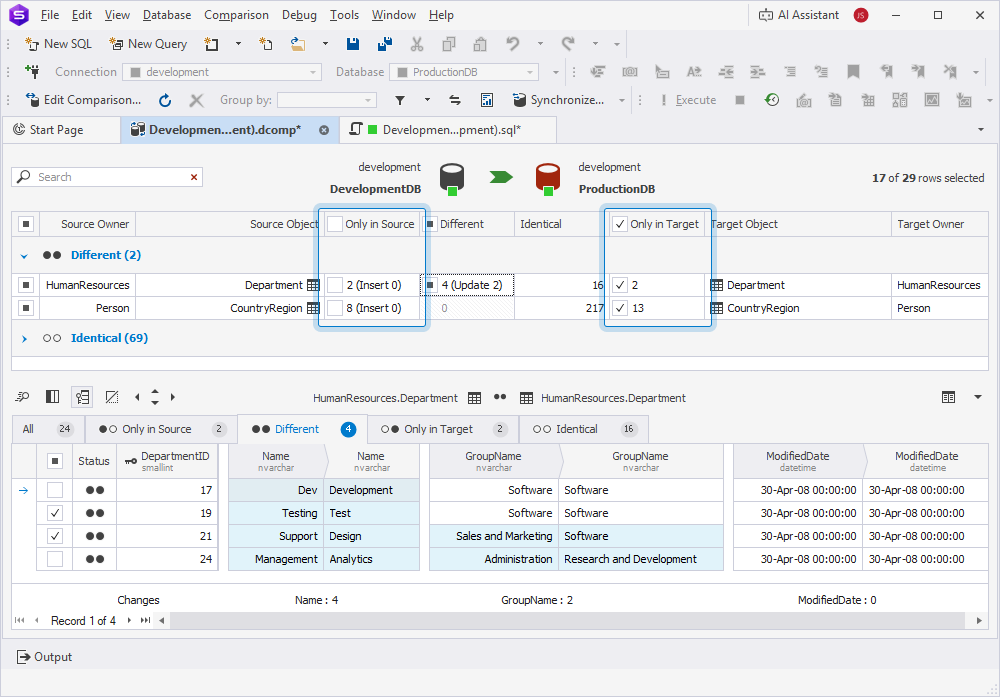
3. In the Row Differences grid, navigate to the Different tab and clear the checkboxes for the records you want to exclude from synchronization, or select the checkboxes for the records to include.
4. Right-click the grid and select Change Synchronization Direction.
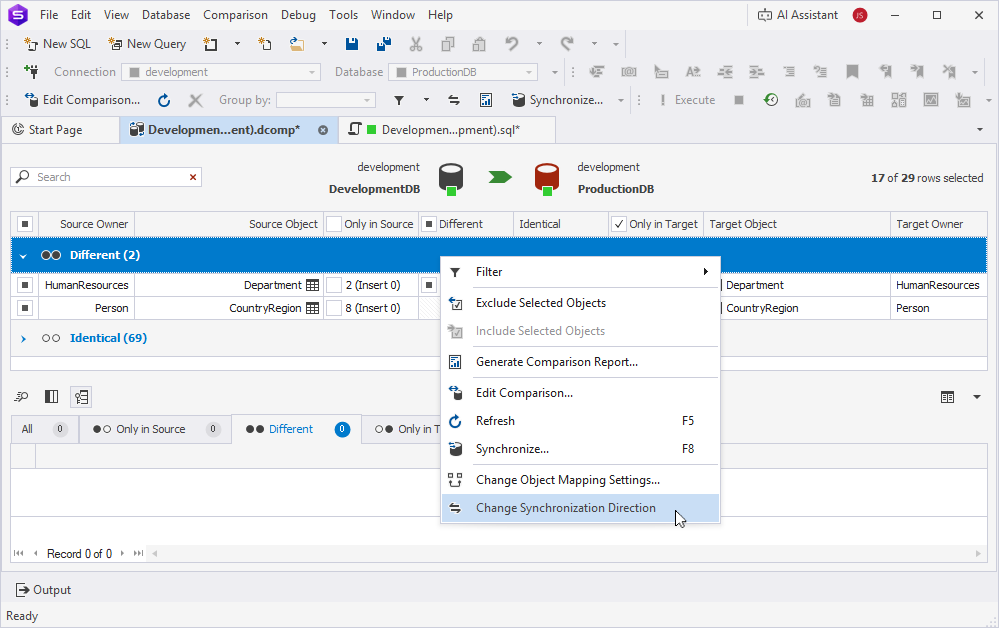
5. At the top of the document, click  (now reversed) to open the Data Synchronization Wizard.
6. Select Open the synchronization script in the internal editor and, optionally, configure the synchronization options.
7. Click Synchronize.
8. On the toolbar, click Execute or press F5 to execute the synchronization script.
Benefits and drawbacks of synchronization methods
The table provides the benefits and drawbacks of the mentioned synchronization methods.
| Name | Benefit | Drawback |
|---|---|---|
| With re-comparison | Ensures the latest changes are included. | Takes additional time to re-run the comparison. |
| Without re-comparison | Saves time by skipping re-comparison | Requires manual verification of data. |
Automated (partially) two-way synchronization
The automated data synchronization includes:
1. Automating the addition of new records.
2. Manually synchronizing different records.
Automate adding new records
To automate the addition of new records to databases in both directions:
Generate a .dcomp document with the Only in source records
1. Open the New Data Comparison wizard in one of these ways:
- In the top menu, select Comparison > New Data Comparison.
- On the Start Page, select Database Sync > New Data Comparison.
2. Select the source and target server connections and databases.
3. Navigate to the Options page.
4. Under Display Options, clear all checkboxes except Only in source records to exclude the records that exist only in the source database.
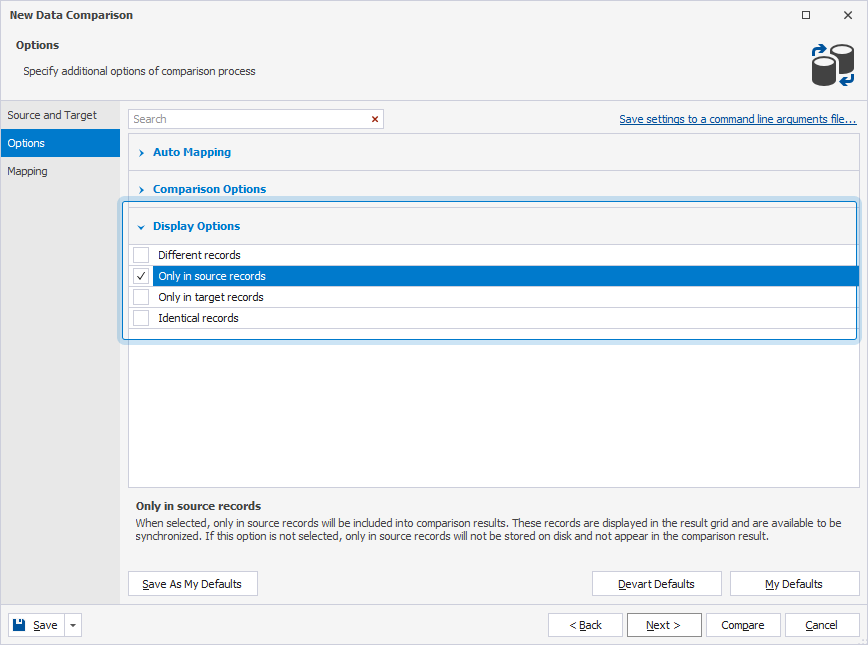
5. Click Compare to generate a .dcomp document with the records that exist only in the source database.
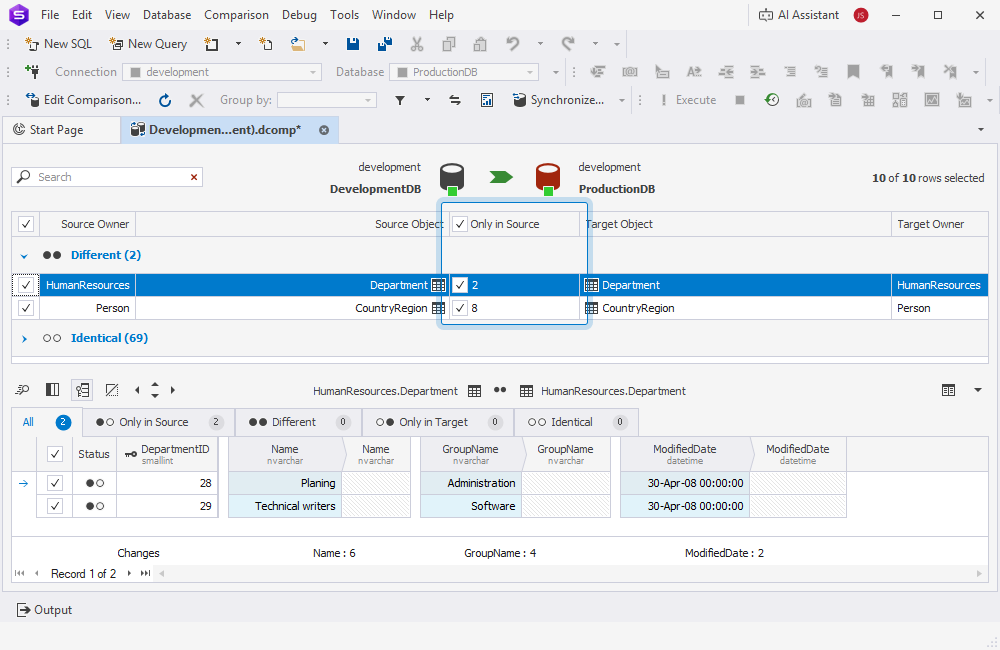
Save the .dcomp file (from the source to the target)
1. In the top menu, select File > Save As.
2. In the Save As dialog, specify the path to the file.
Generate the .bat file (synchronization from the source to the target)
Generate the first .bat file with the command-line settings (from the source to the target) to automatically add new records from the source to the target database.
1. On the toolbar, click Edit Comparison.
2. In the left-bottom corner of the Change Data Comparison Properties dialog, click Save > Save Command Line.
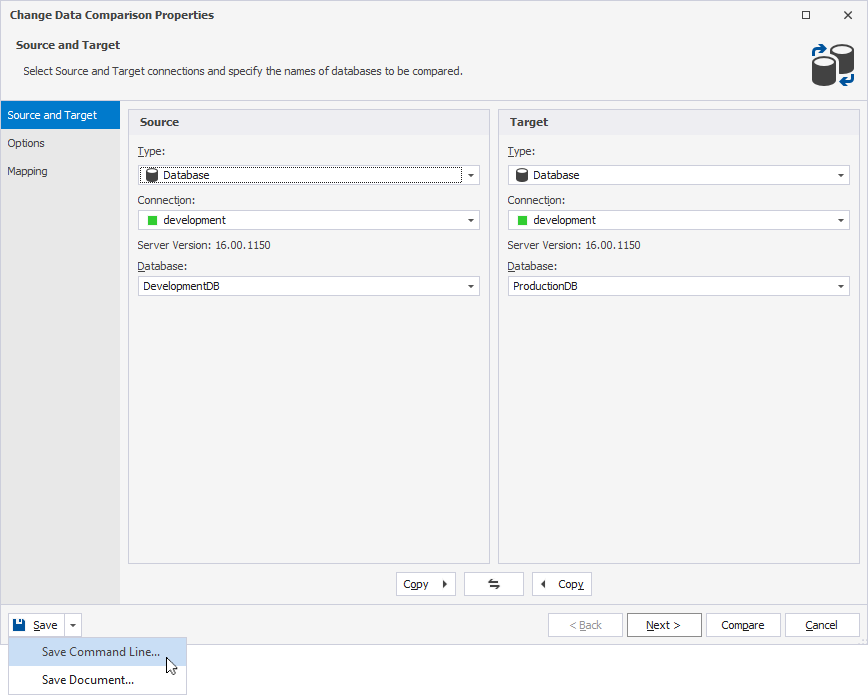
3. In the Command line execution file settings dialog, click Save to save the .bat file with command-line settings.
4. In the Change Data Comparison Properties dialog, click  .
.
5. Click Compare to open a .dcomp document.
Save the .dcomp file with the swapped settings (from the target to the source)
1. In the top menu, select File > Save As.
2. In the Save As dialog, specify the path to the file.
Note
To avoid overwriting the existing .dcomp file, save the file with a new name.
Generate a .bat file (synchronization from the target to the source)
Create the second .bat file for synchronization in the opposite direction.
Run .bat files
Run both .bat files to synchronize data from the source to the target and vice versa.
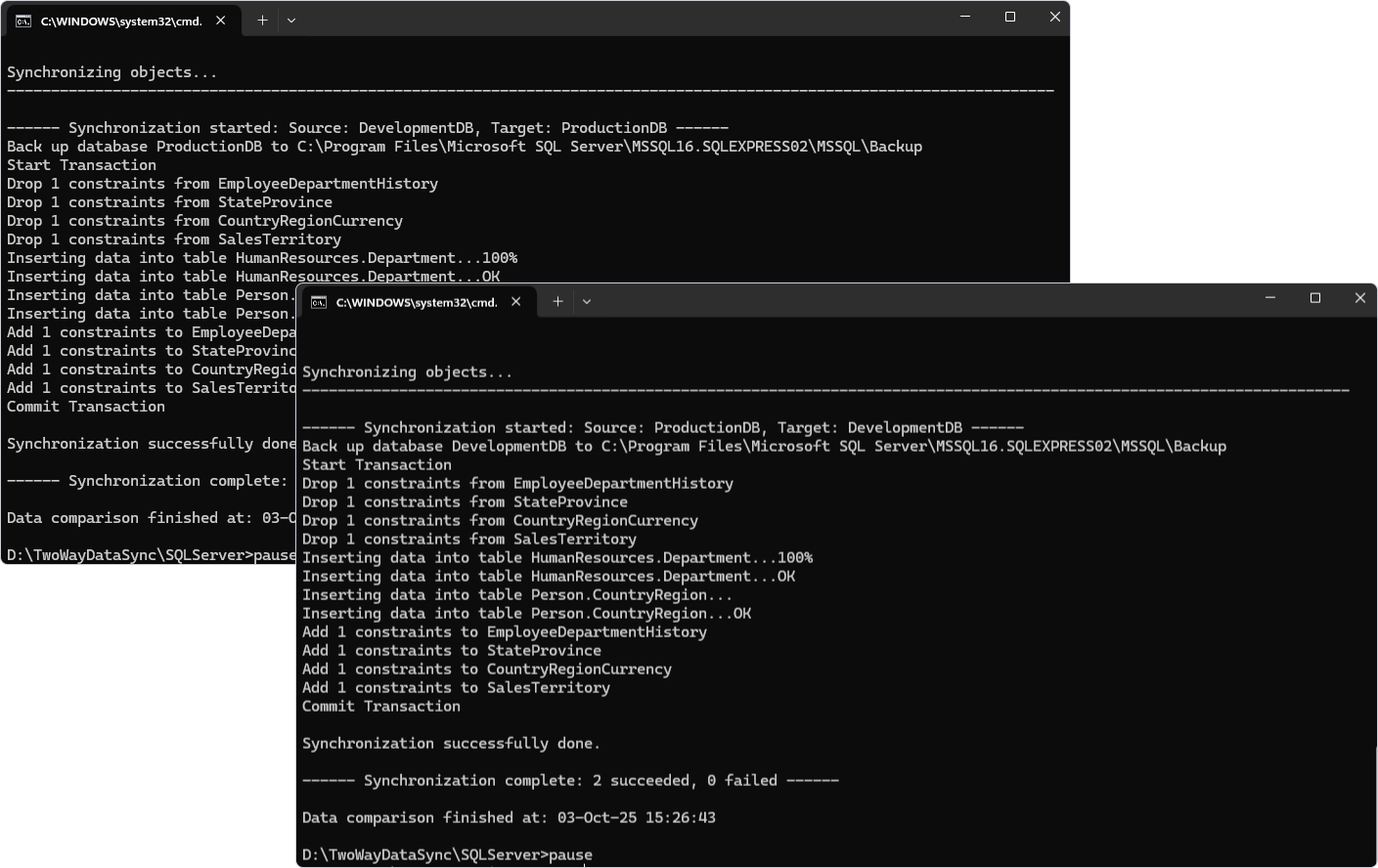
Manually synchronize different records
Automating the synchronization of differing records is not supported due to the need for manual data validation.
To synchronize the records:
1. Open the New Data Comparison wizard in one of these ways:
- In the top menu, select Comparison > New Data Comparison.
- On the Start Page, select Database Sync > New Data Comparison.
2. Select the source and target server connection and databases.
3. On the Options page, under Display Options, clear all checkboxes except Different records.
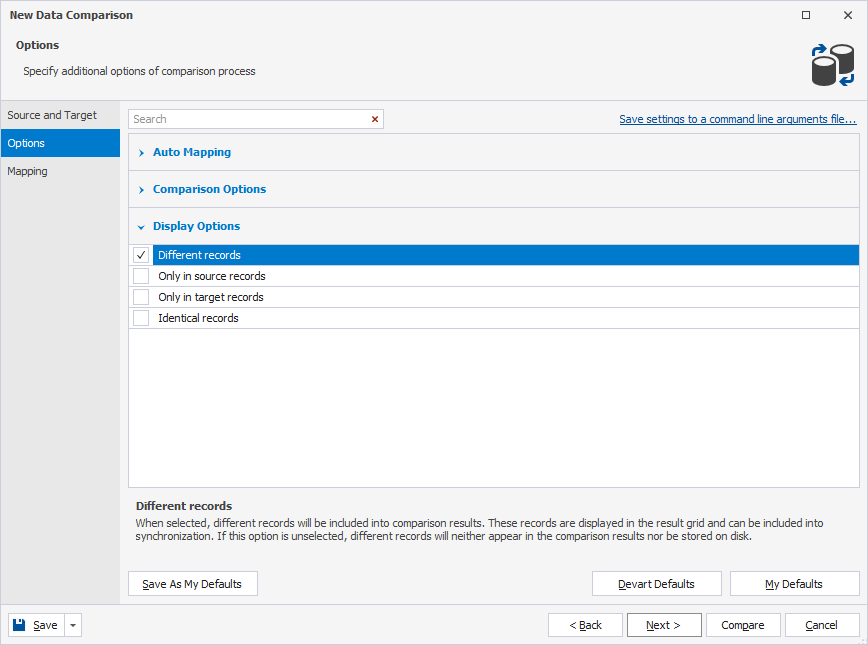
4. Click Compare to run the data comparison.
5. In the Data Comparison results grid, select a table to view differences in the Row Differences grid.
6. In the Row Differences grid, select the checkboxes for records to synchronize.
7. At the top of the document, click to open the Data Synchronization Wizard.
8. Select Open the synchronization script in the internal editor and, optionally, configure the synchronization settings.
9. Click Synchronize.
10. On the toolbar, click Execute or press F5 to execute the synchronization script.
11. Return to the data comparison document and refresh it.
12. Select the records you want to transfer from the target to the source.
13. Right-click the Data Comparison grid and select Change Synchronization Direction.
14. At the top of the document, click to open the Data Synchronization Wizard.
15. Select Open the synchronization script in the internal editor, then click Synchronize.
16. On the toolbar, click Execute or press F5 to execute the synchronization script.