Table Editor - Indexes tab
On the Indexes tab, you can create, edit, or delete indexes to optimize query performance.
Indexes grid
The Indexes grid shows existing indexes and lets you add or remove them and view their details.
Note
For Amazon Redshift tables, the Sortkey tab is shown instead of the Indexes tab.
Add indexes
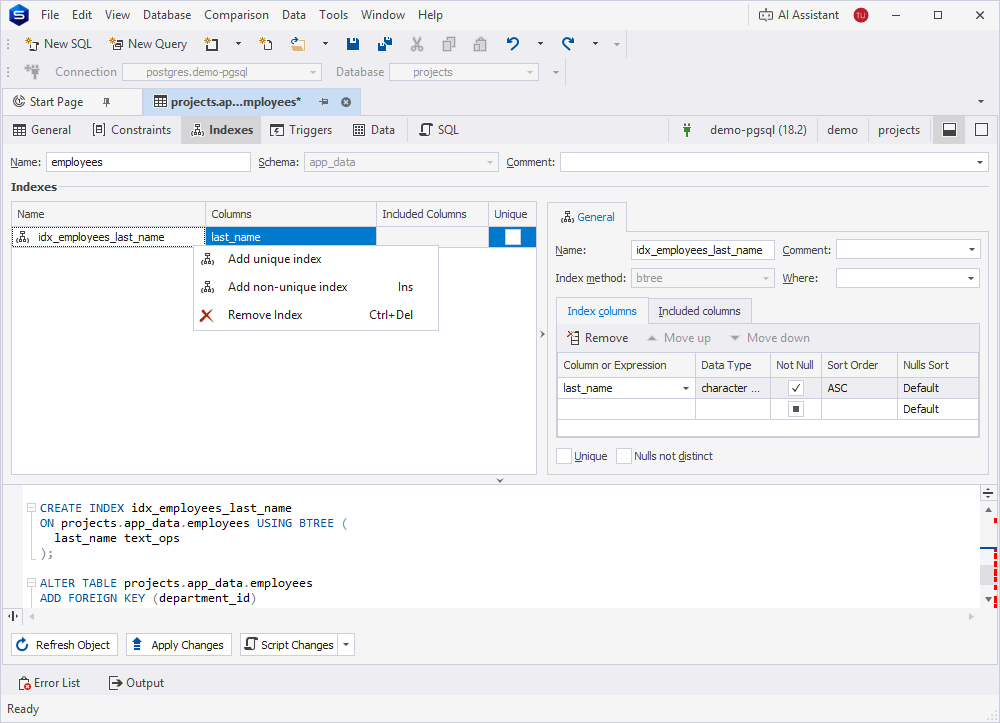
To add an index, right-click the Indexes grid and select one of the following options:
- Add unique index – Creates a unique index.
- Add non-unique index – Creates a non-unique index.
- Add sortkey – Creates a sortkey. This option is unavailable if the table already contains a sortkey.
Note
The following prefixes are added to the index name by default:
UK_– Indicates a unique index.IDX– Indicates a non-unique index.
Remove indexes
To remove an index, select it in the grid, right-click the grid, then select Remove Index. Alternatively, press Ctrl+Del.
To remove a sortkey, select it in the grid, right-click the grid, then select Remove sortkey. Alternatively, press Ctrl+Del.
Note
The options are unavailable if indexes or a sortkey aren’t defined on the table.
View index details
The grid displays the following index details:
- Name – Displays the index name.
- Columns – Displays indexed columns.
- Included columns – Displays columns included in the index.
- Unique – Prevents duplicate values in the indexed column. To make an index unique, select the checkbox.
Note
For Amazon Redshift tables, an index name is displayed in the sortkey column.
Index detail panel
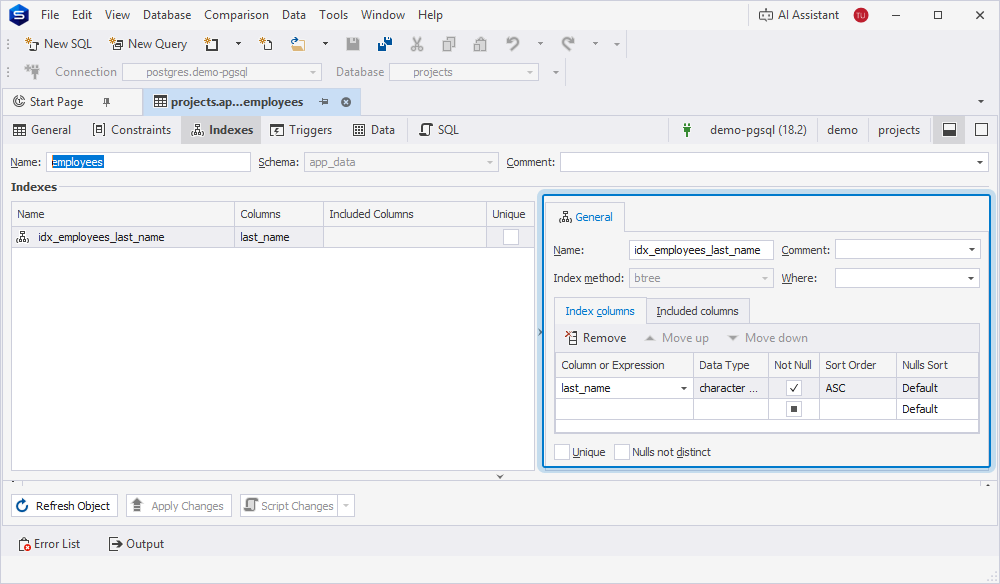
When you select an index in the grid, the detail panel opens, where you can configure the index properties.
The following table describes the available properties.
| Name | Description |
|---|---|
| Name | Specifies an index name. Enter the index name. |
| Index method | Defines the method used to create the index. Select the method from the list. Available options are: brin, btree (default), gin, gist, hash, and spgist. |
| Comment | Specifies an index description. Enter the description. To save the description, click OK. To discard the change, click Cancel. |
| Where | Specifies a condition that determines which rows are included in the index. Enter the condition. To save the condition, click OK. To discard the change, click Cancel. |
Note
Index method is unavailable for Amazon Redshift indexes.
Index columns
The following table describes the available properties.
| Name | Description |
|---|---|
| Column or Expression | Specifies an indexed column. Select the indexed column from the list. |
| Data Type | Indicates the data type assigned for the selected column. |
| Not Null | Indicates whether the column is NOT NULL. |
| Sort Order | Specifies the sorting order for indexed columns. Select ASC or DESC from the list. |
| Nulls Sort | Specifies whether NULL values appear at the beginning or at the end of the index range when the data is sorted.Select one of the following options from the list: Default, NULLS FIRST, and NULLS LAST. |
| Remove | Removes the selected column. |
| Move up | Moves the selected column up. |
| Move down | Moves the selected column down. |
Included columns
The following table describes the available properties.
| Name | Description |
|---|---|
| Name | Specifies the included column. Select the included column from the list. |
| Data Type | Indicates the data type assigned for the selected column. |
| Not Null | Indicates whether the column is NOT NULL. |
| Remove | Removes the selected column. |
| Move up | Moves the selected column up. |
| Move down | Moves the selected column down. |
Under the grids, you can configure the following:
- Unique – Makes the index unique.
- Nulls not distinct – Treats
NULLvalues as equal to one another.
Tip
To hide the index properties panel, click the vertical splitter or drag it to the right.
For more information on editing triggers or configuring their properties, see Table Editor - Triggers.