Table Editor - General tab
On the General tab, you can add, edit, and remove columns, and configure their properties.
Columns grid
The grid shows existing columns and lets you add or remove columns, change the column order, or find a column.
Add columns
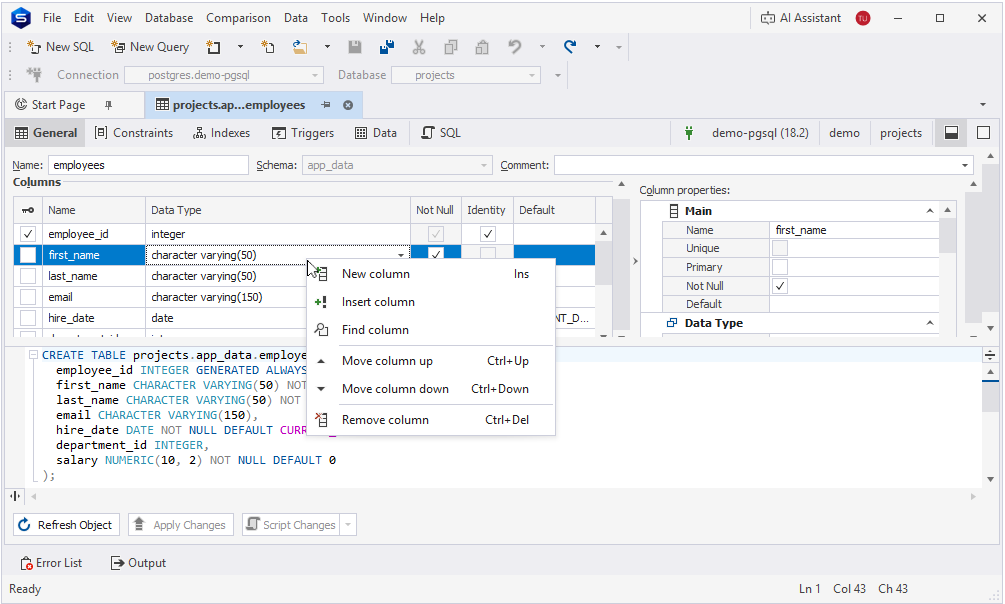
To add a column, right-click the Columns grid and select one of the following options:
- New column – Adds a new column to the table. Alternatively, press Ins. The column is inserted at the end of the column list. The default name is
column1. If a column with this name already exists, dbForge Studio assigns the next available name, such ascolumn2,column3, and so on. - Insert column – Inserts a new column above the selected column.
Configure general column properties
In the Columns grid, you can configure the following general column properties:
 – Marks the column as the primary key of the table. Select the checkbox to define the column as a primary key.
- Name – Specifies a column name. Double-click the cell and enter a new name or update the existing one.
- Data Type – Indicates the data type of the column. Double-click the cell and select a data type from the list.
- Not Null – Indicates whether the column requires a value in every row. Select the checkbox to enforce
NOT NULLvalues for the column. - Identity – Defines the column as an identity column. Select the checkbox to generate a unique numeric value for each new row.
- Default – Specifies a default value for the column. Double-click the cell and enter a default value.
Note
Not Nullis unavailable for columns defined as primary keys.Identityis available only for columns with theSMALLINT,INT, andBIGINTdata types.
Assign data type
dbForge Studio automatically assigns a data type based on the column name. By default, a new column is set to VARCHAR. If you name the column ID or id, the tool automatically changes the data type to SERIAL.
Note
Data types are assigned automatically only during table creation, not during editing.
The table lists the heuristics the tool uses to infer data types based on column names:
| Group | Name | Inferred data type |
|---|---|---|
| Identifier | id, user_id, order_id, product_id, customer_id, supplier_id, employee_id, invoice_id, transaction_id, category_id, department_id, session_id, record_id, log_id, event_id, message_id, token_id, reference_id, doc_id, file_id, image_id, video_id, article_id, note_id, comment_id, tag_id, item_id, row_id | SERIAL BIGINT (for Amazon Redshift) |
| Financial | cost, price, amount, amt, total, subtotal, balance, credit, debit, fee, charge, commission, tax, vat, gst, net, gross, margin, discount, rate, salary, wage, income, expense, payment, payout, refund, revenue, profit, loss | MONEY DECIMAL(19, 4) (for Amazon Redshift) |
| Date | date, created_date, modified_date, updated_date, start_date, end_date, due_date, birth_date, hire_date, expiry_date, expiration_date, issue_date, shipment_date, delivery_date, payment_date, invoice_date, order_date, arrival_date, departure_date, release_date, close_date, report_date, transaction_date, activation_date, deactivation_date, anniversary_date, renewal_date, update_dt, event_date, log_date | DATE |
| Time | time, start_time, end_time, created_time, modified_time, updated_time, due_time, arrival_time, departure_time, event_time, schedule_time, timestamp, login_time, logout_time, checkin_time, checkout_time, execution_time, elapsed_time, response_time, processing_time, completion_time, runtime, uptime, downtime, access_time, send_time, receive_time, birth_time, death_time, alarm_time | TIMESTAMP |
| Count | qty, quantity, count, total_count, number_of_items, items_count, attempts, clicks, views, hits, likes, shares, followers, following, friends, subscribers, messages, posts, comments, votes, downloads, uploads, instances, occurrences, rows, columns, cells, pages, records, entries, segments | INTEGER |
| Measurement | weight, mass, size, length, height, width, depth, thickness, distance, radius, diameter, volume, area, speed, velocity, temperature, pressure, altitude, latitude, longitude, x_coord, y_coord, z_coord, score, rating, grade, percentage, probability, percent, ratio, index | NUMERIC(8, 2) |
| Text | name, first_name, last_name, full_name, middle_name, short_name, display_name, username, screen_name, nickname, alias, title, company_name, organization_name, institution_name, description, summary, caption, label, category | VARCHAR(100) |
| Metadata | code, status, state, zip, postal, postal_code, zip_code, phone, phone_number, fax, email, email_address, website, link, homepage, path, filename, filepath, mimetype, content_type, currency, unit, department, role | VARCHAR(50) |
| Miscellaneous | password, token, hash, signature, checksum, etag, uuid_text, guid_text, session_key, api_key, secret, note, comment, remarks, message, content, blob, data, info, details, metadata, config, settings, preferences, profile, avatar, image_url, thumbnail, icon, picture, photo, documentation, manual, guide, instruction, procedure, policy, rule, regulation, law, version, revision, build, release, environment, platform, device, browser | VARCHAR(150) |
| Reference | website, url, link, homepage, image_url | VARCHAR(2048) |
| File System | path, filename, filepath | VARCHAR(256) |
Remove columns
To remove a column, select it in the grid, right-click the grid, then select Remove column. Alternatively, press Ctrl+Del.
Change column order
To change the column order, right-click the grid and select one of the following options:
- Move column up – Moves the selected column one position higher. Alternatively, drag the column upward or press Ctrl+Up.
- Move column down – Moves the selected column one position lower. Alternatively, drag the column downward or press Ctrl+Down.
Find a column
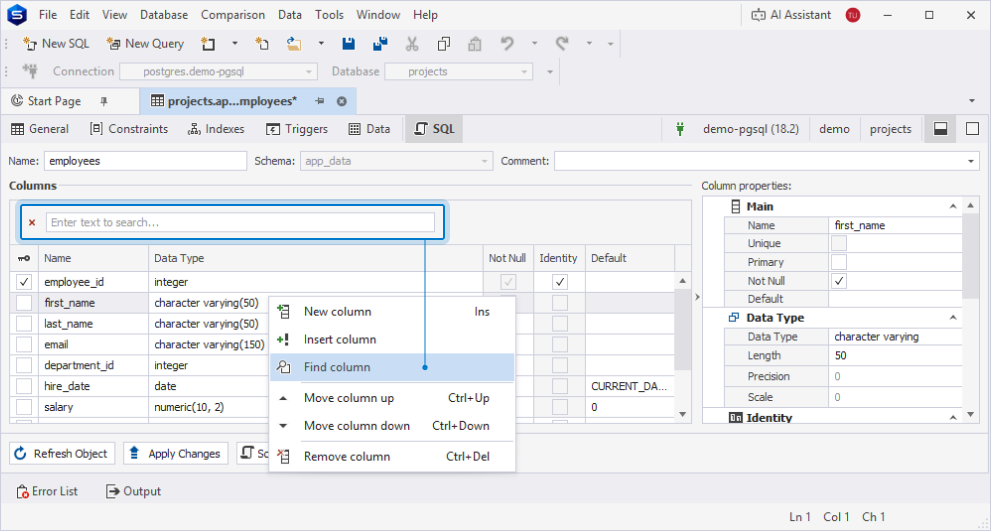
1. Right-click the grid and select Find column.
2. In the search box, enter the name of the column you want to find.
Search behavior:
- Matching text is highlighted in yellow.
- The number of matches appears in the search box.
- The search is case-insensitive. For example, searching for Name matches Name and name.
- If the query contains multiple words, each word is matched separately, and all matches are highlighted.
- To clear the search results, click
 in the search box.
Column detail panel
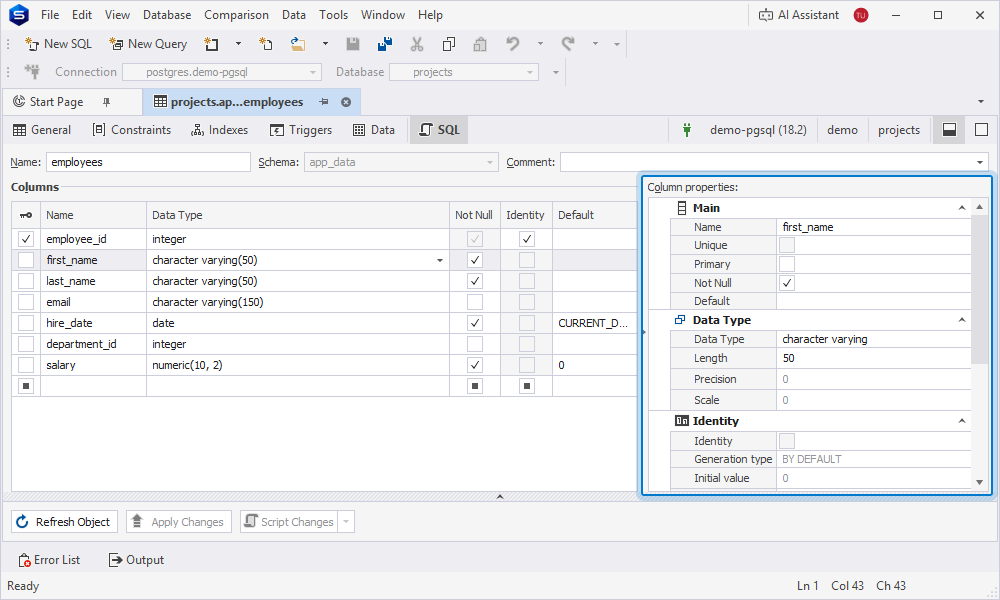
In the column detail panel, you can configure properties for the column selected in the Columns grid.
Properties are grouped in collapsible categories.
Main
The following table describes the available properties.
| Name | Description |
|---|---|
| Name | Specifies the column name. |
| Unique | Indicates that the column stores only unique values. This property is set automatically when the column is defined as a primary key. |
| Primary | Marks the column as the primary key of the table. Select the checkbox to define the column as a primary key. |
| Not Null | Indicates whether the column requires a value. To enforce NOT NULL for the column, select the checkbox. |
| Default | Specifies a default value for the column. Double-click the cell to enter a value. |
Data Type
The following table describes the available properties.
| Name | Description |
|---|---|
| Data Type | Specifies the column data type. To change the data type, double-click the cell and select the data type. |
| Length | Indicates the maximum number of characters or bytes the column can store. The default value is set depending on the selected data type. To change the length, double-click the cell and enter a new value. |
| Precision | Indicates the maximum number of digits in a numeric value, including digits to the right of the decimal point. To change the precision, double-click the cell and enter a new value. |
| Scale | Indicates the number of digits to the right of the decimal point in a numeric value. To change the scale, double-click the cell and enter a new value. |
Note
Length, Precision, and Scale are unavailable for data types that don’t support these parameters.
Identity
The following table describes the available properties.
| Name | Description |
|---|---|
| Identity | Generates a unique numeric value for each new row inserted into the table. To define the column as an identity column, select the checkbox. |
| Generation type | Defines how the identity value is generated. The available options are:
|
| Initial value | Indicates the starting value used for the identity column when the first row is inserted. The default value is ‘1’. To specify a value, enter it in the box or use the up and down arrows to select one. |
| Increment | Indicates the value added to the previous identity value for each new row. The default value is ‘1’. To specify a value, enter it in the box or use the up and down arrows to select one. |
| Minimum value | Specifies the minimum allowed value. To specify a value, enter it in the box or use the up and down arrows to select one. |
| Maximum value | Specifies the maximum allowed value. To specify a value, enter it in the box or use the up and down arrows to select one. |
| Cycle | Specifies behavior when the identity column reaches its maximum value. By default, the option is turned off. To turn it on, select the checkbox. |
| Cache | Specifies how many sequence values are preallocated in memory. To specify a value, enter it in the box or use the up and down arrows to select one. |
Computed
The following table describes the available properties.
| Name | Description |
|---|---|
| Computed | Defines the column as a generated column. Select the checkbox to define the computed column. |
| Persisted | Indicates whether the column can store the computed value in the table. When the checkbox is cleared, the value is calculated when queried. |
| Expression | Defines the expression for the computed column. Enter the expression used to calculate the column value. |
Miscellaneous
The following table describes the available properties.
| Name | Description |
|---|---|
| Comment | Specifies a column description. In the dropdown box, enter the description. Click OK to save the description, or click Cancel to discard the change. |
Tip
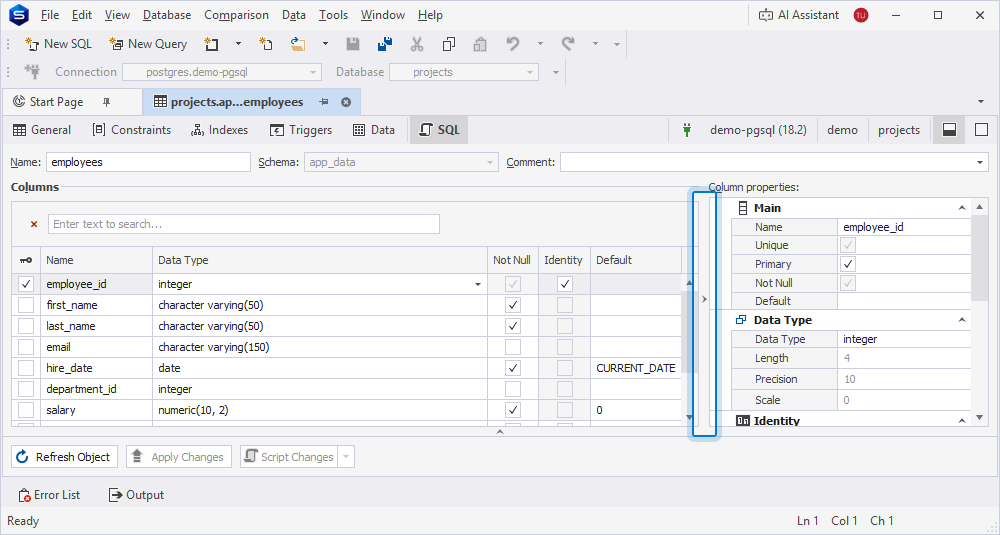
To hide the column properties panel, click the vertical splitter or drag it to the right.
For more information about constraints, or configuring their properties, see Table Editor - Constraints.