Table Editor - Constraints tab
On the Constraints tab, you can manage primary, foreign, and unique keys, and check constraints.
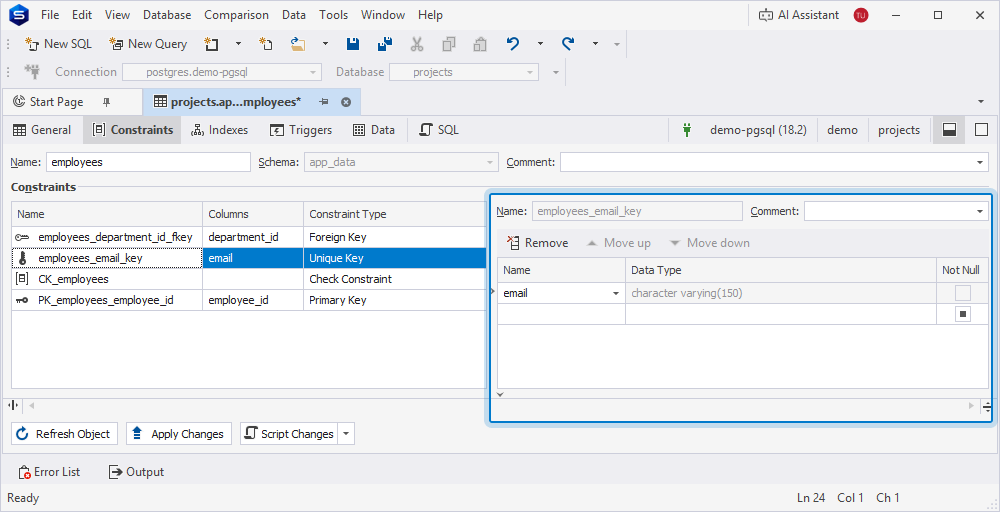
Constraints grid
The grid shows existing constraints and lets you add or remove them and view their details.
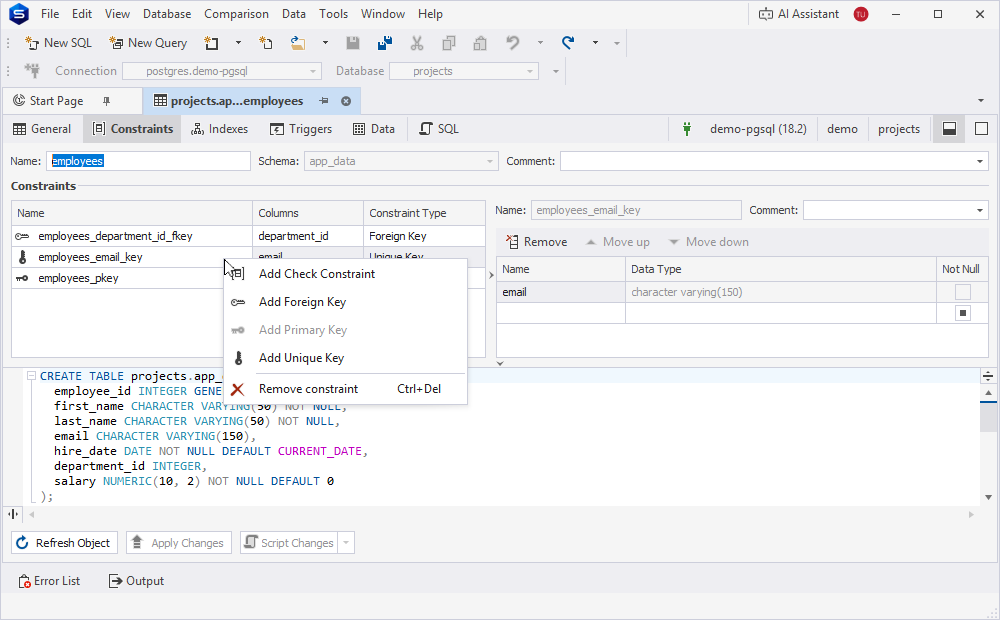
Add constraints
To add a constraint, right-click the grid and select one of the following options:
- Add Check Constraint – Creates a
CHECKconstraint. - Add Foreign Key – Creates a foreign key.
- Add Primary Key – Creates a primary key.
- Add Unique Key – Creates a unique key.
Note
The following prefixes are added to the constraint name by default:
PK_– Indicates a primary key.FK_– Indicates a foreign key.UQ_– Indicates a unique key.CK_– Indicates a check constraint.
Remove constraints
To remove a constraint, select it in the grid, right-click the grid, then select Remove Constraint. Alternatively, press Ctrl+Del.
View constraint details
The grid displays the following constraint details:
- Name – Displays a constraint name.
- Columns – Displays a column selected for the constraint.
- Constraint Type – Displays a constraint type.
Note
If a column already has a primary key, the Add Primary Key option is unavailable.
Constraint detail panels
When you select a constraint in the Constraints grid, the corresponding detail panel opens, where you can configure the constraint properties.
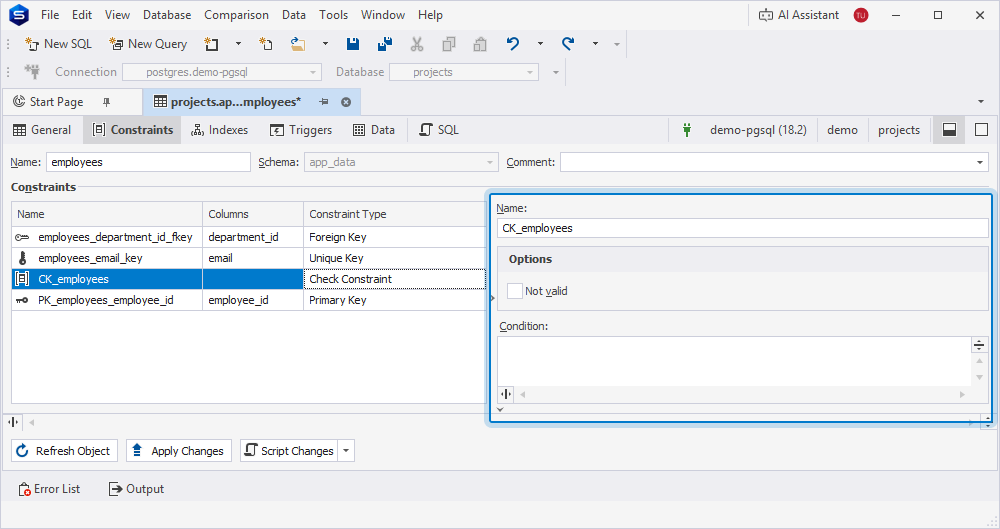
Check constraint detail panel
The following table describes the available properties.
| Name | Description |
|---|---|
| Name | Enter a check constraint name. |
| Not valid | Select the checkbox to apply a constraint to new data without verifying existing rows. |
| Condition | Define a condition for a check constraint. |
Note
Not valid is unavailable for new tables and for tables hosted on Amazon Redshift.
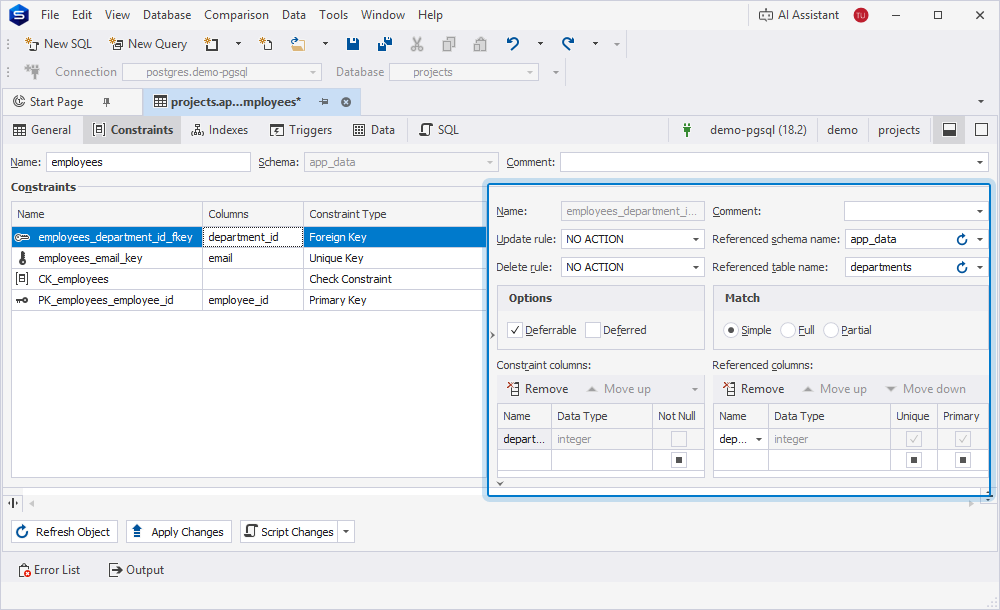
Foreign key detail panel
The following table describes the available settings.
| Name | Description |
|---|---|
| Name | Enter a foreign key name. |
| Comment | Specify a foreign key description. |
| Update rule | Define the action to take when the referenced row is updated. The available options are NO ACTION, RESTRICT, CASCADE, SET NULL, and SET DEFAULT. |
| Delete rule | Define the action to take when the referenced row is deleted. The available options are NO ACTION, RESTRICT, CASCADE, SET NULL, and SET DEFAULT. |
| Referenced schema name | Select the schema that contains the referenced table or object. To update a list of schemas, click  Refresh. Refresh.Shortcut: Ctrl+R |
| Referenced table name | Select the parent table referenced by the foreign key. To update a list of tables, click Refresh.Shortcut: Ctrl+R |
| Options | Select the following options:
Deferred is available only when Deferrable is selected. |
| Match | Select one of the following match types:
|
Note
- You can’t change the name of an existing foreign key.
- Match is unavailable for Amazon Redshift.
Constraint columns
The following table describes the available properties.
| Name | Description |
|---|---|
| Name | Select the constraint column. |
| Data Type | Indicates the data type of the constraint column. |
| Not Null | Indicates whether the constraint column is NOT NULL. |
| Remove | Removes the selected constraint column. |
| Move up | Moves the selected column up. |
| Move down | Moves the selected column down. |
Referenced columns
The following table describes the available properties.
| Name | Description |
|---|---|
| Name | Select the referenced column. |
| Data Type | Indicates the data type of the referenced column. |
| Unique | Indicates whether the referenced column contains unique values. |
| Primary | Indicates whether the referenced column is a primary key. |
| Remove | Removes the selected referenced column. |
| Move up | Moves the selected column up. |
| Move down | Moves the selected column down. |
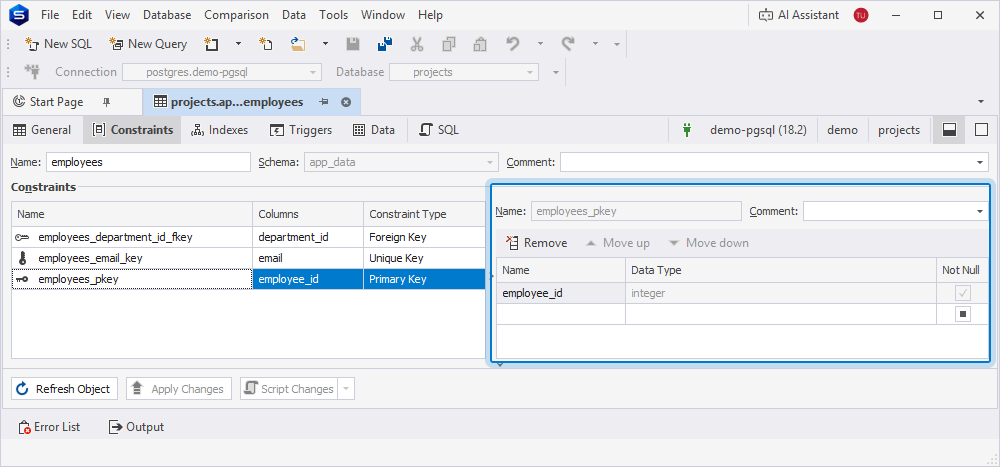
Primary key detail panel
The following table describes the available properties.
| Name | Description |
|---|---|
| Name | Enter a primary key name. |
| Comment | Specify a primary key description. |
Note
You can’t change the name of an existing primary key.
Primary key columns
The following table describes the settings for the primary key columns.
| Name | Description |
|---|---|
| Name | Select the column you want to set as a primary key. |
| Data Type | View the data type of the column. |
| Not Null | View whether the column contains NOT NULL values. |
| Remove | Removes the selected column. |
| Move up | Moves the selected column up. |
| Move down | Moves the selected column down. |
Unique key detail panel
The following table describes the available properties.
| Name | Description |
|---|---|
| Name | Enter a unique key name. |
| Comment | Specify a unique key description. |
Note
You can’t change the name of an existing unique key.
The following table describes the settings for the unique key columns.
| Name | Description |
|---|---|
| Name | Select the column you want to set as unique. |
| Data Type | View the data type of the column. |
| Not Null | View whether the column contains NOT NULL values. |
| Remove | Removes the selected column. |
| Move up | Moves the selected column up. |
| Move down | Moves the selected column down. |
For more information about indexes, or configuring their properties, see Table Editor - Indexes.