Change query types
You can use Query Builder to create different types of SQL queries, including SELECT, INSERT INTO, UPDATE, and DELETE.
Supported query types
The table lists the supported query types.
| Name | Description |
|---|---|
| SELECT | Creates a query that retrieves data from one or more tables. |
| INSERT RESULTS | Creates an INSERT INTO statement that adds data from multiple tables into a single target table. |
| INSERT VALUES | Creates an INSERT INTO statement that adds individual rows and values to a table. |
| UPDATE | Creates a statement that updates one or more records in a table. |
| DELETE | Creates a statement that removes records from a table. |
Note
You can use the
INSERT VALUESstatement to add a single row to a table.
Change the query type
The current query type appears in the upper-left corner of the diagram. The default query type is SELECT.
To change the query type, use one of these ways:
-
On the menu bar, select Query > Change Type, then choose the query type.
-
On the Query toolbar, select Change Type, then choose the query type.
-
In the upper-left corner of the diagram, right-click the query type, select Change Type, then choose the query type.
-
Right-click the diagram and select Change Type, then choose the query type.
Create an INSERT RESULTS statement
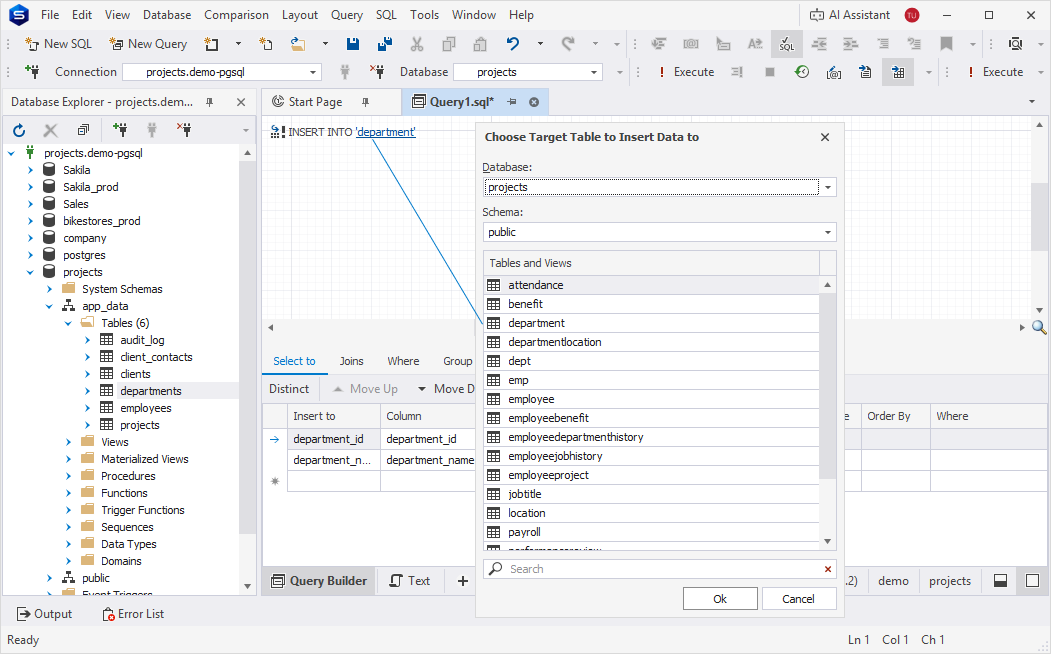
1. Change the query type to INSERT RESULTS.
2. In the Choose Target Table to Insert Data to dialog, select the target database, schema, and table or view for data insertion.
3. Click OK.
Tip
If the list contains multiple tables, use the search box to find a table or view. As you type, matching entries are highlighted in the Tables and Views column.
4. Specify values and conditions in the corresponding tabs of Tabbed Editor. For more information, see Adjust the query.
5. Optional: To preview the query, in the bottom panel, click Text.
Create an INSERT VALUES statement
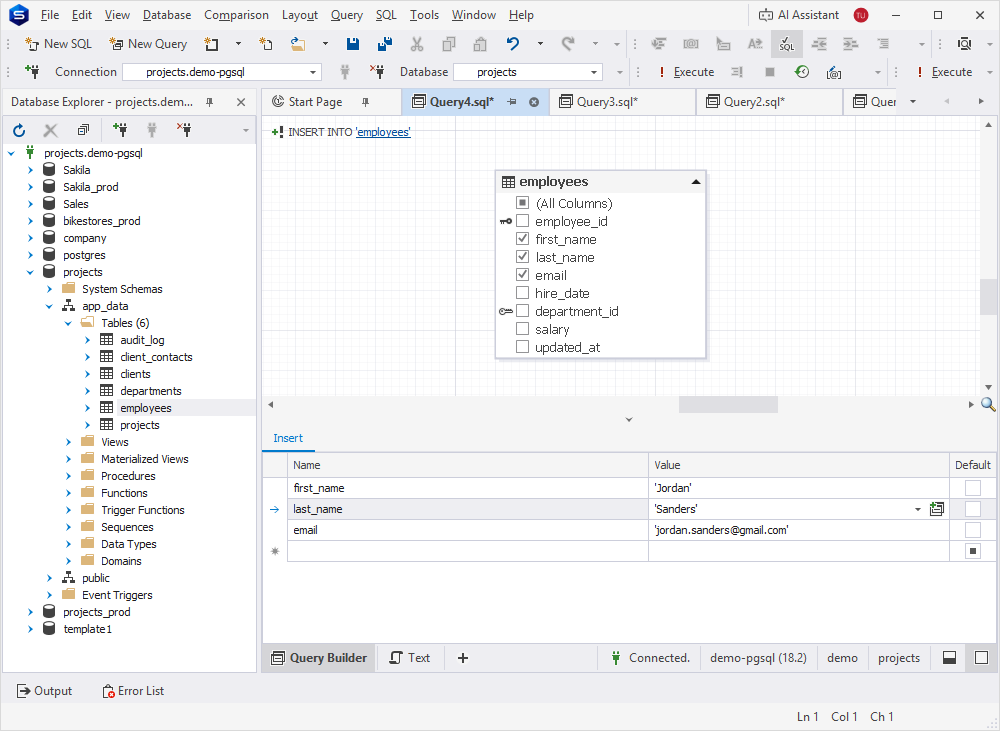
1. On the diagram, select the columns for which you want to insert values.
2. Change the query type to INSERT VALUES.
3. In Tabbed Editor, enter the values in the columns.
-
In Name, select the empty row, then choose the target column from the list.
-
In Value, enter the value you want to insert.
-
In Default, select whether to apply the default value defined for the column.
4. Optional: To preview the query, in the bottom panel, click Text.
Create an UPDATE statement
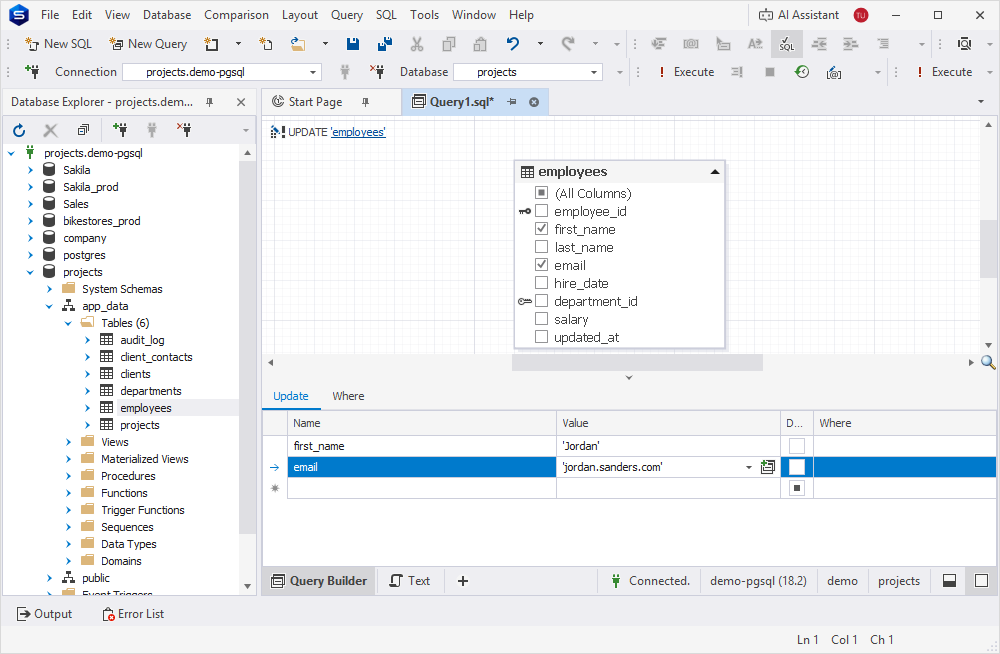
1. On the diagram, select the columns for which you want to update values.
2. Change the query type to UPDATE.
3. On the Update tab, define the column values:
-
In Name, select an empty row, then the column to update.
-
In Value, enter the new value.
-
In Default, select whether to apply the default value defined for the column.
4. On the Where tab, add a filter condition to specify which records to update. For instructions, see Adjust the query.
5. Optional: To preview the query, in the bottom panel, click Text.
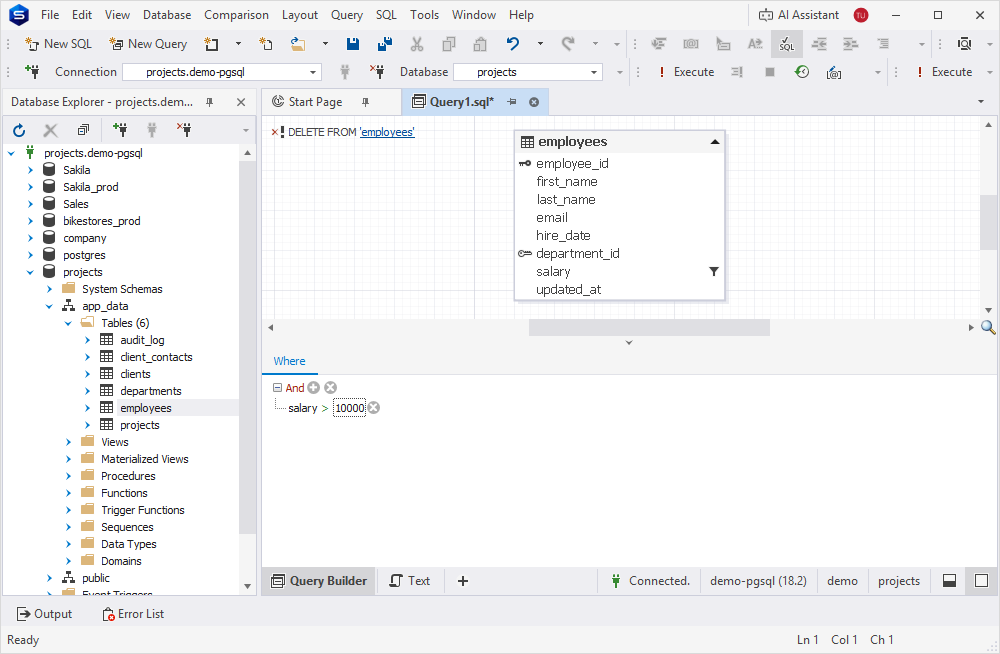
Create a DELETE statement
1. On the diagram, select the columns you want to delete values from.
2. Change the query type to DELETE.
3. On the Where tab, define the condition to determine which rows to delete. For instructions, see Adjust the query.
4. Optional: To preview the query, in the bottom panel, click Text.