Configure comparison options
After you start a schema comparison project, you can configure comparison options on the Options page of the New Schema Comparison wizard.
Open the Options page
In the New Schema Comparison wizard, navigate to the Options page.
The options are grouped in collapsible categories. Selecting an option displays its description below the grid.
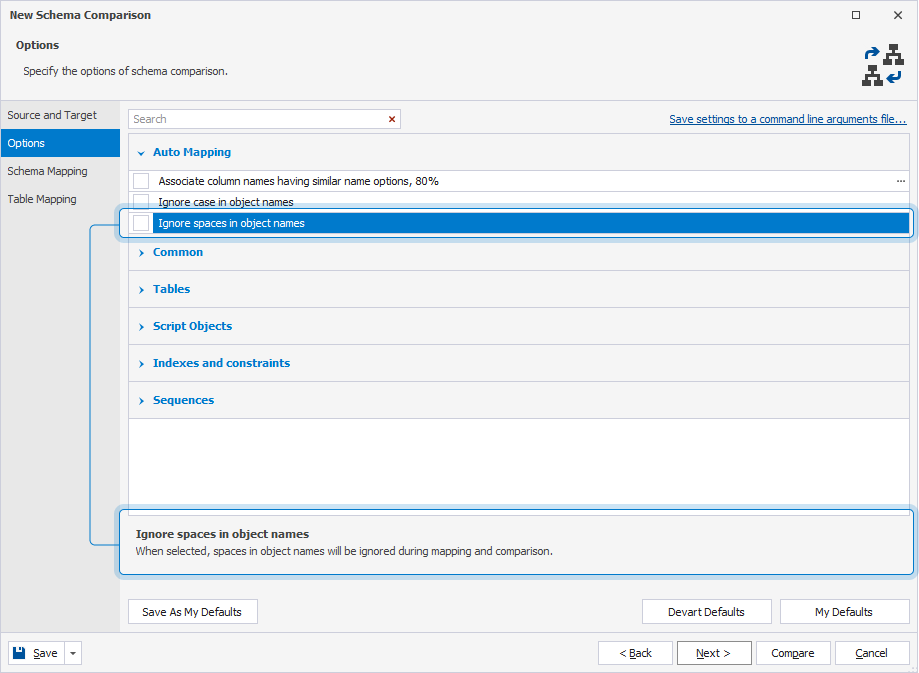
Include or exclude options
To include an option in schema comparison, select the corresponding checkbox. To exclude it, clear the checkbox.
Search for options
To search for options, type a search query in the search box.
Search behavior:
- Matching text is highlighted in yellow.
- The number of matches appears in the search box.
- The search is case-insensitive. For example, searching for data matches both Data and data.
- If the search query contains multiple words, each word is matched separately, and all matches are highlighted.
- To clear the search results, click
 in the search box.
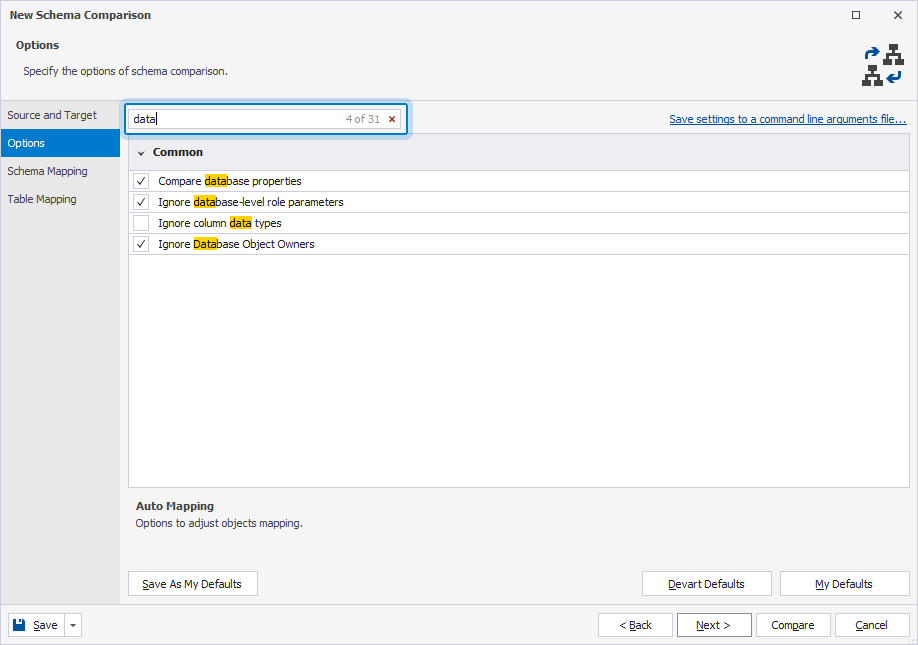
Keyboard shortcuts in the search box
The following table describes the keyboard shortcuts you can use in the search box.
| Keyboard shortcut | Description |
|---|---|
| Ctrl+A | Selects all. |
| Ctrl+Left Arrow (←) | Moves the caret to the beginning of the word. |
| Ctrl+Right Arrow (→) | Moves the caret to the end of the word. |
| Ctrl+Shift+Left Arrow (←) | Selects text from the current caret position to the beginning of the current word and moves the caret to the beginning of the word. |
| Ctrl+Shift+Right Arrow (→) | Selects text from the current caret position to the end of the current word and moves the caret to the end of the word. |
| Ctrl+Backspace | Deletes the word to the left of the caret. |
Create a command-line arguments file
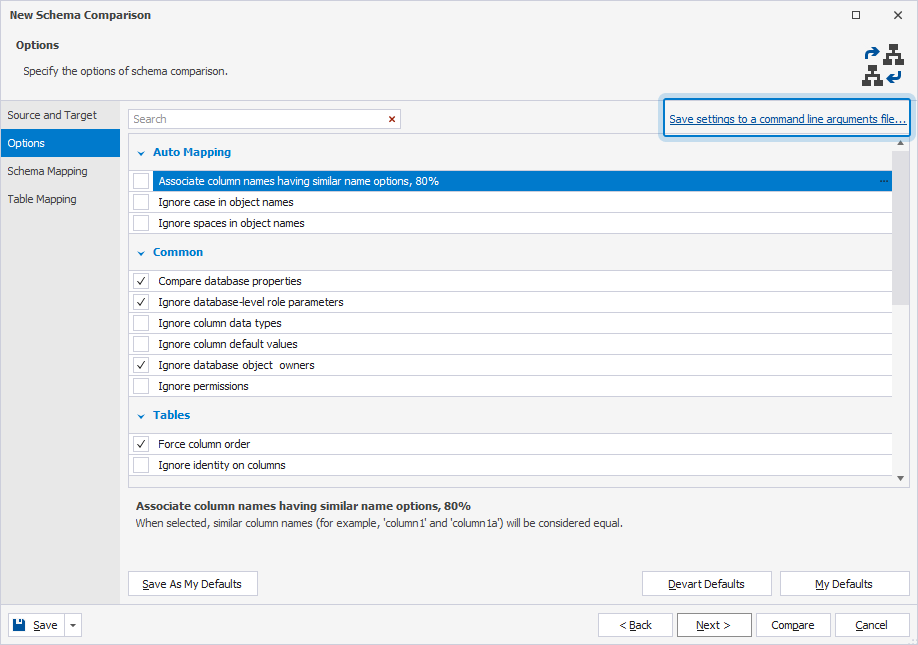
You can create a command-line arguments file on the Options page. This file contains command-line options and parameters you can use with the dbForge Studio command-line interface.
To create a command-line arguments file:
1. In the upper-right corner of the wizard, click Save settings to a command-line arguments file.
2. In the Save As dialog, select the destination folder.
3. Specify the file name.
The default name is SchemaCompareArgs.txt.
4. Click Save.
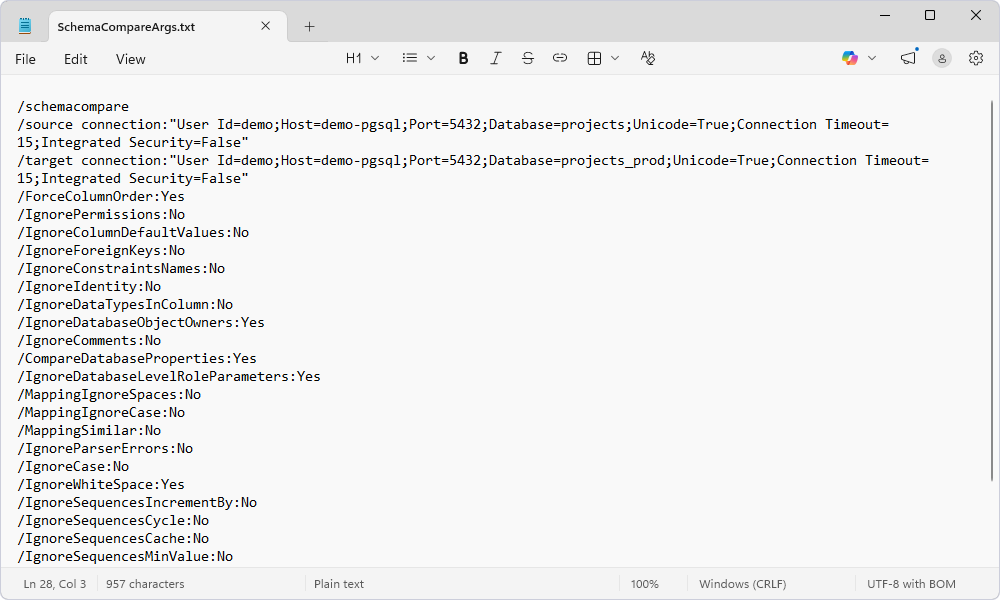
The generated file includes source and target connection details and comparison options with their current state—turned on (Yes) or off (No).
Schema comparison options
Auto Mapping
The following table describes schema comparison options from the Auto Mapping group.
| Name | Description | Default State |
|---|---|---|
| Associate column names having similar name options, % | Treats similar column names as equal, for example, column1 and column1a. |
Off |
| Ignore case in object names | Ignores case differences in object names during mapping. | Off |
| Ignore spaces in object names | Ignores spaces in object names during mapping and comparison. | Off |
Common
The following table describes schema comparison options from the Common group.
| Name | Description | Default State |
|---|---|---|
| Compare database properties | Includes database properties in comparison and synchronization. | On |
| Ignore database-level role parameters | Ignores database-level role parameters during comparison and synchronization. This option helps you prevent errors caused by missing roles on the target server. |
On |
| Ignore column data types | Ignores column data types during comparison and synchronization. The column data types are preserved in the target tables when possible. |
Off |
| Ignore column default values | Ignores column default values during comparison and synchronization. | Off |
| Ignore database object owners | Ignores database owners and database-contained object owners during comparison and synchronization. Target owners are preserved when possible. |
On |
| Ignore permissions | Ignores security permissions during comparison and synchronization. Target database permissions are preserved when possible. |
Off |
Tables
The following table describes schema comparison options from the Tables group.
| Name | Description | Default State |
|---|---|---|
| Force column order | Recreates the table when new columns are added to preserve column order. If this option is turned off, differences in column order are ignored and the objects are treated as equal. | On |
| Ignore identity on columns | Ignores GENERATED ALWAYS or BY DEFAULT AS IDENTITY during comparison and synchronization. |
Off |
Script Objects
The following table describes schema comparison options from the Script Objects group.
| Name | Description | Default State |
|---|---|---|
| Ignore case | Ignores any case differences in object body during comparison. For example, objects with case differences will have the Equal status in the comparison results. |
Off |
| Ignore comments | Ignores comments when comparing stored procedures or functions. During synchronization, comments in the object definition are preserved. |
Off |
| Ignore white spaces | Ignores white spaces, such as new lines, tabs, or spaces, during comparison. Original white spaces in the scripts for database objects and computed columns are preserved. | On |
Indexes and Constraints
The following table describes schema comparison options from the Indexes and Constraints group.
| Name | Description | Default State |
|---|---|---|
| Ignore constraint names | Ignores constraint names during comparison and synchronization. | Off |
| Ignore foreign keys | Ignores foreign keys during comparison and synchronization. Foreign keys might not be restored after synchronization, for example, if a referenced column does not have a primary key. |
Off |
Sequences
The following table describes schema comparison options from the Sequences group.
| Name | Description | Default State |
|---|---|---|
| Ignore CACHE | Ignores the CACHE clause in sequences. |
Off |
| Ignore CYCLE | Ignores the CYCLE clause in sequences. |
Off |
| Ignore INCREMENT BY | Ignores the INCREMENT BY clause in sequences. |
Off |
| Ignore MAXVALUE | Ignores the MAXVALUE clause in sequences. |
Off |
| Ignore MINVALUE | Ignores the MINVALUE clause in sequences. |
Off |
| Ignore START | Ignores the START WITH clause in sequences. |
On |
Use default options
To save your current selection of options as defaults for all new projects, click Save As My Defaults.
To restore your saved defaults, click My Defaults.
To reset all options to their original state, click Devart Defaults.
Note
To automate or schedule schema comparison tasks, create a .bat or .scomp file on the Options page of the wizard.