Map tables and columns
dbForge Studio automatically maps tables and columns that share the same name in both the source and target. You can manually map tables and columns with different names to prevent data loss when objects are renamed.
For example, if you map the 1A source table to the 1B target table, dbForge Studio treats them as the same object. During deployment, the table isn’t dropped and re-created; instead, only the changes are synchronized.
You can view or manage the mapping of tables and columns on the Table Mapping page of the New Schema Comparison wizard.
Open the Table Mapping page
In the New Schema Comparison wizard, navigate to the Table mapping page.
The table displays mapped objects.
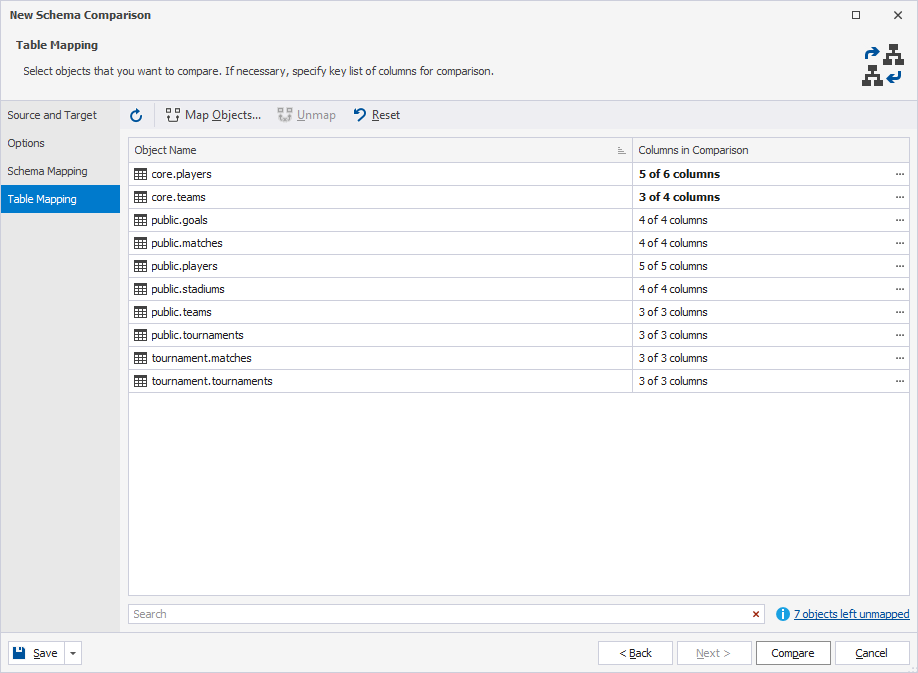
Manage table mapping
View unmapped objects
The number of unmapped objects is displayed in the lower-right corner of the wizard ( ).
).
To restore the default mapping, click Restore.
To refresh a list of tables, click Refresh on the toolbar.
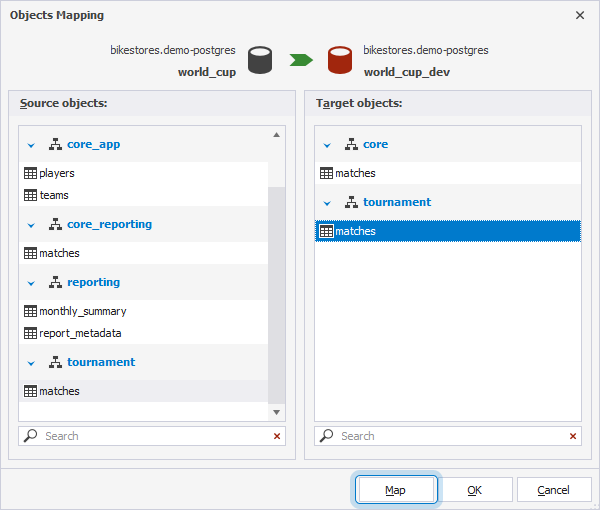
Map tables
1. Open the Objects Mapping dialog in one of these ways:
-
In the lower-right corner of the wizard, click (
). -
On the toolbar, click Map Objects.
2. Select the tables you want to map.
3. Click Map, then click Close.
dbForge Studio moves the selected tables to the list of mapped tables.
Unmap tables
1. In the grid, select the tables you want to unmap.
2. On the toolbar, click Unmap.
dbForge Studio moves the selected tables to the list of unmapped tables.
Manage column mapping
To compare columns with different names, map them manually.
Tip
To ignore the case or spaces in column names, select the Ignore case in object names and Ignore spaces in object names options under Auto Mapping on the Options page.
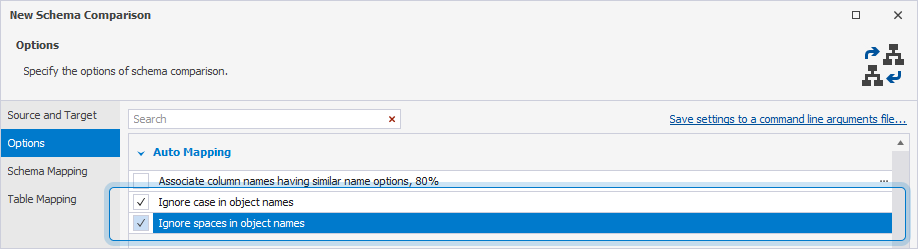
Map columns
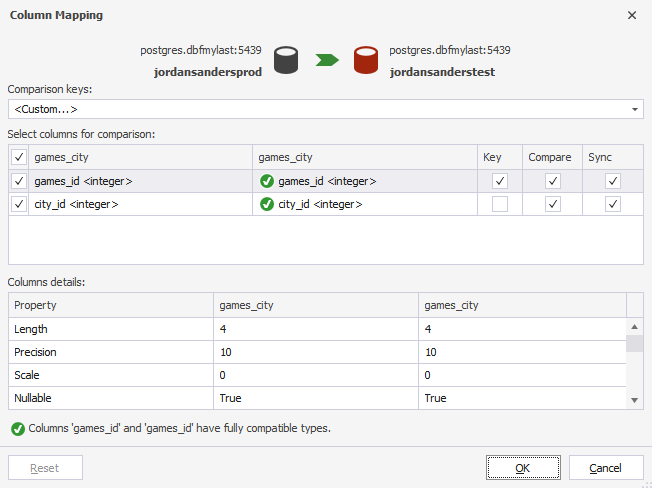
1. In Columns in Comparison, click the ellipsis (…) next to the tables whose columns you want to map.
2. In the Column Mapping dialog, select the columns you want to map from the list.
3. Click OK.
Tip
To reset table mapping to its original state, click Reset.
To discard the changes, click Cancel.
Unmap columns
1. In Columns in Comparison, click the ellipsis (…) next to the tables whose columns you want to unmap.
2. In the Column Mapping dialog, click the column you want to unmap and select None from the list.
3. Click OK.
Search for objects
To search for objects you want to map, type a search query in the search box.
Search behavior:
- Matching text is highlighted in yellow.
- The number of matches appears in the search box.
- The search is case-insensitive. For example, searching for Match matches Match and match.
- If the query contains multiple words, each word is matched separately, and all matches are highlighted.
- To clear the search results, click
 in the search box.
Keyboard shortcuts in the search box
The table describes the keyboard shortcuts you can use in the search box.
| Keyboard shortcut | Description |
|---|---|
| Ctrl+A | Selects all. |
| Ctrl+Left Arrow (←) | Moves the caret to the beginning of the word. |
| Ctrl+Right Arrow (→) | Moves the caret to the end of the word. |
| Ctrl+Shift+Left Arrow (←) | Selects text from the current caret position to the beginning of the current word and moves the caret to the beginning of the word. |
| Ctrl+Shift+Right Arrow (→) | Selects text from the current caret position to the end of the current word and moves the caret to the end of the word. |
| Ctrl+Backspace | Deletes the word to the left of the caret. |
Note
To automate or schedule schema comparison tasks, create a .bat or .scomp files on the Table Mapping page of the wizard.