Uninstall dbForge SQL Complete
You can uninstall dbForge SQL Complete by using one of the following methods.
Note
Before uninstalling dbForge SQL Complete, close all running SSMS instances; otherwise, the following message appears:

Uninstall from Windows Settings
Note
This method can be used on Windows 10 and 11.
To uninstall from Windows Settings:
1. Open Settings in one of these ways:
- Right-click Start, then select Settings.
- In the search box, type settings, then click Settings.
- Open Start, select Settings.
- Press Windows+I.
2. Select Apps > Installed apps.
Tip
To find dbForge SQL Complete, start typing its name in the Search apps box.
3. Next to dbForge SQL Complete, click the ellipsis (…) and select Uninstall.
4. Click Uninstall to confirm the uninstallation.
5. In the User Account Control window, click Yes.
6. In the message box, click Yes to confirm the uninstallation.
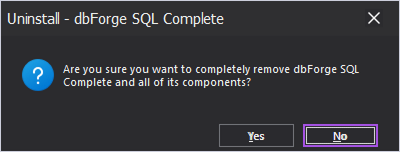
This starts the dbForge SQL Complete uninstaller.
7. Optional: Select the uninstall options you want to remove:
- Registry options
- Snippets
- Configuration files
- Format profiles
- Code analysis profiles
Note
All configuration files and customized settings will be removed.
Tip
To remove all options, select Select All.
To share your thoughts about dbForge SQL Complete after the uninstallation is complete, select Go to the product feedback page after the uninstallation. This opens the page where you can submit your feedback.

8. Click Uninstall.
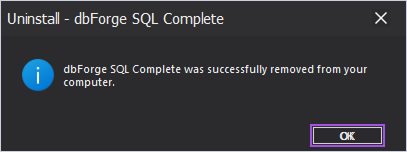
When the confirmation message that the application was successfully removed appears, click OK to exit the uninstaller.
Uninstall from Windows Control Panel
1. Open Control Panel in one of these ways:
- In the search box, type control panel, then select Control Panel.
- Click Start, type control panel in the search box, then select Control Panel.
2. Select Programs and Features.
3. Select dbForge SQL Complete, then select Uninstall.
4. Repeat steps 5 to 8 from Uninstall from Windows Settings.
Uninstall using Chocolatey
Note
If dbForge SQL Complete was installed using Chocolatey, it is strongly recommended to uninstall it using Chocolatey as well. Although the product can be uninstalled by other methods after a Chocolatey installation, doing so may cause issues later. Specifically, if you try to reinstall SQL Complete using Chocolatey, the installer may report that SQL Complete is already installed.
To uninstall using Chocolatey:
1. Open Command Prompt or Windows PowerShell as an administrator.
2. Run the following command:
choco uninstall dbforge-sql-cmpl
