
|
Connecting to Heroku Postgres |

|
|
|
Connecting to Heroku Postgres |
|
Heroku is a cloud-based multilingual platform-as-a-service (PaaS) that is designed for hosting applications and web services, working with loaded applications, reducing the need for complex work with the server, and rapid scaling of applications. It also simplifies and speeds up the development cycle.
This tutorial assumes that you have installed PgDAC and run the database server and the IDE.
You need to know the server address, the port number (if you use a port other than the default port 5432),
the database name, the schema, and the username and password. To connect at runtime, add the PgAccess unit to
the uses clause for Delphi or include the PgAccess.hpp header file for C++ Builder.
To establish a connection to your Heroku PostgresSQL database, set up the properties of the TPgConnection component: Server, Port, Database, Schema, Username, and Password. You can also specify all connection parameters in the ConnectString property.
To connect to the Heroku Postgres, you need to get the URL of your database. You may get it through the Heroku Dashboard. This method is easier if you are using the platform for the first time.
< postgres: //< username >: < password >@< hostname/server >/< databasename >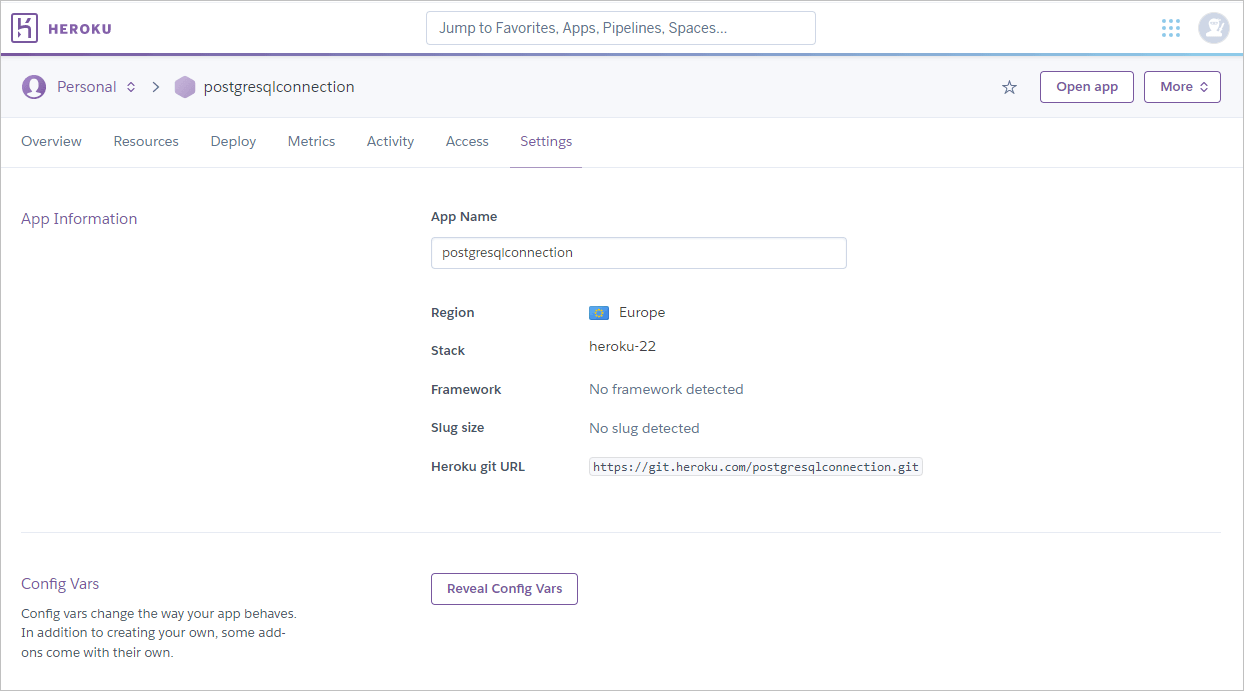
The following assumes that you have already created or opened an existing form in the IDE. At design-time, you can set up a TPgConnection object in the TPgConnection Editor or Object Inspector.
TPgConnection component in the PgDAC category on the Tool Palette.
TPgConnection in this unit, it will be named PgConnection1.
Using TPgConnection Editor
PgConnection1 object.Server edit box.5432, specify it in the Port edit box.postgres by default) in the Username edit box.postgres by default) in the Password edit box.Database edit box.public by default) in the Schema edit box.Using Object Inspector
PgConnection1 object on the form.Database property to the database name.Password property to the password (postgres by default).5432, set the Port property to the port.Schema property to the database schema (public by default).Server property to the DNS name or IP address of the Heroku Postgres server.Username property to the username (postgres by default).The same connection parameters at runtime are set up as follows:
Delphi
var
  PgConnection1: TPgConnection;
begin
  PgConnection1 := TPgConnection.Create(nil);
  try
    // adds connection parameters
    PgConnection1.Server := 'server';
    PgConnection1.Database := 'database';
    PgConnection1.Username := 'username';
    PgConnection1.Password := 'password';
    PgConnection1.Port := 5432;
    // disables a login prompt
    PgConnection1.LoginPrompt := False;
    // opens a connection
    PgConnection1.Open;
  finally
    PgConnection1.Free;
  end;
end;
C++ Builder
TPgConnection* PgConnection1 = new TPgConnection(NULL);
try {
	// adds connection parameters
	PgConnection1->Server = "server";
    PgConnection1->Database = "database";
	PgConnection1->Username = "username";
	PgConnection1->Password = "password";
	PgConnection1->Port = 5432;
	// disables a login prompt
	PgConnection1->LoginPrompt = False;
	// opens a connection
	PgConnection1->Open();
}
__finally {
	PgConnection1->Free();
}
Now, all you have to do is establish a connection to Heroku Postgres. It is assumed that you have installed the Heroku Postgres Data Access Componnets on your computer.