Windows DSN Configuration
After installing the driver, create a DSN for Shopify in the ODBC Data Source Administrator.
-
Open the ODBC Data Source Administrator in one of the following ways:
- In the Windows search box, enter
ODBC Data Sources, then choose the application that matches the bitness of the third-party application (32-bit or 64-bit).
- In Control Panel, select System and Security > Windows Tools, then double-click ODBC Data Sources (32-bit) or ODBC Data Sources (64-bit). Note that before Windows 8, the icon was named Data Sources (ODBC).
- Run
C:\Windows\SysWOW64\odbcad32.exe to create a 32-bit DSN or C:\Windows\System32\odbcad32.exe to create a 64-bit DSN.
- Select the User DSN or System DSN tab. Most applications work with both types, yet some applications require a specific type of DSN.
- Click Add. The Create New Data Source dialog opens.
- Select Devart ODBC Driver for Shopify, then click Finish. The driver configuration dialog opens.
- In Data Source Name, enter a name for your data source.
- Optional: In Description, type a short description of the data source.
-
In API Version, select the version of the Shopify API used by the driver.
- Ver1: Uses the legacy API implementation. Select this option if you need compatibility with existing queries or integrations.
- Ver2: Uses the updated API implementation. This version provides better compatibility with newer Shopify features.
-
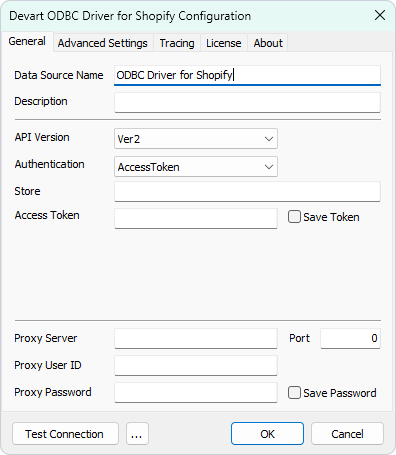
In Authentication, choose the method for connecting to Shopify.
- AccessToken: Select this option if you already have a Shopify access token (for example, from a private or custom app).
Fill in the Store and Access Token fields.
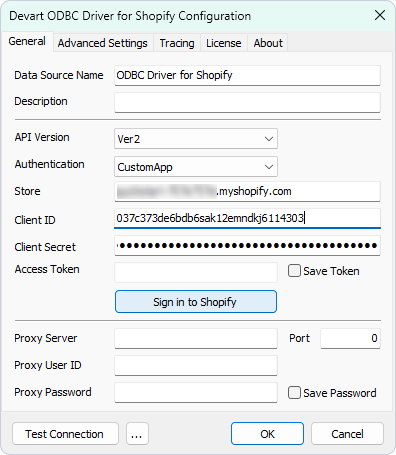
- CustomApp: Select this option if you are using a Shopify custom app with API credentials (API key, API secret, etc.) and need a more advanced or configurable authentication setup.
Fill in the Store, Client ID, and Client Secret fields. To learn how to generate values for Client ID and Client Secret, see Getting Parameters for Custom App Authentication.
Click Sign in to Shopify, then log in to Shopify using your email address or passkey.
- Optional: Click Test Connection to verify the connection settings.
- Click OK.
See Also
Connection String Parameters