Windows DSN Configuration
To connect to SendGrid, you need to have an API key. For instructions, see How to Get API Key for ODBC Driver for SendGrid.
After installing the driver, create a DSN for SendGrid in the ODBC Data Source Administrator.
-
Open the ODBC Data Source Administrator in one of the following ways:
- In the Windows search box, enter
ODBC Data Sources, then choose the application that matches the bitness of the third-party application (32-bit or 64-bit).
- In Control Panel, select System and Security > Windows Tools, then double-click ODBC Data Sources (32-bit) or ODBC Data Sources (64-bit). Note that before Windows 8, the icon was named Data Sources (ODBC).
- Run
C:\Windows\SysWOW64\odbcad32.exe to create a 32-bit DSN or C:\Windows\System32\odbcad32.exe to create a 64-bit DSN.
- Select the User DSN or System DSN tab. Most applications work with both types, yet some applications require a specific type of DSN.
- Click Add. The Create New Data Source dialog opens.
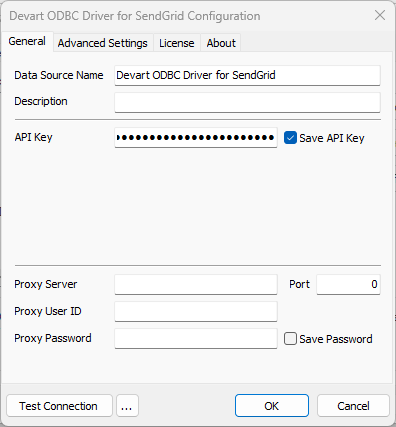
- Select Devart ODBC Driver for SendGrid, then click Finish. The driver configuration dialog opens.
-
Enter the connection information in the appropriate fields.

- Optional: Click Test Connection to verify the connection settings.
- Click OK.
See Also
Connection String Parameters