
|
ODBC Driver for Dynamics 365 Business Central Upgrading Driver Version and License Key - ODBC Driver for Dynamics 365 Business Central |

|
|
|
ODBC Driver for Dynamics 365 Business Central Upgrading Driver Version and License Key - ODBC Driver for Dynamics 365 Business Central |
|
If the ODBC Driver for Dynamics 365 Business Central was initially deployed through Group Policy, it can be easily updated to a newer version. Follow the steps below to update both the ODBC Driver for Dynamics 365 Business Central and the license to newer versions on all remote computers in the domain.
If your license is still valid, there's no need to create a new MST file. Use the current MST file instead.
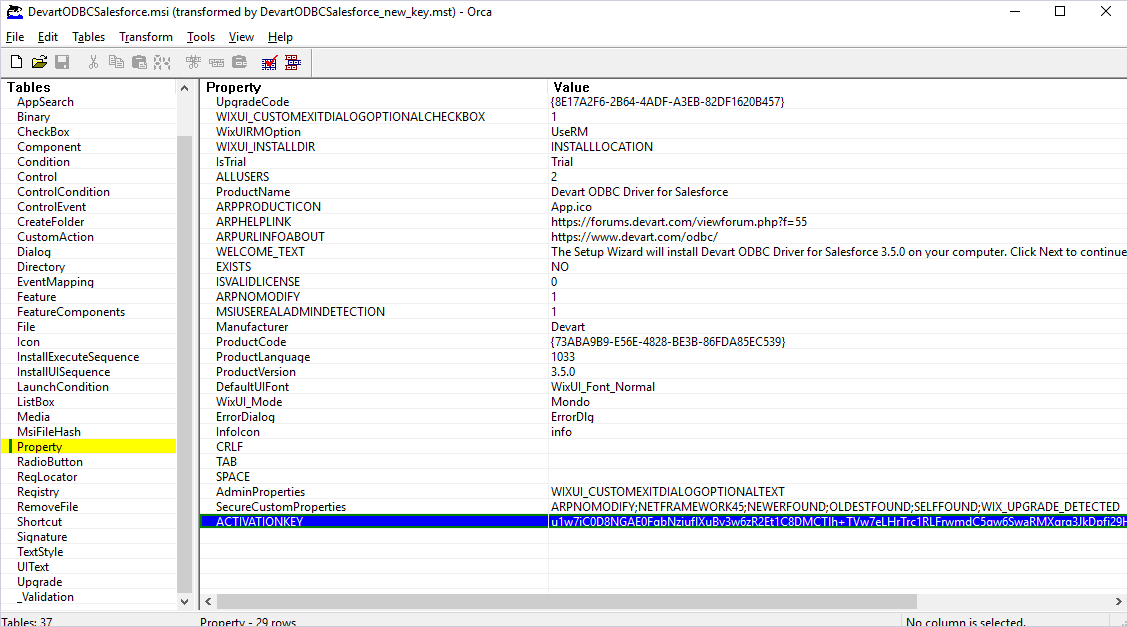
The MSI file for the ODBC Driver for Salesforce is taken as an example to illustrate the Group Policy installation process. Use the same steps described in this section when installing the ODBC Driver for Dynamics 365 Business Central.
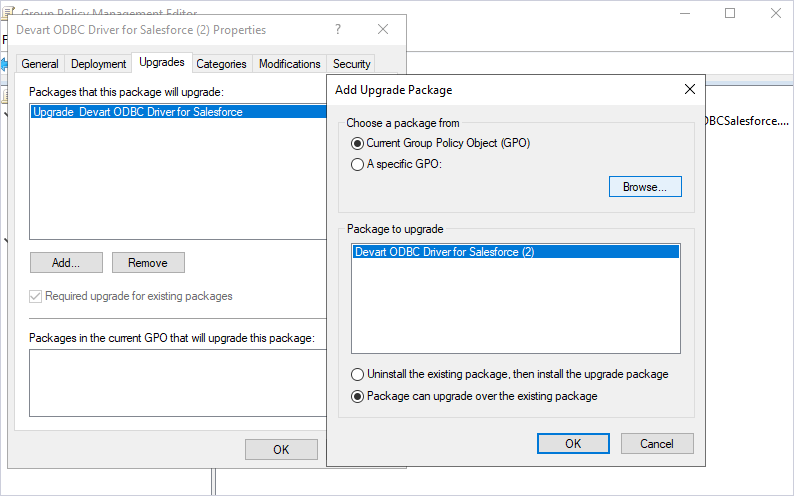
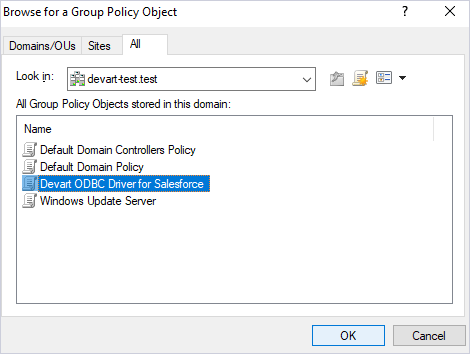
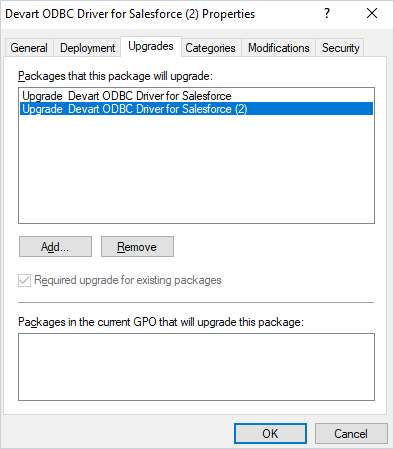
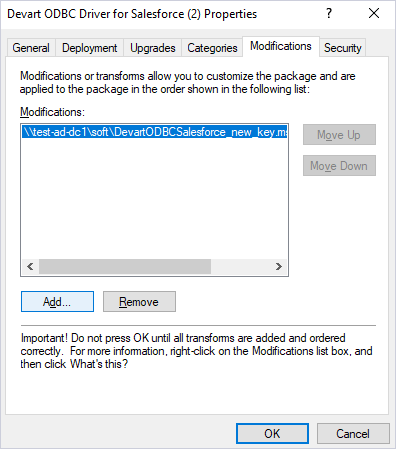
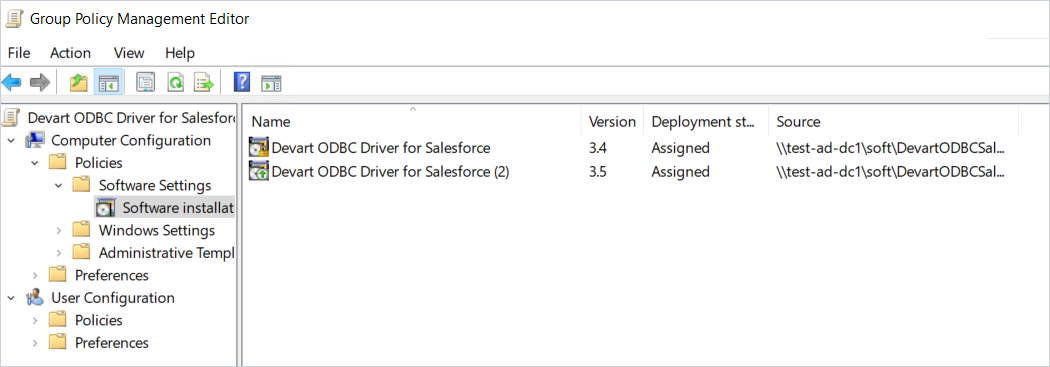
Once the GPO configuration on the server is complete, the ODBC Driver for Dynamics 365 Business Central will automatically update to the latest version each time a client computer restarts.
To update the ODBC Driver for Dynamics 365 Business Central to a newer version on remote client machines, all domain users must restart their computers after their first login.
If successful, both the driver and the license key will be automatically updated to the new version on remote computers. For detailed instructions on how to view the technical details of the ODBC Driver for Dynamics 365 Business Central after upgrading, refer to Client-Side Actions.