Activate the driver using Group Policy
To activate ODBC Driver for Zoho CRM when deploying it using Group Policy, follow these steps:
1.1. Use Orca to create a custom MST file for the driver.
1.2. In the MST file, add the ACTIVATIONKEY property and assign it a valid license key for the driver.
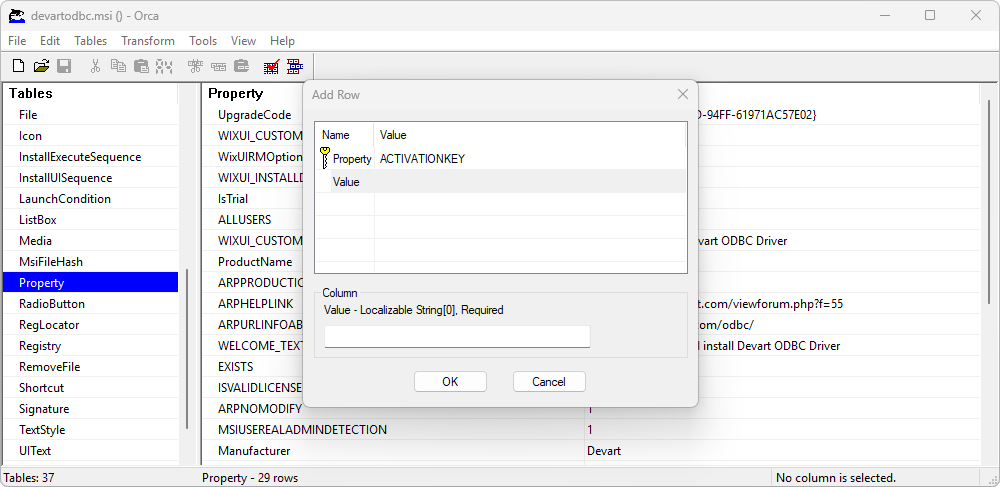
2. Save the MSI file for the driver and the MST file in a shared network folder accessible to all domain users.
3. Configure the Group Policy:
3.1. Open the Group Policy Management Console and create a new Group Policy Object (GPO) or edit an existing one.
3.2. Navigate to Computer Configuration > Policies > Software Settings > Software installation. Right-click Software installation, then select New > Package.
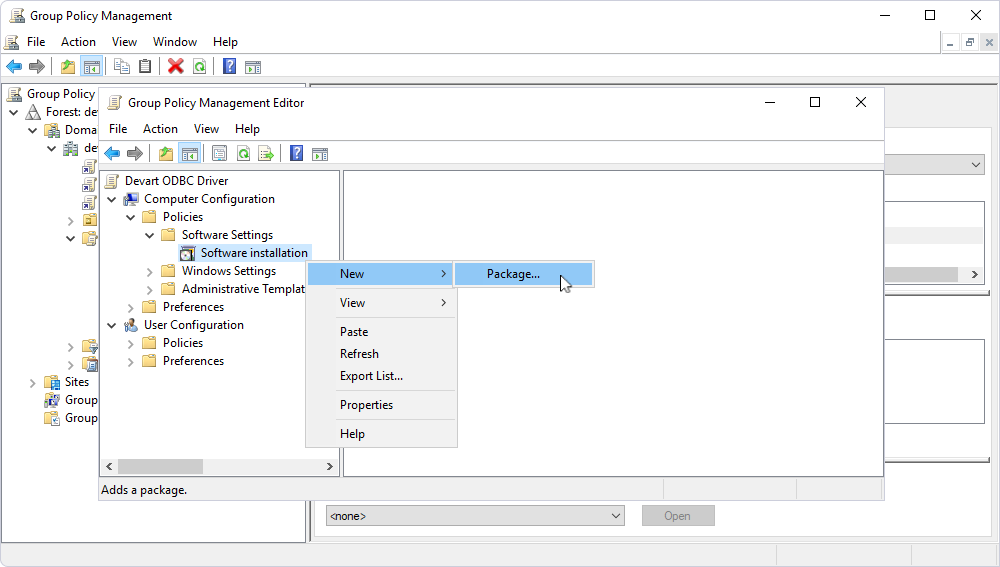
3.3. In the dialog that opens, navigate to the MSI installation file you want to deploy, then click Open.
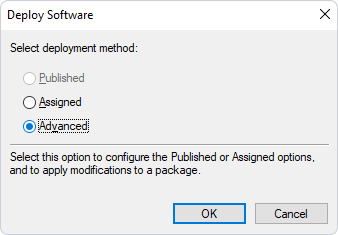
3.4. In the Deploy Software dialog, select Advanced to specify the software deployment method. This option lets you make modifications to the MSI file, such as applying an MST file created using Orca.
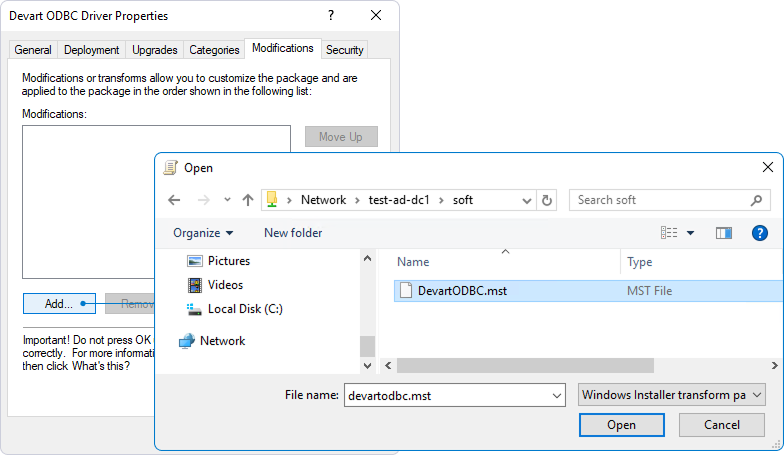
3.5. In the Devart ODBC Driver for Zoho CRM Properties dialog, navigate to the Modifications tab, then click Add. Browse to the MST file, select it, then click Open.
Note
After signing in for the first time, users must restart their computers to complete the installation of ODBC Driver for Zoho CRM on remote client computers.
After deployment, the ODBC driver is installed and activated on the client computer.
4. To start working with the driver, open the ODBC Data Source Administrator on the client computer and add the deployed ODBC driver.