Create an MST file using Orca
You can create an MST file to customize the installation of ODBC Driver for Zoho CRM. An MST file is a settings file used by Windows Installer to enable customized installations of an original MSI package. It contains program configuration options that allow you to tailor the installation process to specific requirements without modifying the original MSI database. Since altering the MSI database directly is not recommended, MST files provide a safer and more flexible way to transform and configure the contents of an MSI package.
There are many tools for creating and editing Windows Installer packages and merge modules. The following instructions are for Orca, which is available as part of the Windows SDK Components for Windows Installer Developers.
Create an MST file
1. Launch the Orca application.
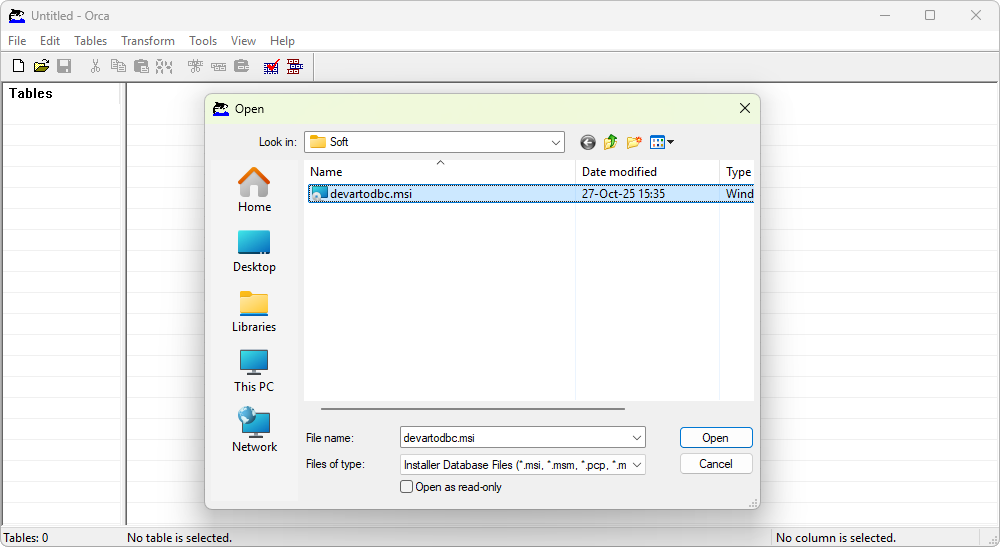
2. Select File > Open to open the required MSI file.
After the file is loaded, the Tables pane on the left side of the main application window shows the properties and configuration settings of the selected MSI file.
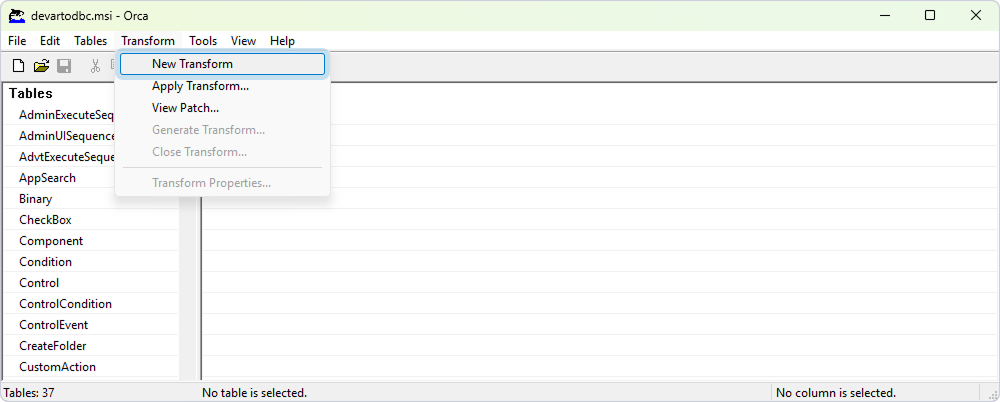
3. Select Transform > New Transform.
4. In the Tables pane, select Property, then double-click an empty row in the right pane of the application window.
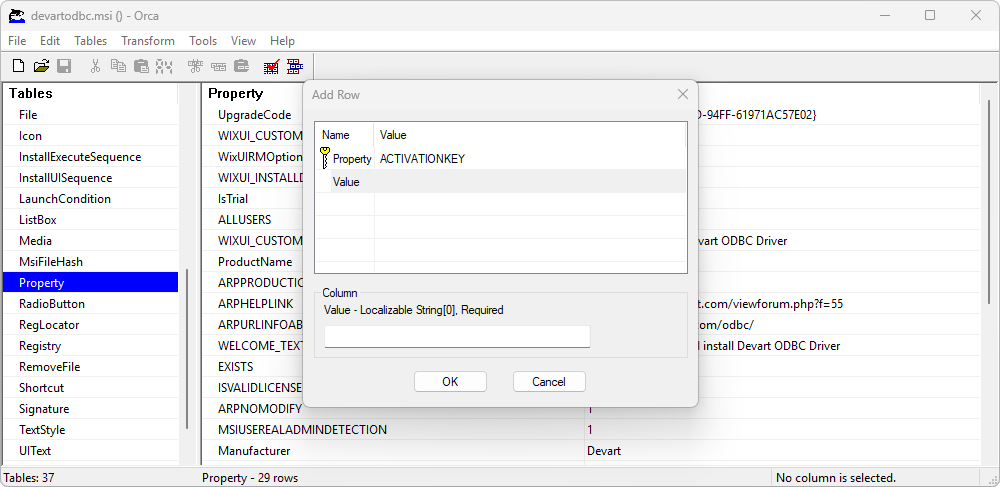
5. In the Add Row dialog that appears, configure the following settings:
- Property – Enter ACTIVATIONKEY in all capital letters.
- Value – Enter the valid OEM license key for ODBC Driver for Zoho CRM.
6. Click OK.
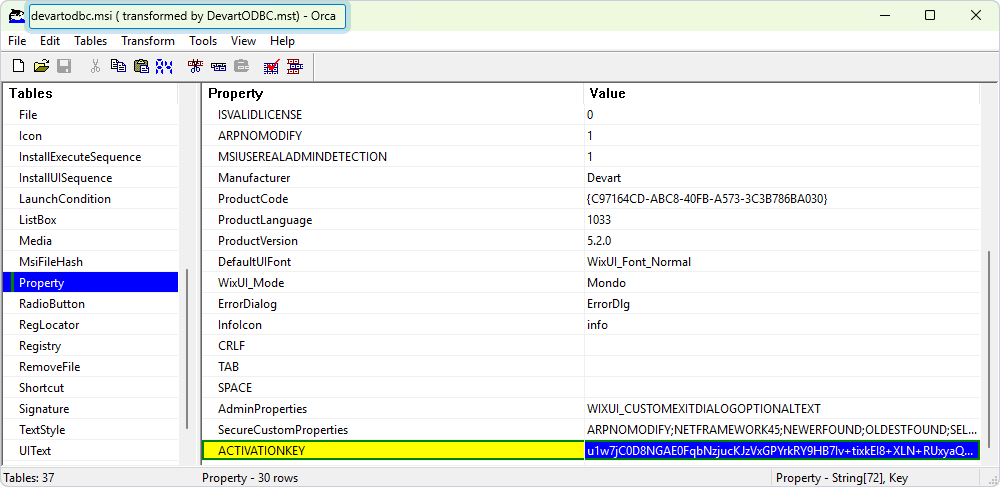
A new property named ACTIVATIONKEY is added. The license key is displayed in the Value column next to it.
7. Select Transform > Generate Transform.
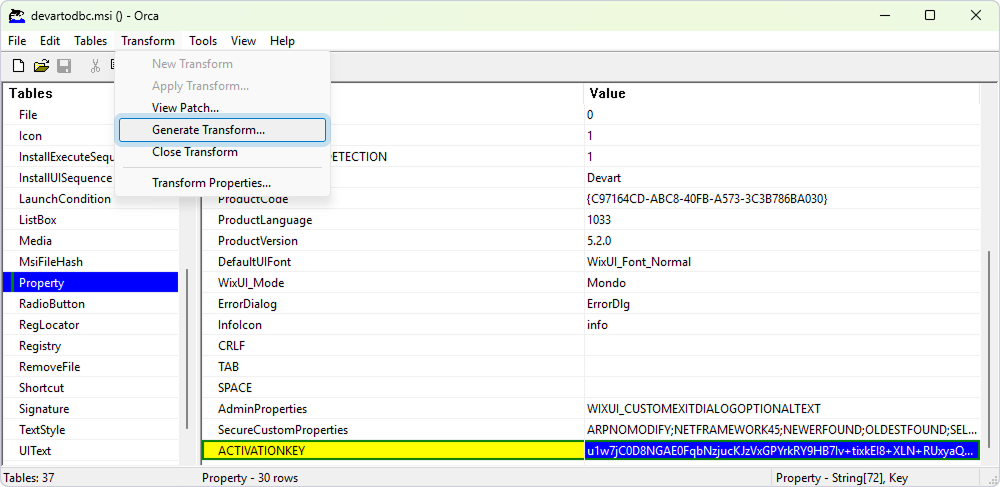
8. In the Save Transform As dialog that appears, enter the name for the new MST file, then click Save.
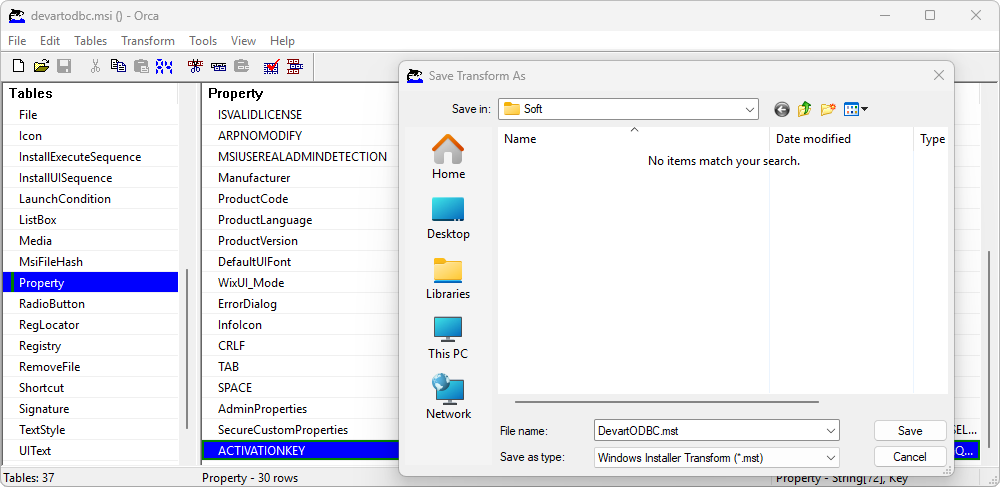
The Orca window title changes to devartodbczoho.msi (transformed by DevartODBCZoho.mst) - Orca, and the newly created MST file is saved in the specified folder alongside the MSI file.