Connect Oracle Business Intelligence to Zoho CRM
This topic describes how to create a new repository in Oracle BI Administration Tool and import Zoho CRM data using Devart ODBC Driver for Zoho CRM.
Prerequisites
- Download and install Oracle BI Administration Tool.
-
Download and install Devart ODBC Driver for Zoho CRM.
- Create a Windows DSN.
Load the data
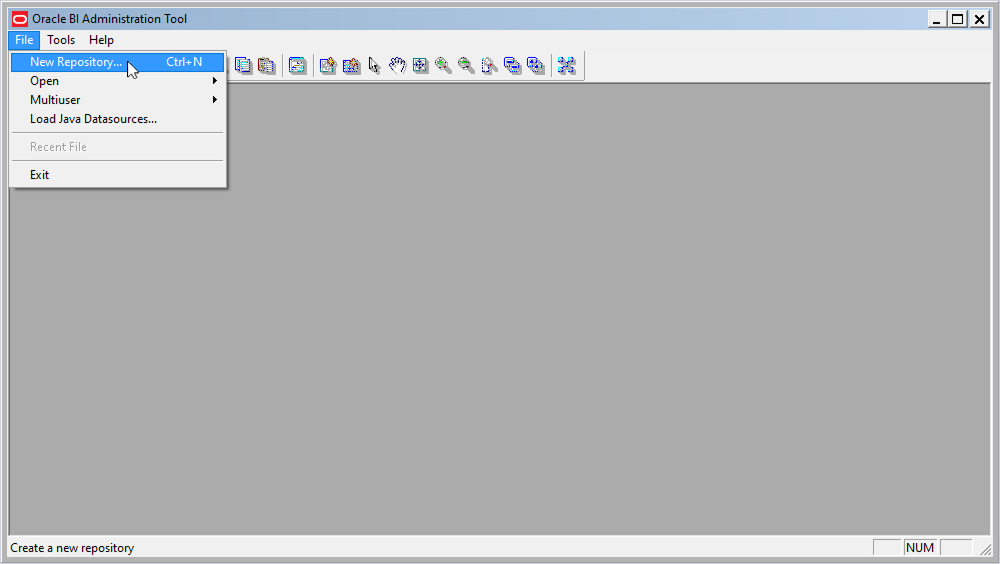
1. To create a new repository for Zoho CRM data, open the Oracle BI Administration Tool and select File > New Repository.
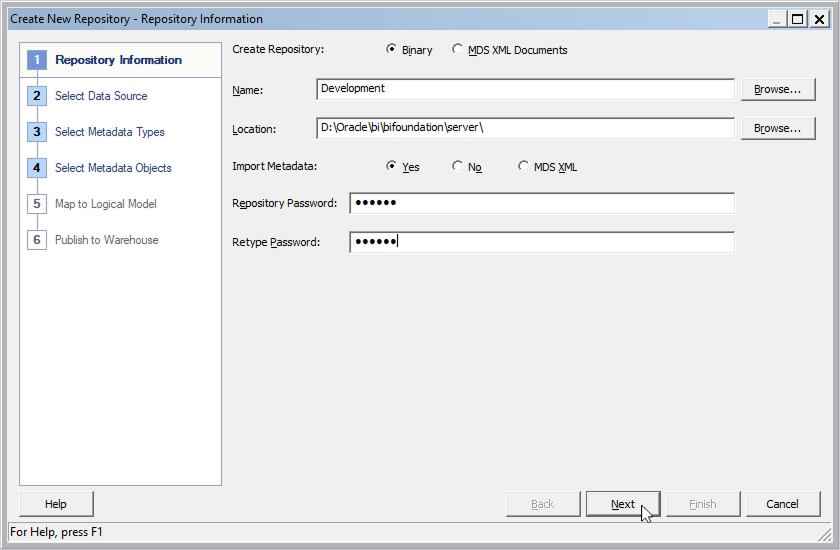
2. In Name, enter the repository name.
3. In Location, enter the repository file path.
4. In Repository Password and Retype Password, set and confirm the repository password.
5. Click Next.
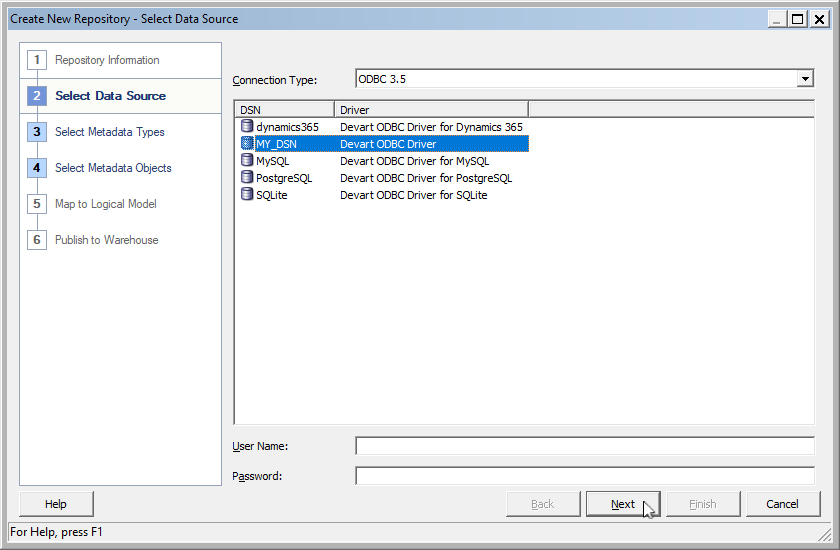
6. Select your DSN for Zoho CRM, then click Next.
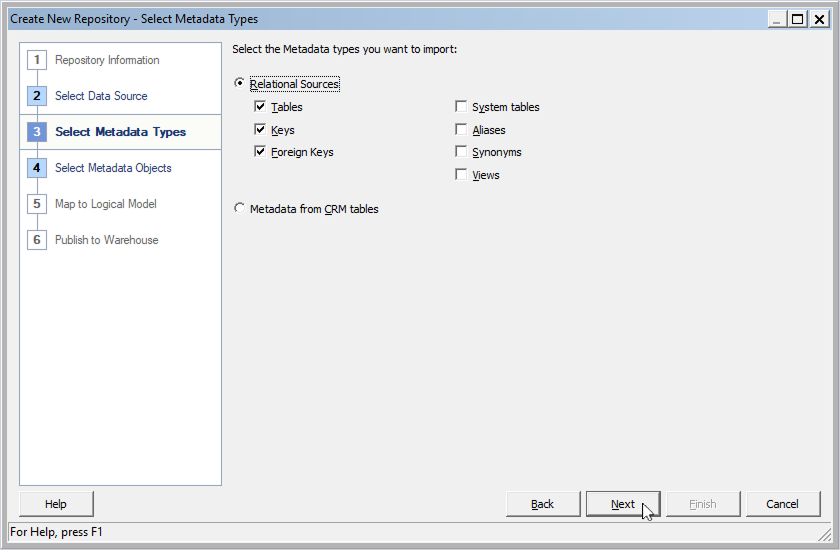
7. Select the metadata types you want to import into the repository, then click Next.
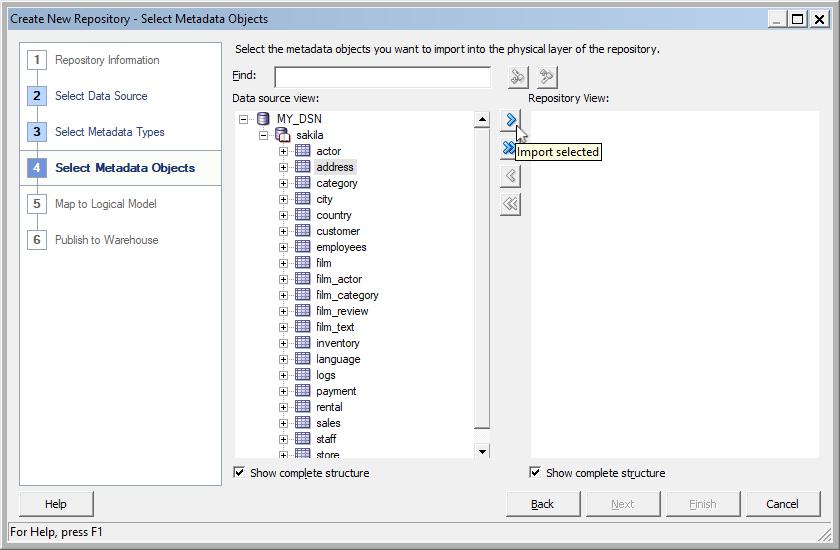
8. Select the table you want to import, then click Import selected.
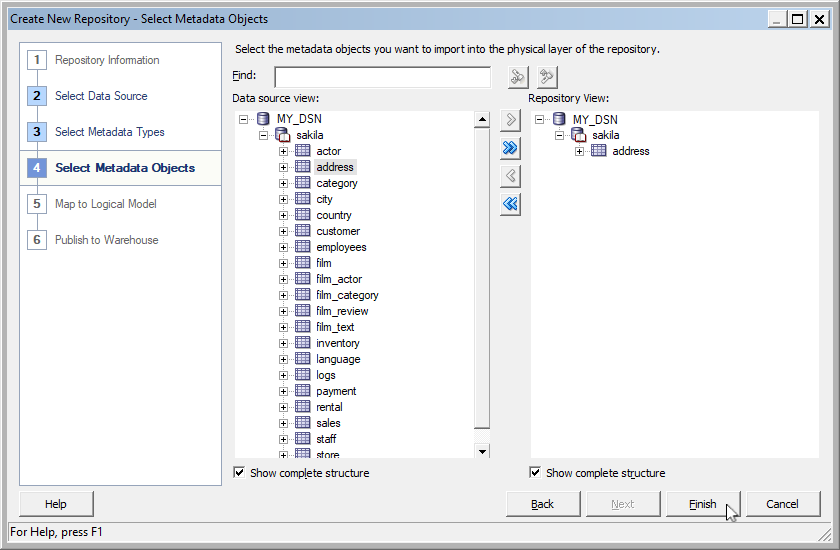
9. Click Finish.
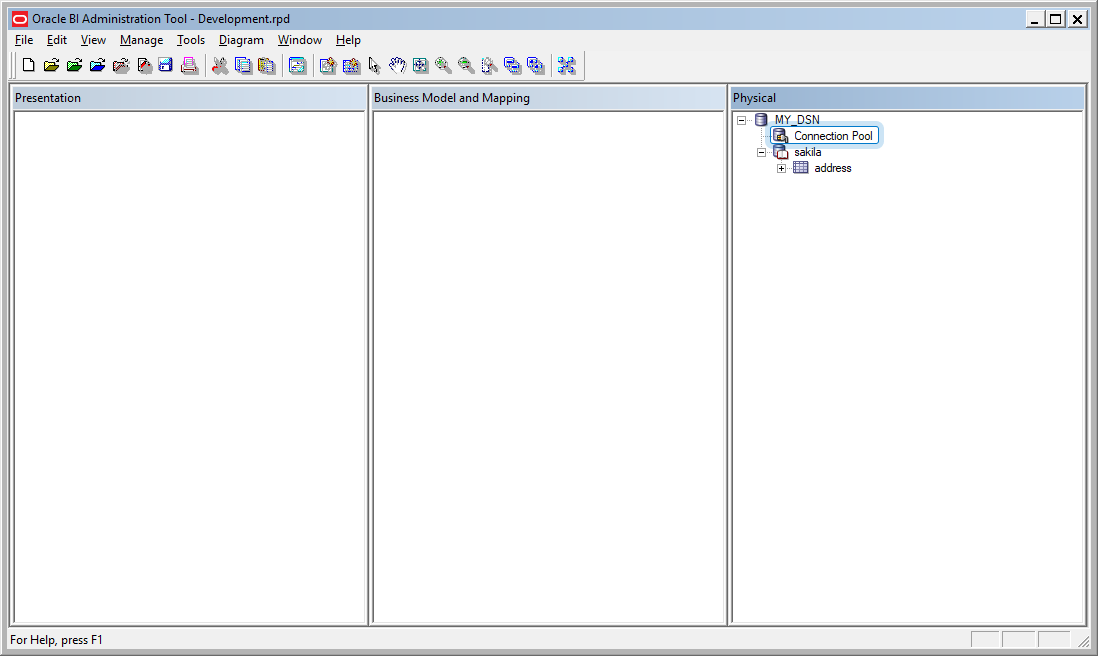
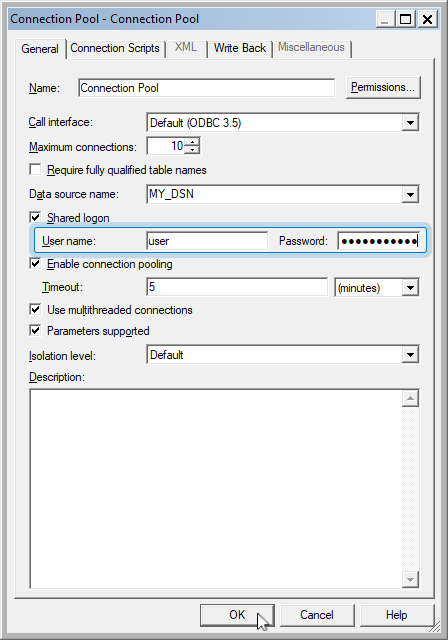
10. To access the imported table, double-click Connection Pool.
11. Enter your Zoho CRM credentials, then click OK.
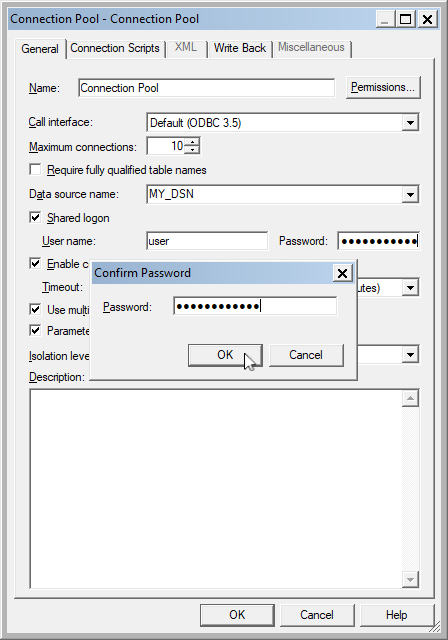
12. Confirm the password and click OK.
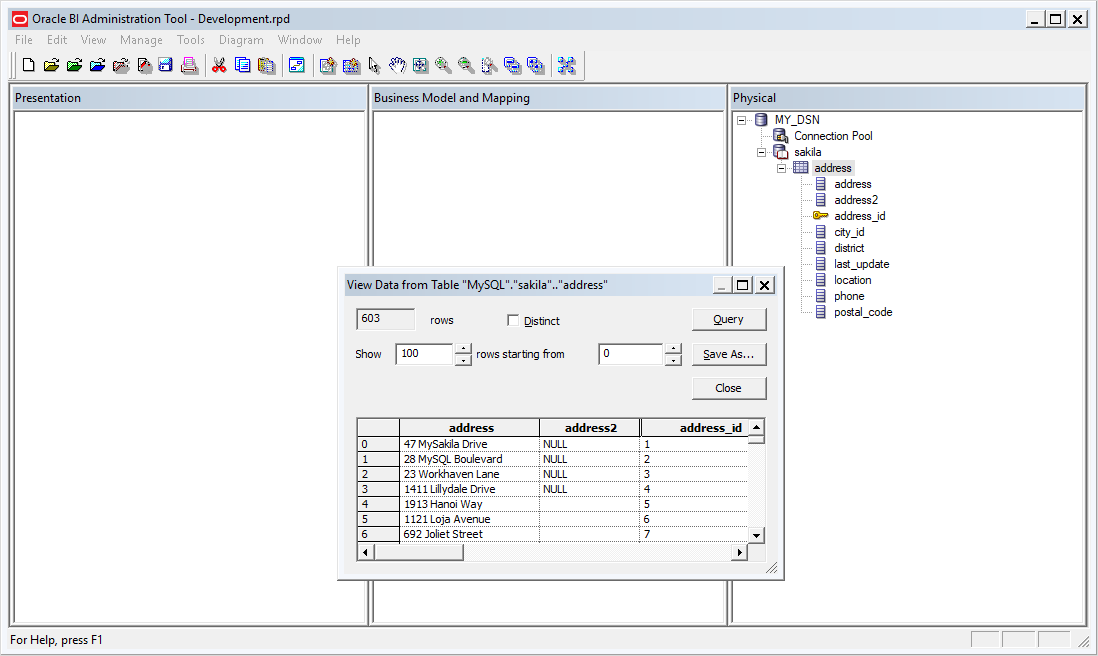
13. Optional: To view the table data, right-click the table name and select View Data.
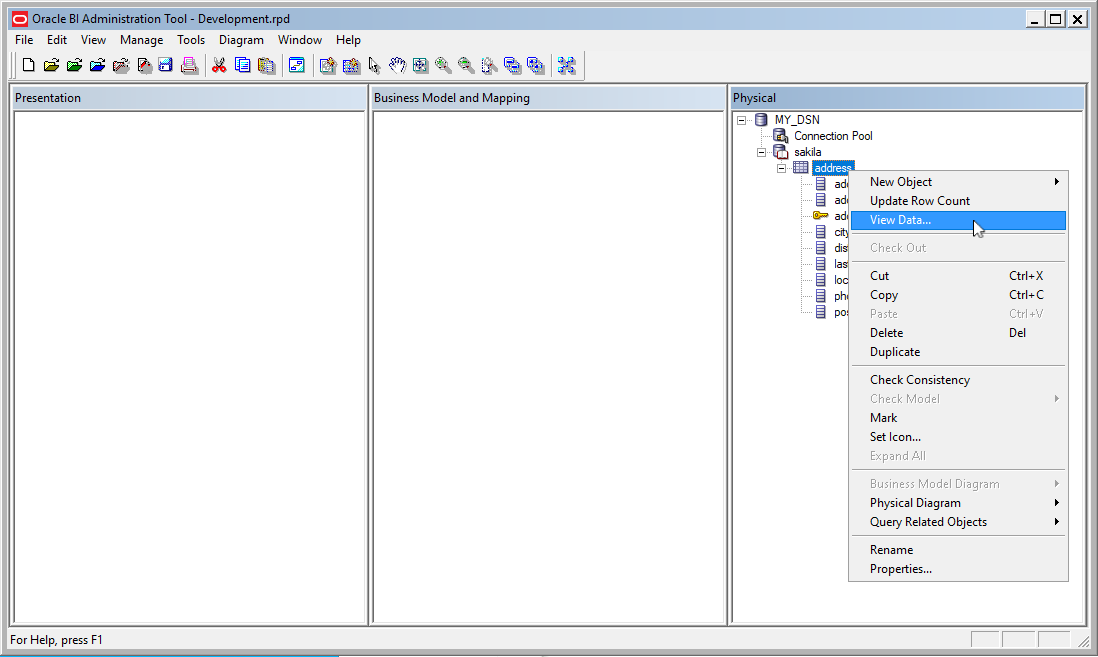
The data is displayed in a table.