Configure a Windows DSN for Zoho CRM
A Data Source Name (DSN) stores connection details, such as server information and user credentials, for establishing a connection to Zoho CRM.
Create a DSN
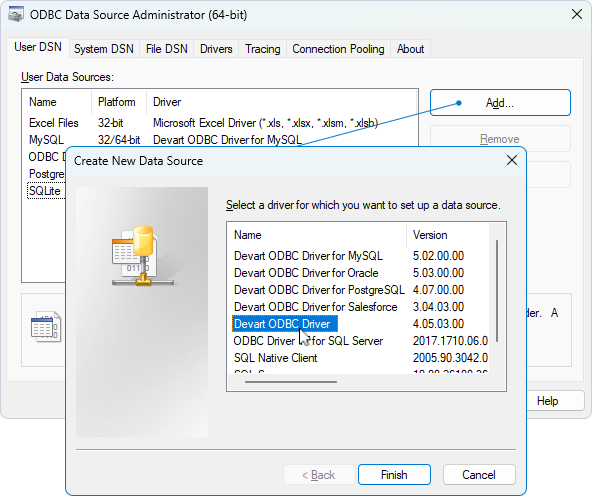
1. In the Windows search box, enter ODBC Data Sources, then select the version of the ODBC Data Source Administrator that matches the bitness of your third-party application (32-bit or 64-bit).
2. Select the appropriate tab to choose the DSN type:
-
User DSN – Specific to a user account and only accessible to that user.
-
System DSN – Accessible to all users on the computer and used by system-wide applications.
-
File DSN – Portable and system-independent, a File DSN stores connection details in a file, allowing it to be shared across different systems.
Note
Most applications support all DSN types, but some may require a specific one.
3. Click Add.
4. Select Devart ODBC Driver for Zoho CRM, then click Finish.
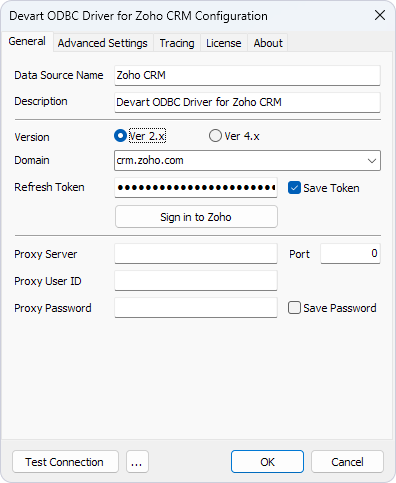
5. Enter a name for your data source and specify the connection details.
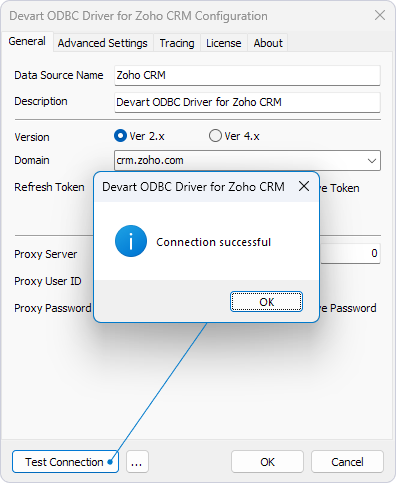
6. Optional: Click Test Connection to verify the connection settings.
7. Click OK.