Install the driver
To install Devart ODBC Driver for Zoho CRM on Windows:
1. To download the installer, visit the Devart website and download the appropriate ODBC Driver for Zoho CRM version for Windows.
2. Double-click the downloaded .exe file to open the installation wizard.
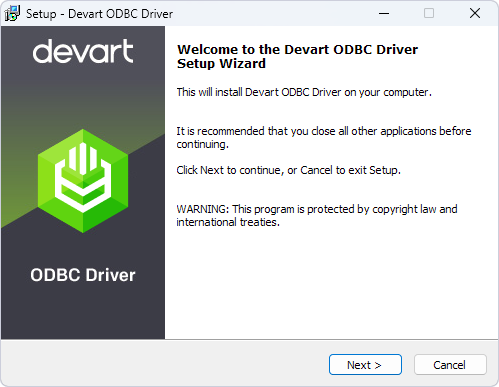
3. Follow the instructions in the installation wizard.
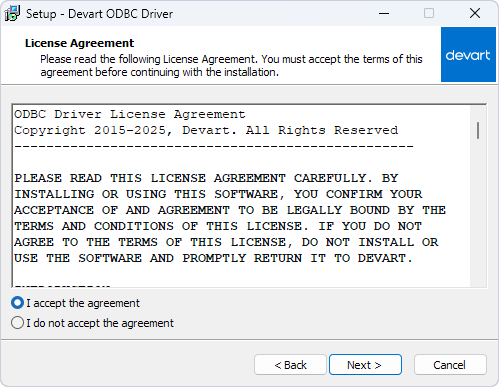
3.1. Read and accept the license agreement. Then click Next.
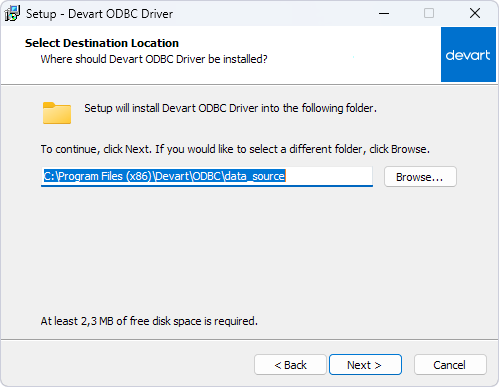
3.2. Choose the installation folder or use the default location. Then click Next.
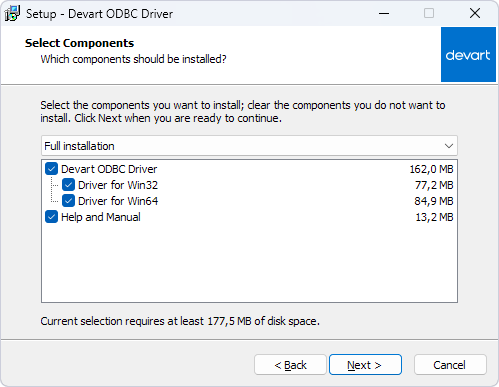
3.3. Select the components you want to install.
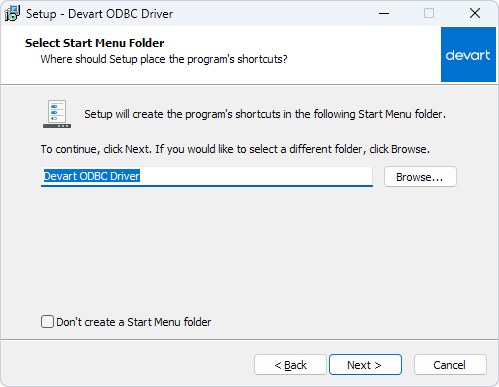
3.4. Specify the Start menu folder to save the driver’s shortcuts. To prevent the installer from creating the Start menu folder, select Don’t create a Start Menu folder. Then click Next.
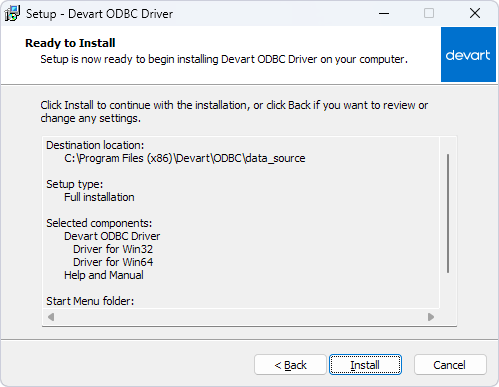
3.5. Click Install.
4. To activate the driver immediately after installation, select Input Purchased or Trial activation key and enter your key in the box. Alternatively, click Load Activation Key and select the file that contains your key.
Note
You need to activate the driver even for the trial version.
Tip
You can find your activation key in the registration email or your Customer Portal account. To open the Customer Portal, click Get Purchased or Trial Activation Key.
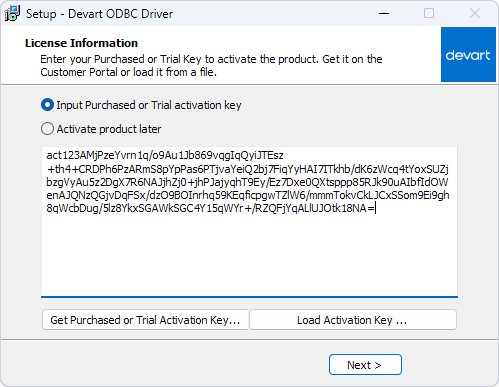
If you don’t want to activate the driver right now, select Activate product later.
5. Click Next to complete the installation.
6. Click Finish.
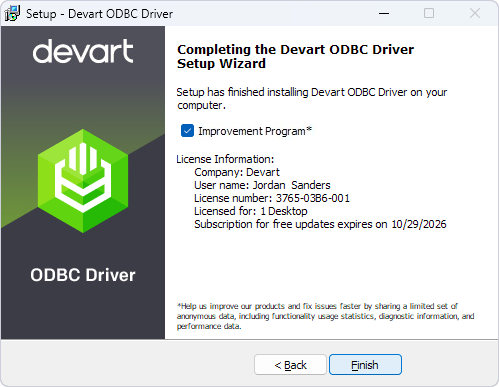
After the installation is complete, configure the driver.