Configure a Windows DSN for xBase
A Data Source Name (DSN) stores connection details, such as server information and user credentials, for establishing a connection to xBase.
Create a DSN
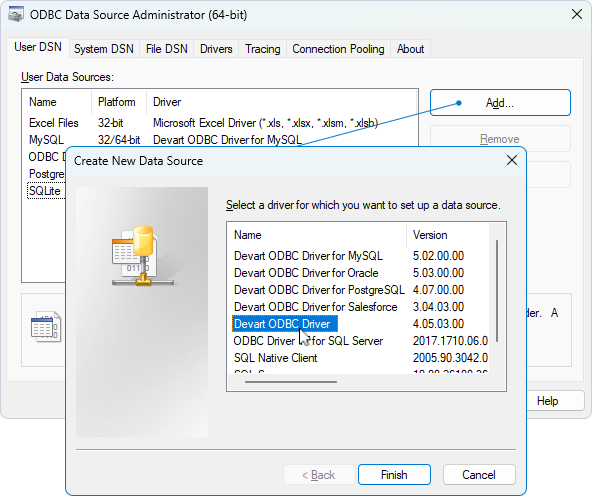
1. In the Windows search box, enter ODBC Data Sources, then select the version of the ODBC Data Source Administrator that matches the bitness of your third-party application (32-bit or 64-bit).
2. Select the appropriate tab to choose the DSN type:
-
User DSN – Specific to a user account and only accessible to that user.
-
System DSN – Accessible to all users on the computer and used by system-wide applications.
-
File DSN – Portable and system-independent, a File DSN stores connection details in a file, allowing it to be shared across different systems.
Note
Most applications support all DSN types, but some may require a specific one.
3. Click Add.
4. Select Devart ODBC Driver for xBase, then click Finish.
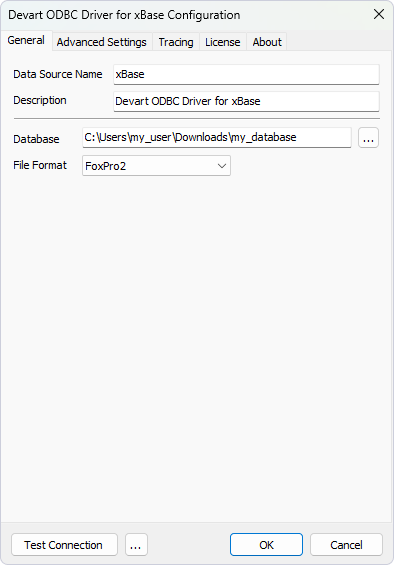
5. Enter a name for your data source and specify the connection details.
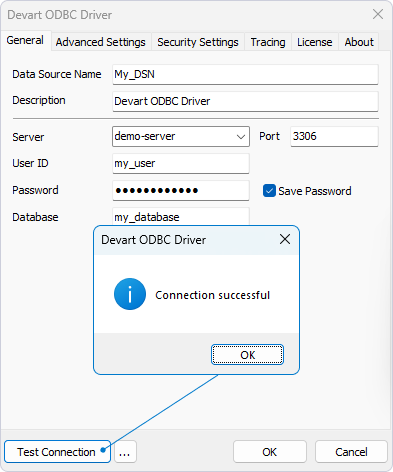
6. Optional: Click Test Connection to verify the connection settings.
7. Click OK.
Note
If the password isn’t saved in the DSN, you’ll be prompted to enter it at runtime when connecting to a data source. If the password is saved in the DSN, leave the User ID and Password fields empty.