Connect Microsoft Power BI Desktop to ASE
You can visualize and load ASE data into Microsoft Power BI Desktop for further analysis.
Prerequisites
- Download and install Microsoft Power BI Desktop.
- Download and install Devart ODBC Driver for ASE.
- Create a DSN for Windows/macOS/Linux.
Load data
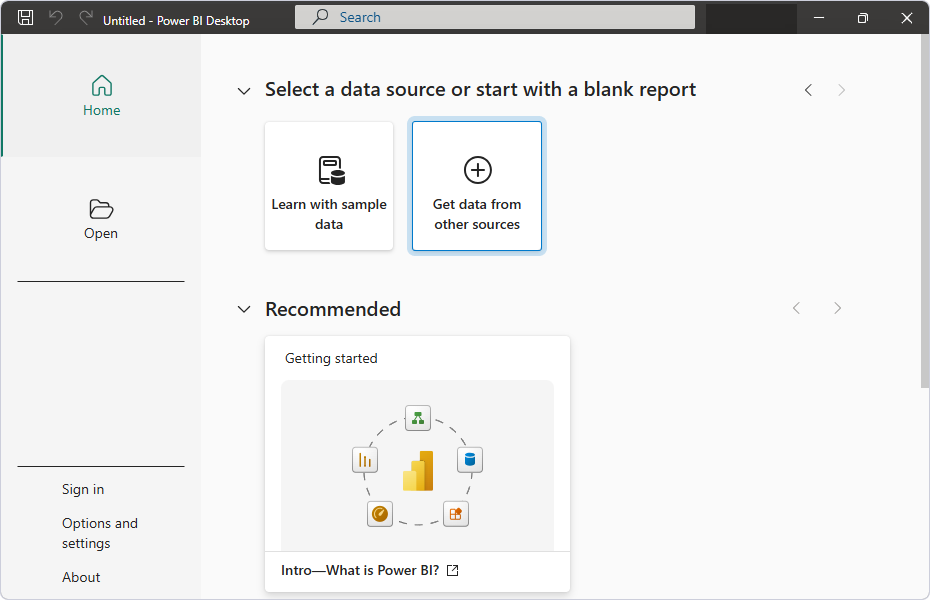
1. Click Get data from other sources.
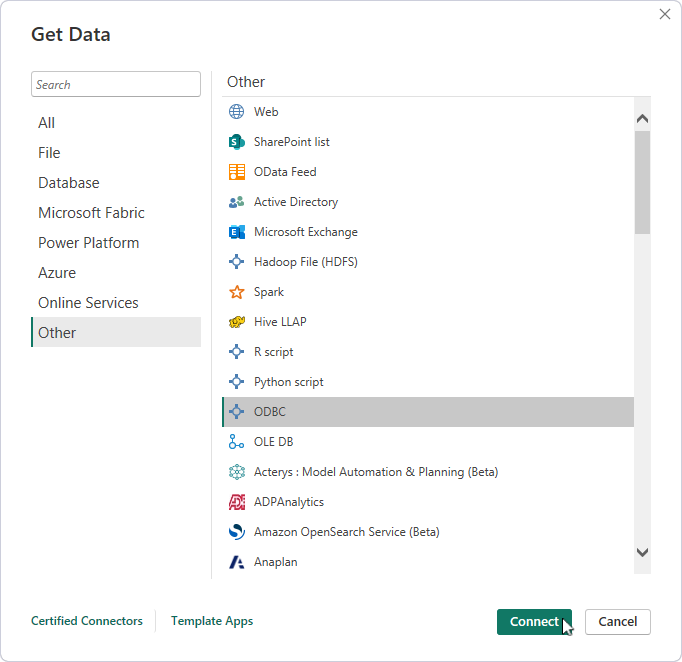
2. Select Other > ODBC, then click Connect.
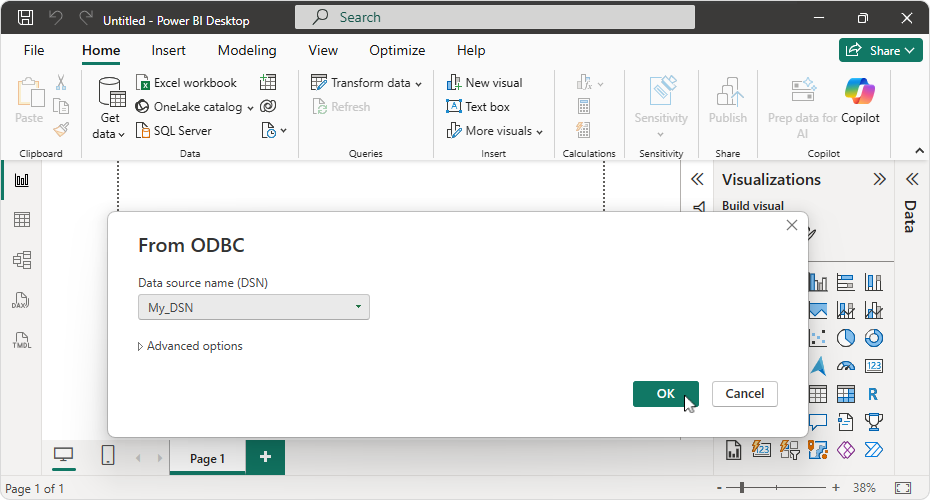
3. Under Data Source Name (DSN), select your DSN.
Optional: In Advanced options, specify additional connection string parameters, enter a SQL query to filter or limit the data, and choose the types of row-filtering operations the data source can handle natively.
4. Click OK.
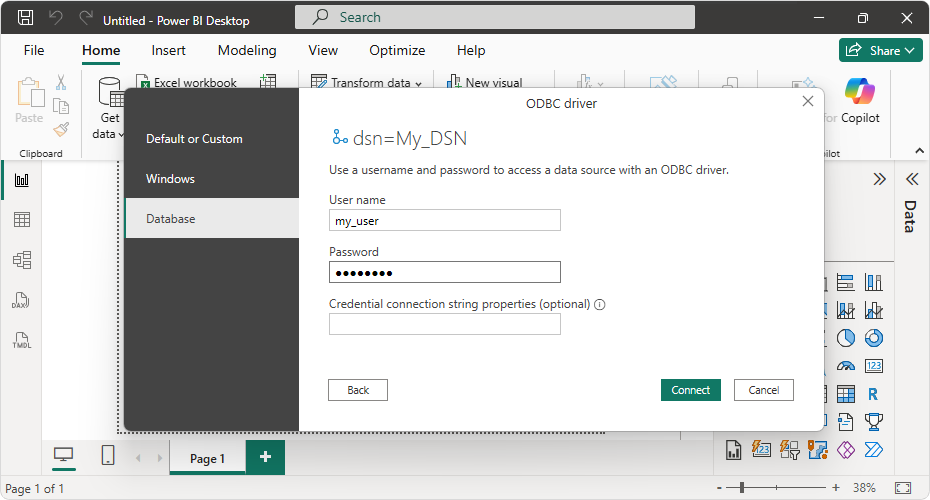
If the ODBC DSN you’re connecting to doesn’t have saved credentials, you’ll be prompted to enter your credentials. After entering the required information, click Connect to continue.
If the connection is successful, the Navigator displays a list of available tables.
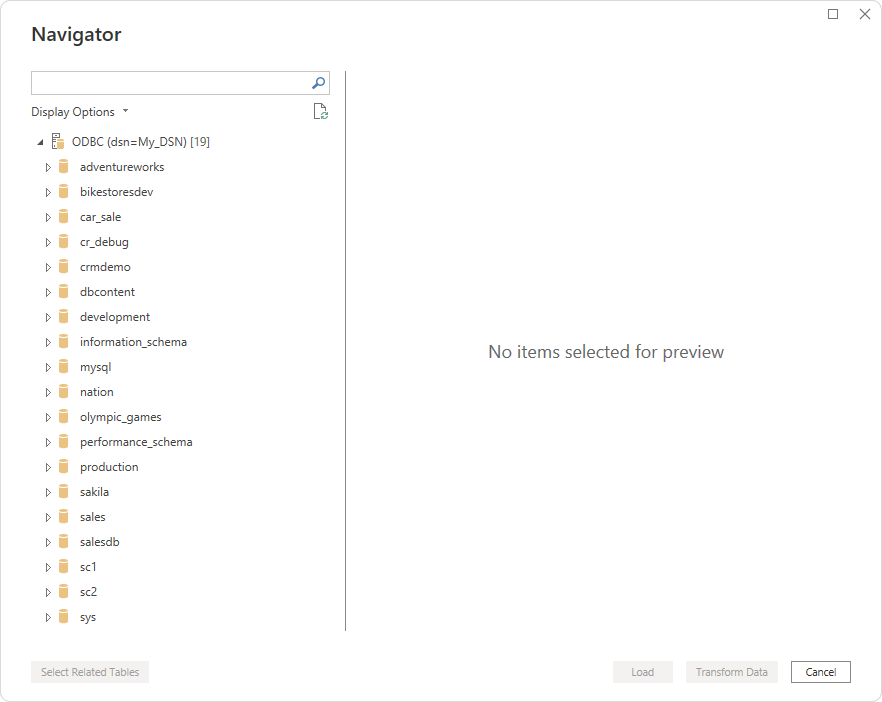
5. Optional: To view a table’s data, select the table you want from the list.
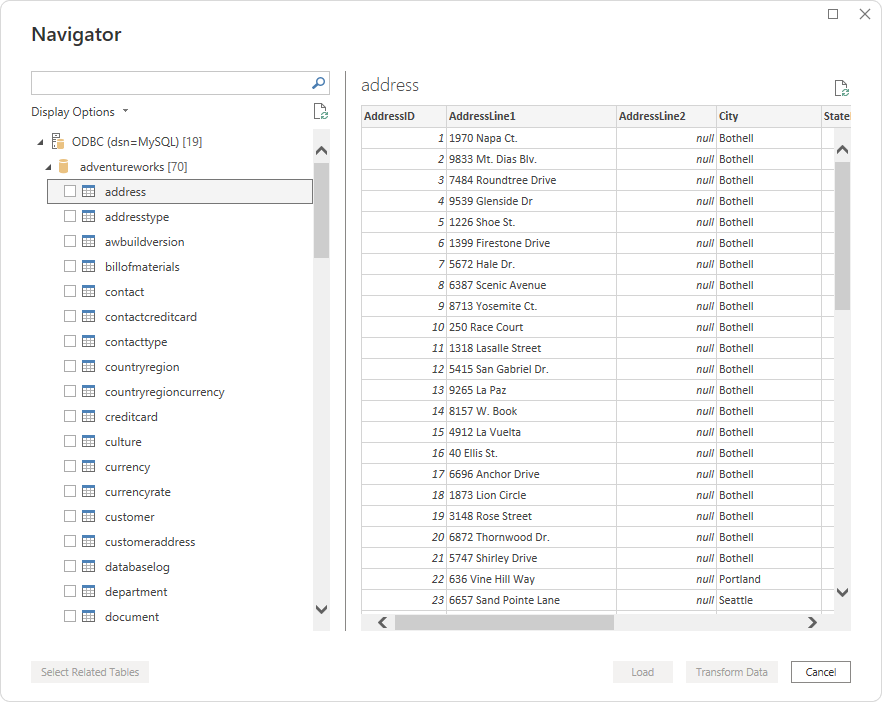
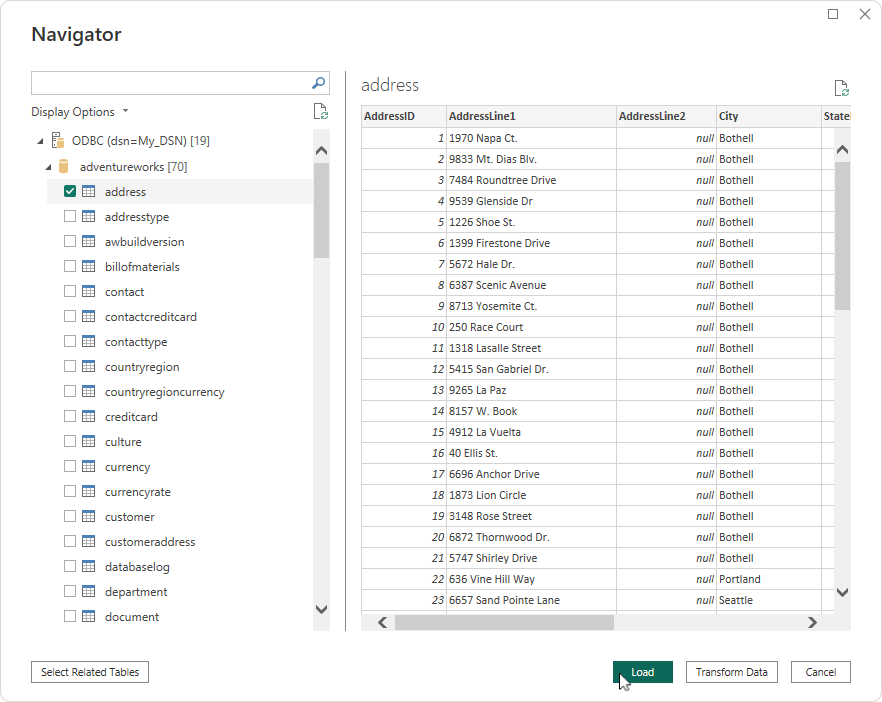
6. Select the tables you want to import, then click Load.
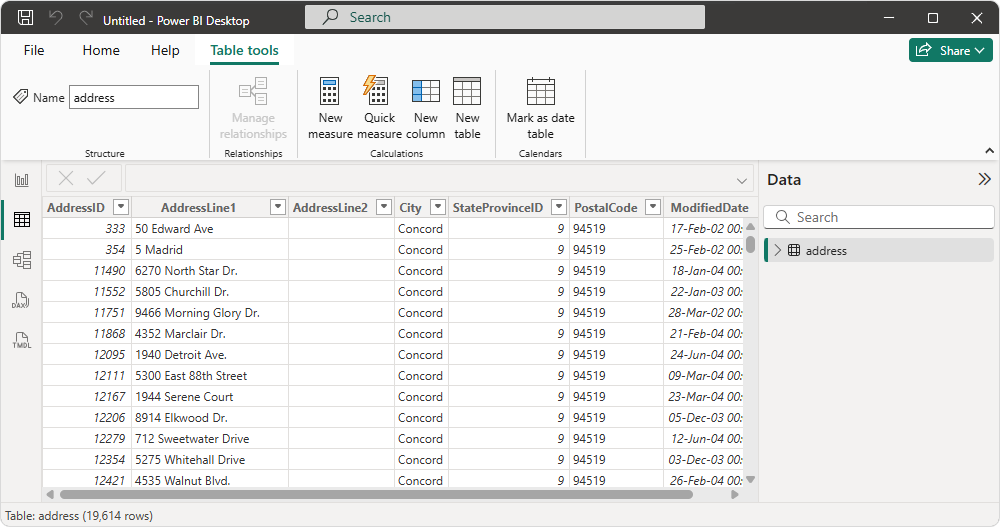
7. Optional: To view the imported data, switch to the Table view.
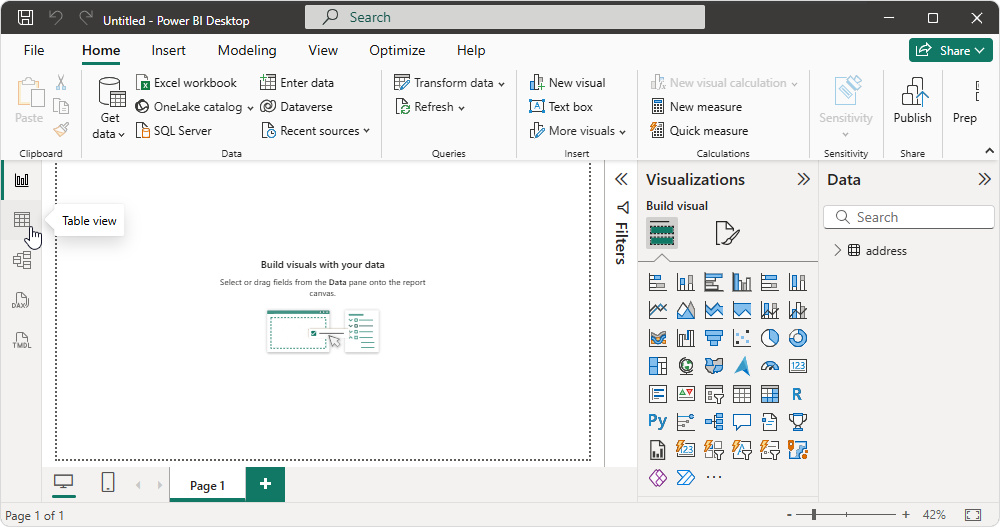
The data will be displayed in a table.
Note
When using Devart ODBC Driver for ASE in Microsoft Power BI Desktop, you may encounter issues related to the use of reserved words.
To avoid these issues, select Use Quoted Identifier in the advanced settings of the ODBC driver.
When this option is enabled, any character string enclosed in double quotes in queries or stored procedures is treated by ASE as an identifier rather than as a keyword. This allows such identifiers to be parsed correctly and prevents related syntax errors.
