Basic operations with templates
This section provides descriptions of basic operations that can be performed on templates in Entity Developer.
Entity Developer enables the user to:
- Add one or more templates to a model for code generation.
- Open the selected template for the purpose of viewing and editing (if applicable).
- Rename an existing template.
- Share the selected template so that it can be used in another model.
- View the properties of the selected template.
- Enable and disable the selected template.
- Delete the selected template from the model.
The procedures for performing each of these actions are detailed below.
Add a template
1. Depending on whether you are using the Entity Developer add-in to Visual Studio or the Entity Developer stand-alone application, do one of the following:
- In the Model Explorer window of your Visual Studio project that contains a model, right-click the Templates node and select New Template.
- In your model within the Entity Developer stand-alone application, either select Model > New Template, or use the combination of Alt+T. Alternatively, in the Model Explorer window, right-click the Templates node and select New Template.
In either case, the following dialog is displayed:
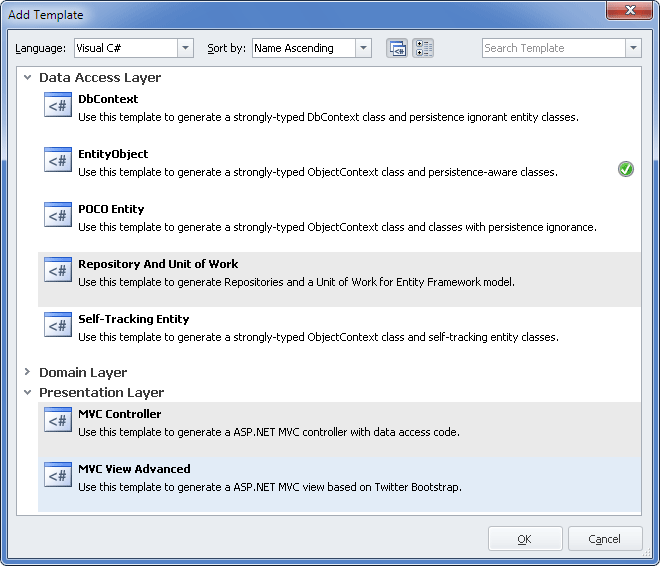
2. In the Language dropdown list, select either Visual C# or Visual Basic.
3. Optional: Click Highlight dependencies in the upper part of the dialog. This will highlight the templates connected with the template selected in the list. In the screenshot above the selected MVC View Advanced template is related to the MVC Controller and Repository and Unit of Work templates. These related templates, if currently absent in the model, will be added to the model together with the selected template.
Note
You can group or ungroup templates by software architecture layers using Categorized.
4. Select the appropriate template in the templates list.
Note
Green check marks in the list indicate templates that are already present in the model. Shared templates are placed in a special category.
5. Click OK.
6. Optional: Repeat steps 1-5 to add another template to the model.
Tip
To add a blank template, right-click the Templates node in the Model Explorer window and select New Blank Template. To locate and add a user template stored on your computer, right-click the Templates node in the Model Explorer window and select New Template From File.
Open a template
To open a template for viewing and, if applicable, editing, in the Model Explorer window, expand the Templates node and double-click the required template. Alternatively, right-click the required template and select Open.
Rename a template
1. To rename a template, in the Model Explorer window, expand the Templates node, right-click the required template and select Rename.
2. In the box around the name of the template, enter a new name for the template and press Enter.
Copy a template to model folder
To use a predefined template as a basis for a custom template, perform the following steps:
1. In the Model Explorer window, expand the Templates node.
2. Right-click the required template and select Copy to Model Folder.
Share a template
To share a template that is to make it available for the use in more than one model, perform the following steps:
1. In the Model Explorer window, expand the Templates node.
2. Right-click the required template and select Make Shared.
Enable or disable a template
To enable or disable a template, perform the following steps:
1. In the Model Explorer window, expand the Templates node.
2. Right-click the required template and select the appropriate option: Disable for an enabled template, or Enable for a disabled template.
Or
1. In the Model Explorer window, expand the Templates node.
2. Right-click the required template and select Properties.
3. In the Properties window, locate the Enabled property and set the appropriate value for it.
Delete a template
1. In the Model Explorer window, expand the Templates node.
2. Right-click the required template and select Delete.
3. In the confirmation message box, click Yes.
4. If the template being deleted is custom or shared, another dialog will be displayed offering you do delete the template file from disk. Click Yes.
View and edit template properties
1. In the Model Explorer window, expand the Templates node.
2. Right-click the required template and select Properties.
The Properties window will be displayed allowing you to view and edit template properties.