Creating model using Database-First approach
The following walkthrough describes how to generate a model from an existing database, manually add and edit classes and components, and generate C# code for the model.
We’ll use the standard Northwind database. For more information on how to download and install this database, see Downloading Sample Databases.
Prerequisites
To complete this walkthrough, you need:
- Access to the database server you’re using.
- A data provider for the corresponding server installed on your system.
- The Northwind database created on the server.
- A new project created in Microsoft Visual Studio.
Create a model from an existing database
To create a model from your existing database:
1. In Solution Explorer, right-click your project name.
2. Select Add > New Item.
Note
In the standalone application, click Create New Model on the Entity Developer toolbar.
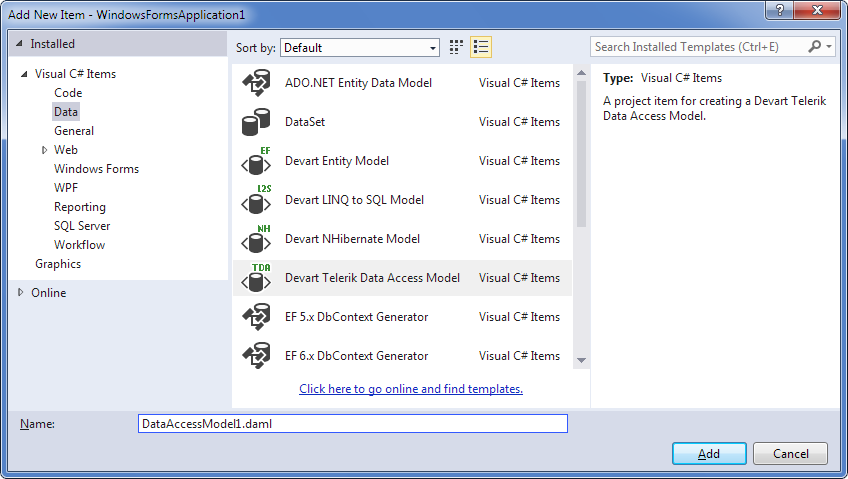
3. In the Add New Item dialog, under Installed Templates, select Data.
4. In the central column of the Add New Item dialog, select Devart Telerik Data Access Model.
Note
In the standalone application, in the New Model dialog, select Devart Telerik Data Access Model and click Create.
5. Click Add.
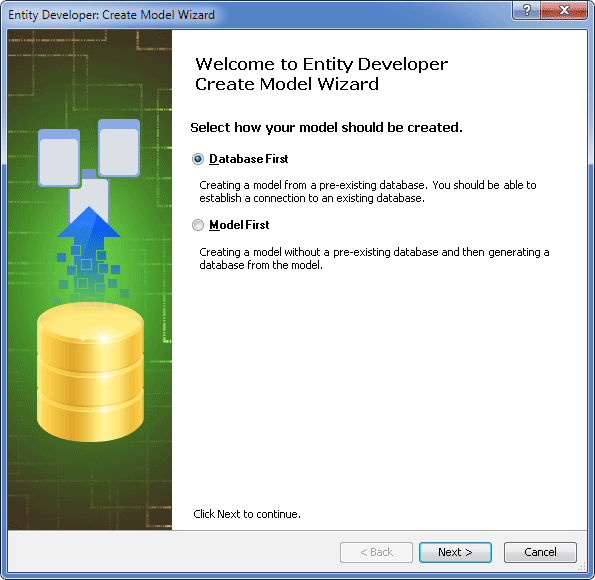
6. Ensure that Database First is selected and click Next.
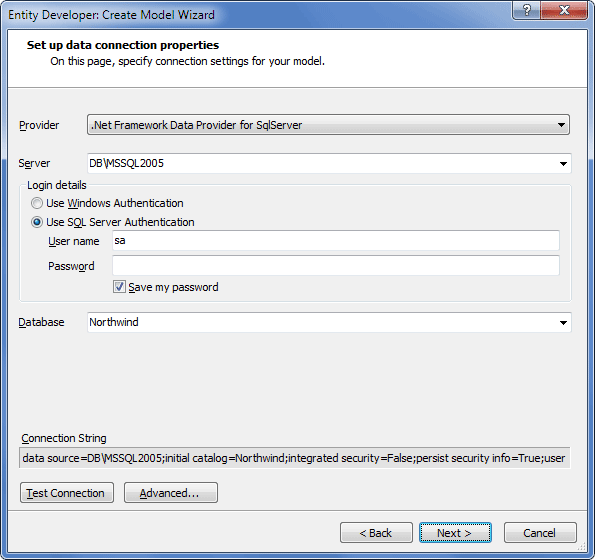
Note
This page may differ depending on which provider is selected.
7. On the Set up data connection properties page, configure the connection to the database.
8. Optional: To verify the connection is valid, click Test Connection. If the connection fails, correct the entered data and repeat this step.
9. Click Next.
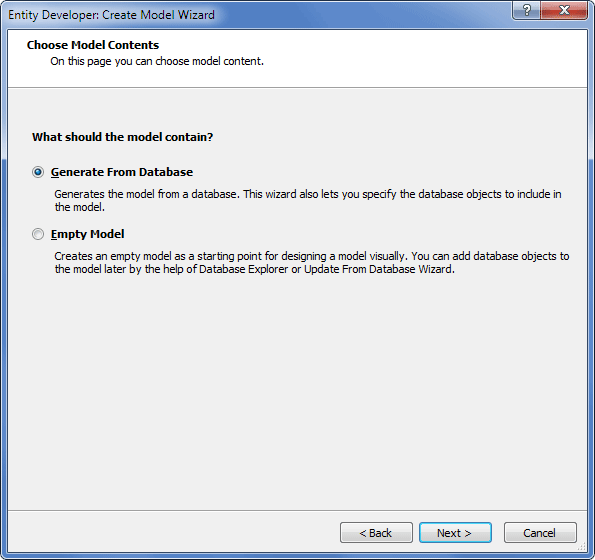
10. On this page, select Generate From Database and click Next.
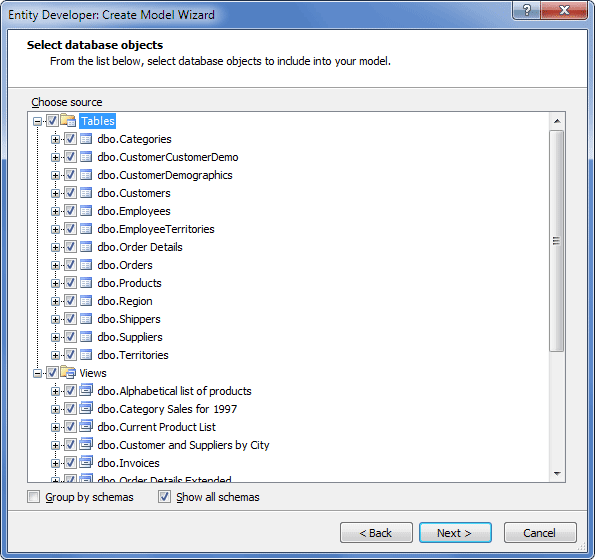
11. On the Select database objects page, select the tables and views you want to include in the model and click Next.
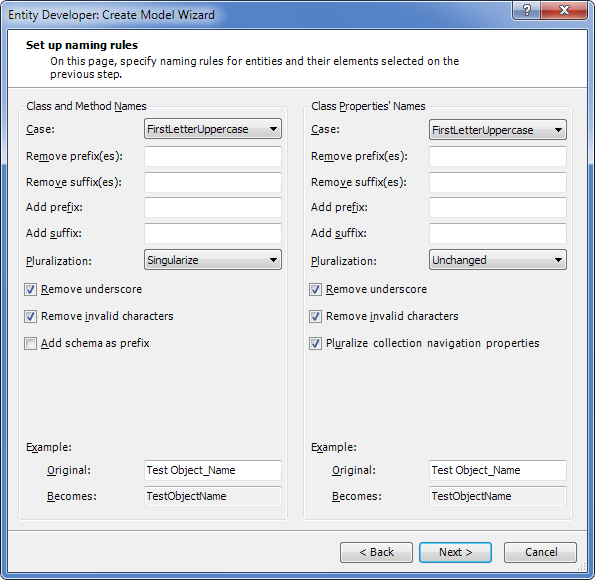
12. On the Set up naming rules page, define the naming rules for your model and click Next.
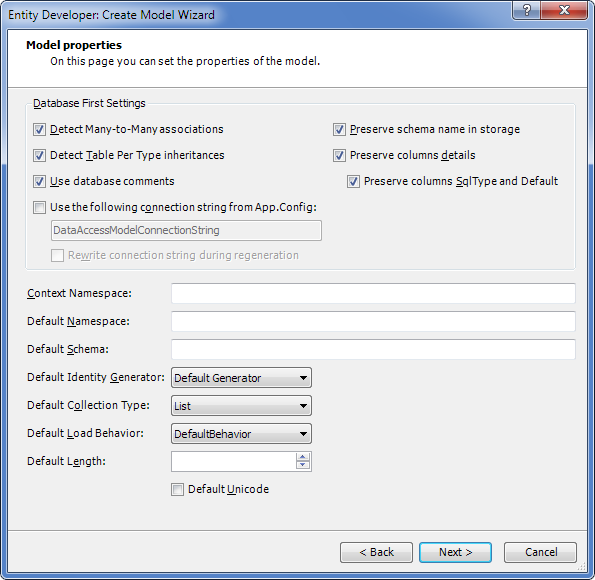
13. On the Model properties page, define the settings for your model.
Note
On the Model Properties page, consider these settings:
- Select Detect ManyToMany associations to automatically detect many-to-many associations. If not selected, a class with two one-to-many associations is generated for an intermediate table instead of a many-to-many association.
- Select Detect Table Per Type inheritances to automatically detect inheritance patterns of this type.
- Select Preserve columns details and Preserve columns SqlType and Default to preserve either full information about the column or only the type information to create a database-independent model. After creating such a model, you can easily create a database on a different server using the Update to Database functionality.
14. Click Next.
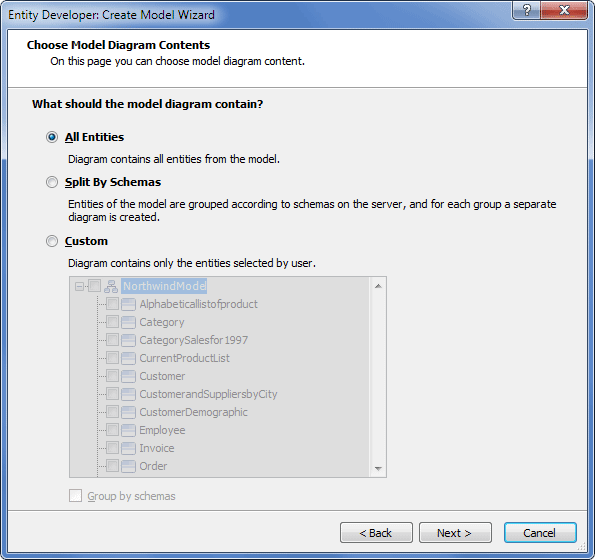
15. On the Choose Model Diagram Contents page, select which entities to display on the diagram. Options are:
- All Entities – Displays all entities on the diagram.
- Split by Schemas – Displays entities from each schema on separate diagrams.
- Custom – Allows you to manually select entities.
16. Click Next.
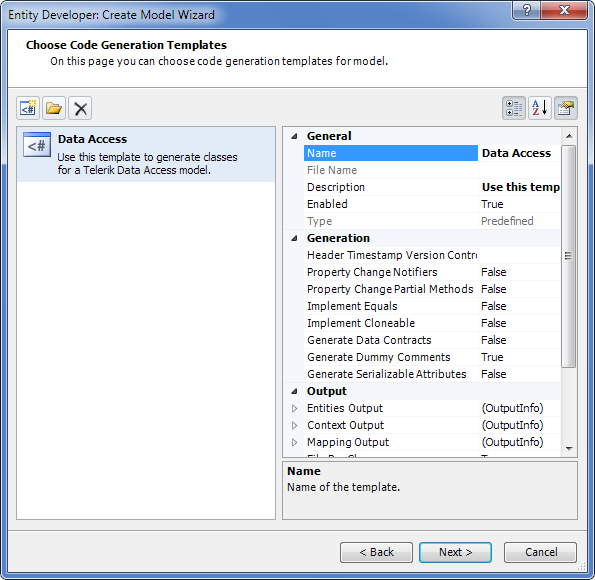
17. On the Choose Code Generation page, select the code generation templates you want to add to the model. By default, this page contains the most frequently used template. The properties area allows you to configure the properties of the selected template. Use the three buttons at the top to add more templates from the gallery, add existing templates from disk, or remove templates from the list.
18. Click Add template.
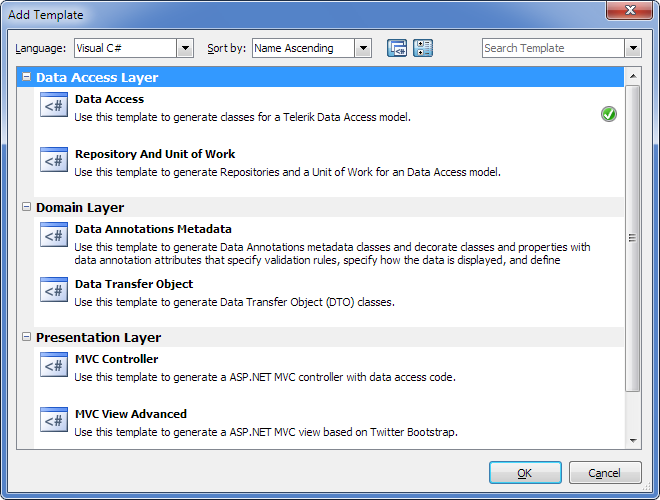
19. In the Add Template dialog, select the required template and click OK. The selected template is added to the list on the Choose Code Generation page along with all related templates.
20. After adding all required templates to the list on the Choose Code Generation page, click Next.
21. On the final page of the wizard, click Finish. This page also allows you to automatically load the required Telerik.DataAccess.Fluent NuGet package and install it to your project.
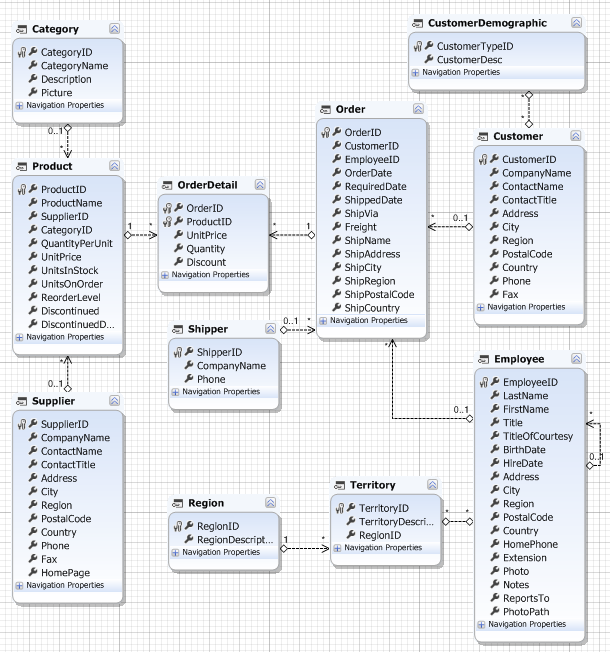
The model is now successfully created:
Set up mapping and code generation
This section explains how to set up mapping and code generation in Telerik Data Access models.
For mapping and code generation, you may need to create and define folders for the mapping and generated code, and configure other parameters available in the Properties window of the selected template.
Defining output folders is optional. If you don’t need separate folders, go directly to step 11. To define folders for mapping and code generation:
1. In your project in Solution Explorer, create a folder for mapping (for example, Mapping) and a folder for generated code (for example, Entities).
2. In the Model Explorer window, select the template and click to display the Properties window for the selected template.
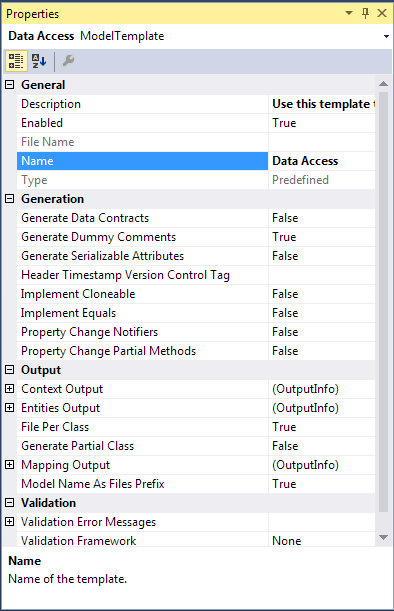
3. In the Output section of the model properties, click the Entities Output line and then click the ellipsis (…).
4. In the Select Project Folder dialog, select the appropriate folder for entities (for example, the Entities folder created in step 1) and click OK.
5. For the File Per Class property, select the appropriate value. If you set a value for the Entities Output parameter, the File Per Class parameter must be set to True.
6. To enable entity property validation, in the Validation section, locate the Validation Framework row and select the appropriate framework. Use the Validation Error Messages row to apply error messages stored in the application resources. For details on validation, see Entity Property Validation.
7. Click the Mapping Output line and click the ellipsis (…) to open the Select Project Folder window.
8. In the Select Project Folder window, select the appropriate folder for mapping files (for example, the Mapping folder created in step 1) and click OK.
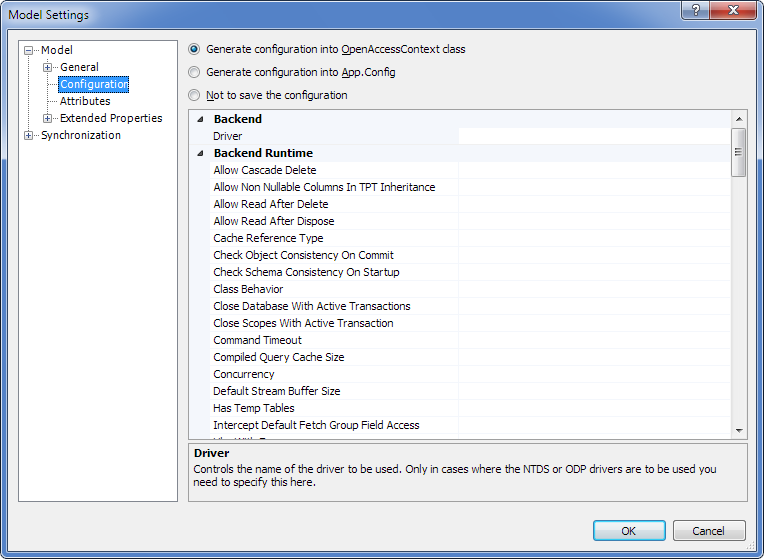
9. Optional: To specify additional parameters for your application (app.config) or web-application (web.config), for example, to change the Data Access Connection Pool settings, right-click the diagram, select Model Settings from the shortcut menu, and in the tree, select Configuration.
10. To generate code and mapping, save the model. Entities and mapping files are successfully generated and stored in the specified folders:
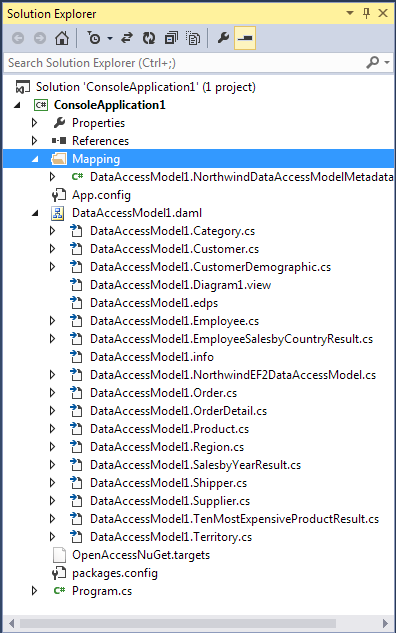
You’ve successfully created a model from an existing database.