Creating and editing properties
Properties are basic elements that make up model objects and represent database structure elements, such as database fields and tables.
Properties can be divided into scalar, complex type, enum, and navigation properties:
- Scalar properties map to database table columns and have one of the predefined Telerik Data Access types.
- Complex type properties map to several columns of a database table.
- Enum properties map to a database table column that accepts a specific set of values. These values are defined in the model as an enum object.
- Navigation properties describe navigation from one end of an association to the other.
Scalar properties, complex type properties, and enum members are listed in the upper part of an object in the diagram area. Navigation properties are listed in the collapsible Navigation Properties node of an object in the diagram area.
The following procedure shows how to create scalar and complex type properties.
Creating a property
To create a new property in a class, use one of the following options:
- In Model Explorer or in the diagram area, right-click the required class, point to Add, then select New Property.
- Select the required class and press Alt+P.
- In the Class Editor dialog, press Insert.
- In the Class Editor dialog, right-click the Class Properties grid and select Add Property.
- Select the required class and press Insert.
To create a new property in a complex type, use one of the following options:
- In Model Explorer or in the diagram area, right-click the required complex type, point to Add, then select New Property.
- Select the required complex type and press Alt+P.
- In the Type Editor dialog, press Insert.
- In the Type Editor dialog, right-click the Properties grid and select Add Property.
- Select the required complex type and press Insert.
The Property Editor dialog opens.
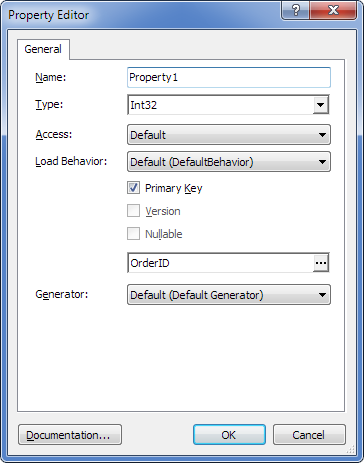
Specify the required settings and click OK.
The new property is created.
Editing a property
To edit a property in a class, use one of the following options:
- In Model Explorer or in the diagram area, right-click the required property and select Edit.
- In the Class Editor dialog, right-click the required property in the Class Properties grid and select Edit Property.
To edit a property in a complex type, use one of the following options:
- In Model Explorer or in the diagram area, right-click the required property and select Edit.
- In the Type Editor dialog, right-click the required property in the Properties grid and select Edit Property.
The Property Editor dialog opens.
Change the required settings and click OK.
Note
Not all property settings are available in the Property Editor dialog. You can set additional properties in the Properties tool window.
Note
When you rename a class, property, or another model object, the change is applied during code refactoring after you save the model. Code refactoring is available only in Entity Developer installed as a Visual Studio add-in.