Explain errors
AI Assistant can help you understand and resolve errors that occur when you run SQL scripts. It explains the cause of the error and suggests possible fixes, so that you can troubleshoot the error directly within your development environment.
You can access error explanations and suggestions for fixes through the Error List window.
Get an explanation for an error
1. Open the Error List window using one of these methods:
-
Select View > Error List on the menu bar.
-
Press Ctrl+\+E.
-
Click Error List at the bottom of the application window.

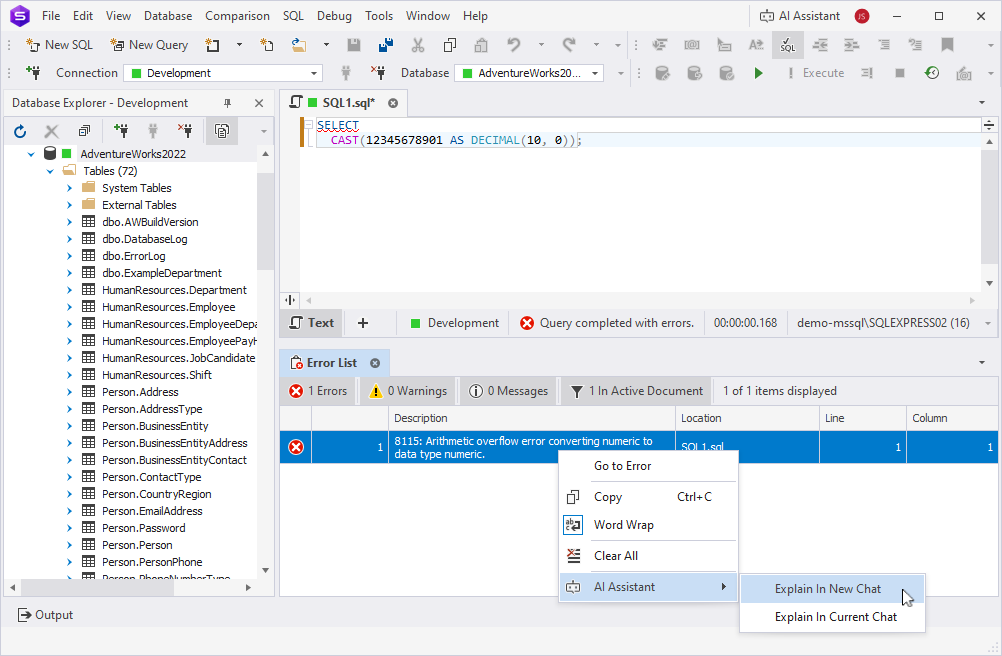
2. In the Error List window, right-click the error you want to investigate, then select AI Assistant and choose one of the following options:
-
Explain In New Chat – Opens a new chat tab with the explanation.
-
Explain In Current Chat – Adds the explanation to the current chat tab.
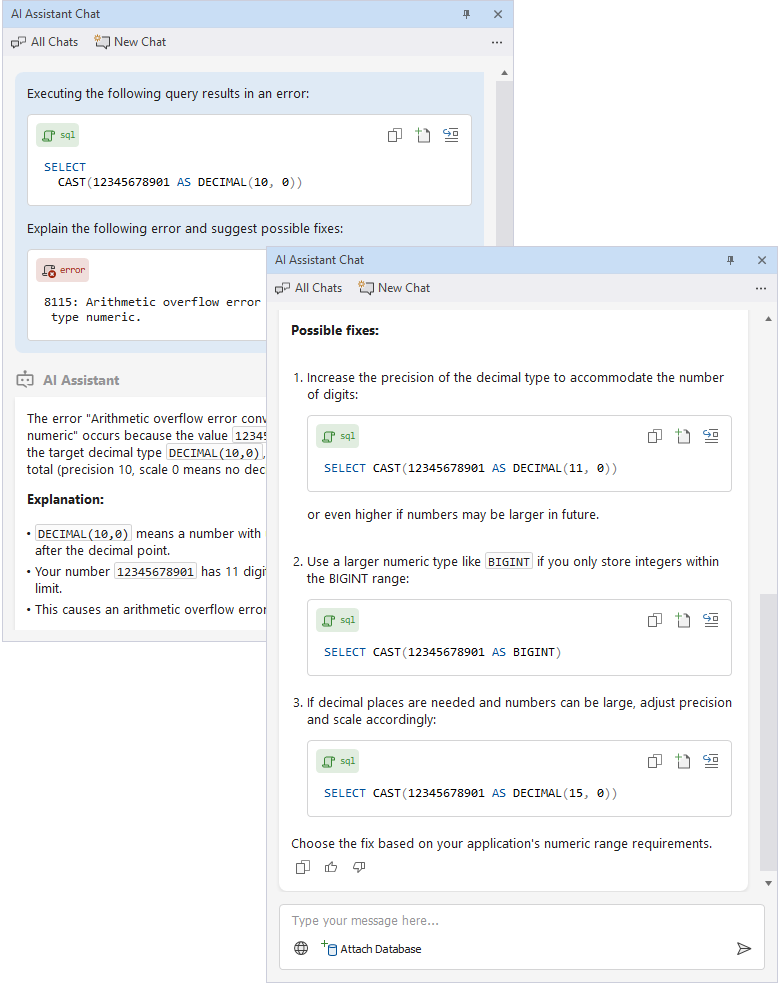
AI Assistant provides a structured explanation that includes the error cause, a detailed description, and suggested fixes.
Tip
To get more information about an error, copy it from the Error List window and submit it as a request in a new AI Assistant chat with web search enabled. AI Assistant will include additional details from online sources, such as documentation and community discussions, in the explanation.
For more information, see Web search.
Use the suggested fixes
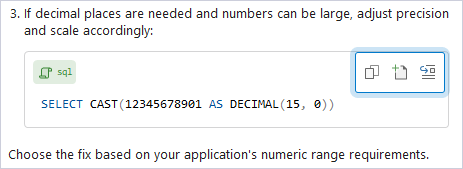
When AI Assistant suggests a fix, you can copy it or add it directly to the SQL Editor. Use the buttons in the upper-right corner of the code block:
-
Copy To Clipboard – Copies the code.
-
Open Code In Editor – Opens the code in a new SQL Editor tab.
-
Insert Code Into Editor – Inserts the code into the current SQL Editor tab.