Activate with an activation key
You can activate dbForge Unit Test for SQL Server by entering a purchased or trial activation key.
1. In SSMS, select Unit Test > Help > Activate Product.
Tip
If the Unit Test menu isn’t visible on the menu bar of SSMS, you can find it under Extensions. To add it to the menu bar, select Extensions > Customize Menu, clear the Unit Test checkbox, then click Save and Restart.
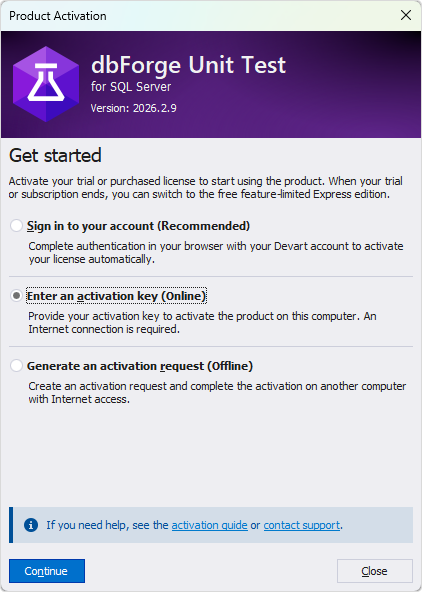
2. In the Product Activation dialog, select Enter an activation key, then click Continue.
3. Enter your activation key.
You can find it in the Customer Portal or in the email you received from Devart. If you don’t have an activation key, sign in to the Customer Portal to generate a trial key. Copy the key and paste it into the activation key box.
Tip
Use the activation key (a long alphanumeric string), not the license ID (formatted as XXXX-XXXX-XXX).
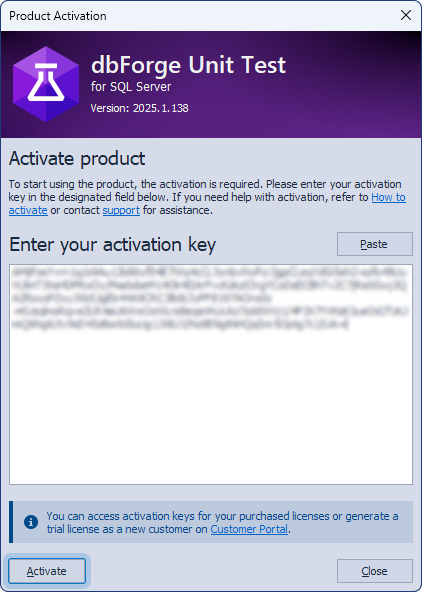
4. Click Activate.
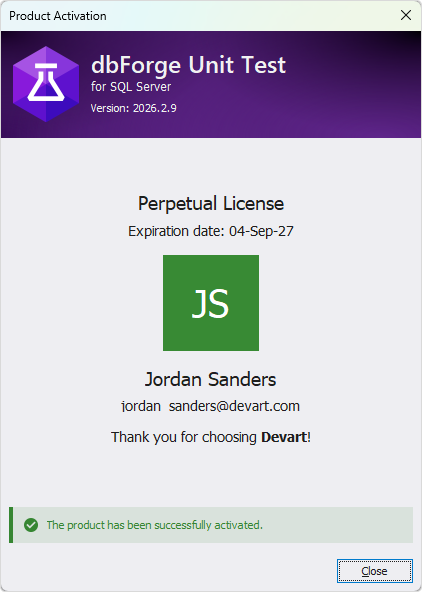
dbForge Unit Test for SQL Server is activated.