Operations with aliases
You can set up how the Studio generates default aliases or configure custom aliases.
Alias assignment settings
Alias generation is enabled by default in the Studio.
To disable or customize the generation of aliases:
1. On the menu bar, select Tools > Options.
2. Select Text Editor > Code Completion > Alias.
3. Select or clear the checkboxes as needed.
-
Generate alias on commit – Assigns an alias to a table, view, table-valued function, or synonym when you insert the object from the suggestion list. Also adds a table alias to each column name when you insert one or more columns.
-
Generate aliases in UPPER case – Creates aliases in uppercase characters.
-
Automatically generate AS clause – Adds the
ASkeyword when assigning aliases.
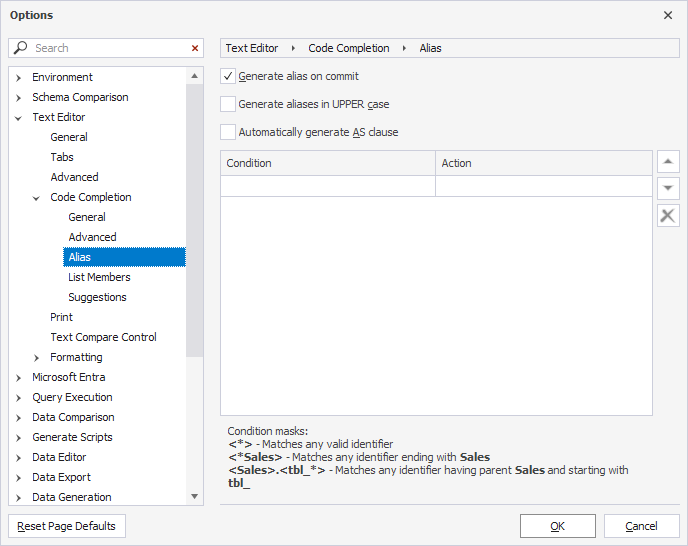
To restore default settings, click Reset Page Defaults. Note that all custom aliases will be deleted.
Alias assignment rules
The Studio applies a set of naming rules and heuristics to automatically generate aliases. When possible, the Studio generates aliases using the first character of an object name.
The following table explains the rules for alias generation.
| Condition | Result | Example |
|---|---|---|
| The object name contains underscores. | The alias is created from the first character of each word in the object name. | TBL_Address → ta |
| The object name contains hyphens. | The alias is generated from the initials of each part. | Tbl-address → ta |
| The object name uses PascalCase. | The alias is created from the uppercase characters (initials of each word). | TblAddress → ta |
| The object name consists only of numbers or begins with a digit. | A default alias is assigned, such as a. |
111 → a |
| The generated alias matches a SQL keyword. | The alias is wrapped in square brackets. | GeneralObjects → [go] |
| The same alias already exists in the current query. | A numeric suffix is added to avoid conflicts. | If ta exists, the next alias becomes ta1, then ta2, and so on. |
If No Alias is selected in the Action column for a given condition, no alias is generated for object names matching that condition.
Custom aliases
If the default aliases don’t meet the required naming conventions, you can define custom aliases for tables, views, table-valued functions, synonyms, databases, servers, and linked servers.
To add a custom alias:
1. On the menu bar, select Tools > Options.
2. Select Text Editor > Code Completion > Alias.
3. In the Condition column, define a condition mask. A condition mask is a pattern that an identifier must match for the alias to be applied. For more information, see Define custom alias conditions.
4. In the Action column, enter a custom alias or define an alias mask. An alias mask is a rule that specifies how the alias will be generated. For more information, see Define custom alias masks.
5. Click OK.
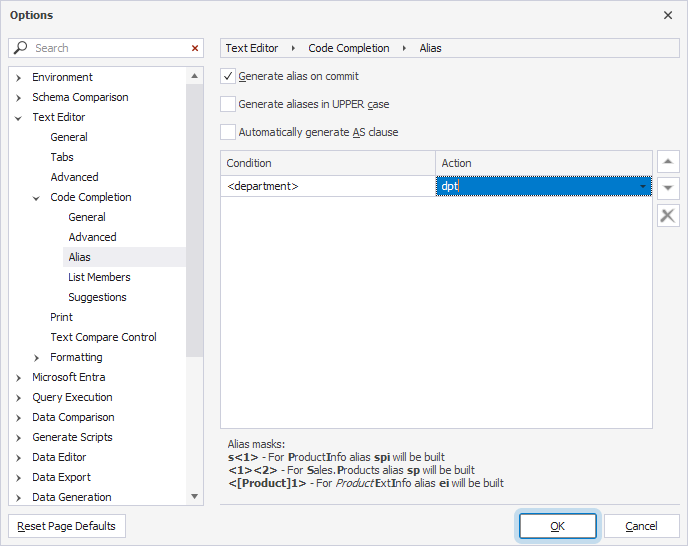
When a SQL statement references an object that meets the defined condition, the Studio will assign the custom alias to this object based on the specified action.
To remove a custom alias, select it in the table and click  Delete.
To remove all custom aliases at once, click Reset Page Defaults. Note that alias assignment settings will change to their default values.
Mask prioritization
Custom alias masks take precedence over automatic alias generation.
In the list of custom masks, conditions are evaluated from top to bottom. The condition at the top of the list in the Condition column has the highest priority. If a database object matches multiple conditions, the alias from the first matched condition is applied.
The following examples show how prioritization works.
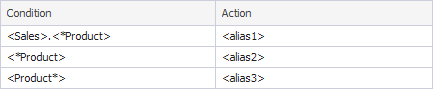
Case 1: The object name Production.Product matches two condition masks: <*Product> and <Product*>.
Because <*Product> is higher in the list, it has higher priority, and the alias alias2 is applied.
SELECT * FROM Production.Product AS alias2
Case 2: The object name Sales.SpecialOfferProduct matches two condition masks: <*Product> and <Sales>.<*Product>.
Because <Sales>.<*Product> is higher in the list, the alias alias1 is applied.
SELECT * FROM Sales.SpecialOfferProduct AS alias1
Case 3: The object name Production.ProductInventory matches only the <Product*> condition mask.
Because this mask is last in the list and has the lowest priority, the alias alias3 is applied.
SELECT * FROM Production.ProductInventory AS alias3
Note
The
ASclause is added automatically if the Automatically generate AS clause option is selected in the alias settings.
Alias renaming
You can rename aliases within a statement in the Studio. For more information, see Rename aliases.
Helpful materials
SQL Aliases: Improving Query Efficiency and Clarity – Find out what SQL aliases are and how to use them to enhance the efficiency of SQL scripts.