Control transactions
A transaction is a unit of work that groups one or more SQL operations to be executed together. It begins when a set of tasks starts and ends when all those tasks complete successfully. In that case, all changes are committed to the database. If the transaction fails, is canceled, or is rolled back, all changes made during the transaction are discarded.
Manage transactions
In dbForge Studio for SQL Server, you can manage transactions using the following commands:
- Begin Transaction – Starts a new transaction.
- Rollback – Undoes all changes made during the transaction.
- Commit – Saves all changes to the database.
Access the transaction commands
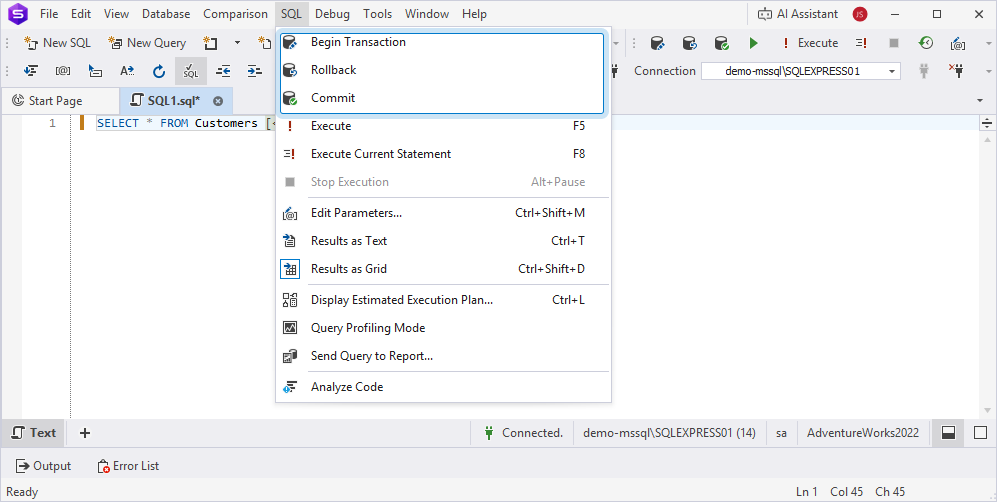
You can access the transaction commands using the SQL menu or the SQL toolbar.
Note
Transaction commands become available when you start typing in a SQL document.
Use the SQL menu
On the top menu, select SQL > choose the required option to access transaction commands.
Use the SQL toolbar
You can also access transaction commands from the SQL toolbar, where they appear as icons.
If the SQL toolbar is hidden, on the top menu, select View > Toolbars > SQL.

How transactions work
When you click Begin Transaction, the transaction starts and remains open. You can then run one or more queries. To complete the transaction, click Commit to apply the changes, or click Rollback to discard them. Once either action is performed, the transaction ends.
Transaction reminders
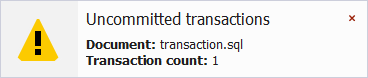
When a transaction remains open during execution, dbForge Studio displays a reminder about uncommitted changes. The reminder includes the document name and the number of open transactions.
Turn transaction reminders on or off
The reminders are enabled by default.
To turn transaction reminders on or off:
1. On the top menu, select Tools > Options.
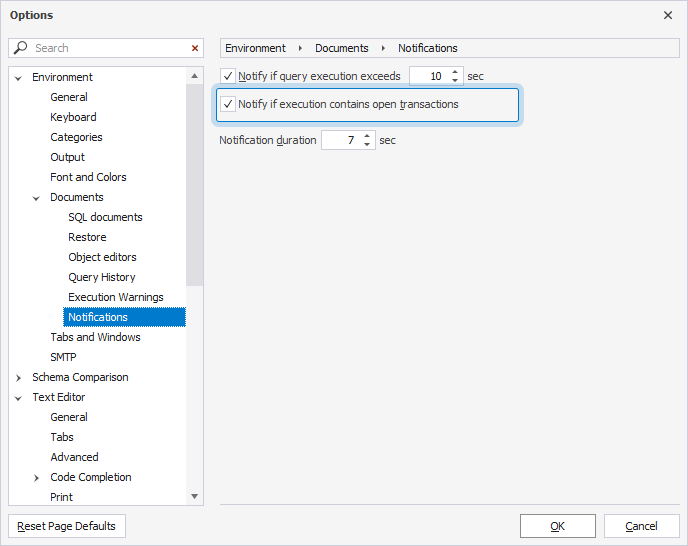
2. Select Environment > Document > Notifications.
3. Clear the Notify if execution contains open transactions checkbox to disable reminders, or select the checkbox to enable them.
4. Click OK to apply the changes.
Set the reminder duration
1. On the top menu, select Tools > Options.
2. Select Environment > Document > Notifications.
3. In the Notification duration (sec) box, set the duration using the arrows.
4. Click OK to apply the changes.
Use transactions in a script
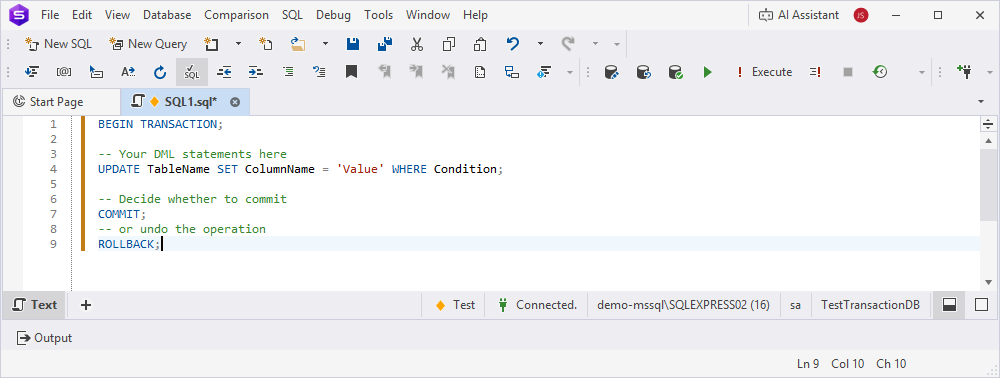
You can also manage transactions by writing T-SQL statements in a SQL document.
Manage transactions using menu commands
You can also work with transactions by using the commands from the SQL menu or SQL toolbar.
To manage transactions using the menu commands:
1. Open a SQL document.
2. Select SQL > Begin Transaction to start a transaction.
Note
You must start a transaction before executing any queries.
3. Execute your queries one by one or as a batch.
Note
You can run multiple statements during an open transaction. Changes aren’t saved to the database until you commit.
4. To complete the transaction:
- Select SQL > Commit to apply all changes.
- Select SQL > Rollback to discard all changes since the transaction began.
After selecting Commit or Rollback, the transaction is completed.
Warning
Don’t use
GObetweenBEGIN TRANSACTIONandCOMMITorROLLBACKin T‑SQL scripts. TheGOcommand ends the batch and can break the transaction, causing errors.