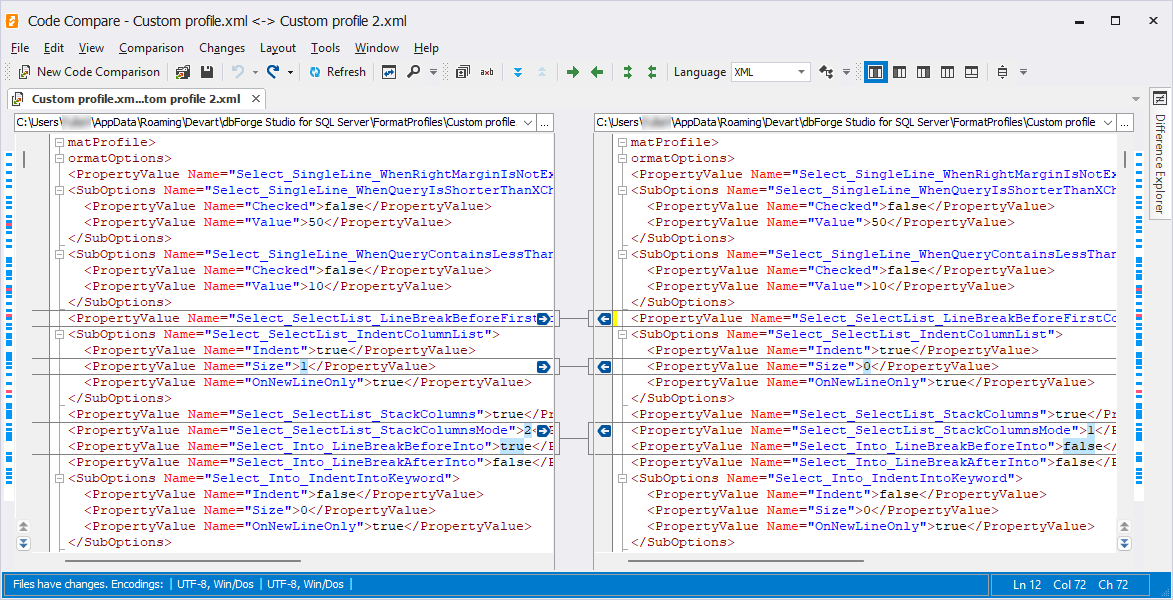
Compare formatting profiles
You can use Devart Code Compare to compare XML-based formatting profile files and identify differences in structure, tags, and values.
Prerequisites
- Download and install Code Compare.
- Optional: Customize comparison settings for improved accuracy:
- Enable syntax highlighting for XML to improve readability.
- Select the Ignore insignificant whitespace option to filter out formatting-only differences. Format both XML files using a consistent formatting tool before comparison.
Compare predefined formatting profiles
1. Open Code Compare.
2. In the top menu, select File > Open First File and choose the first file to be compared.
3. In the top menu, select File > Open Second File and choose the second file to be compared.
Note
The default path to custom formatting profiles is
C:\Users\<user_name>\AppData\Roaming\Devart\dbForge Studio for SQL Server\FormatProfiles.Replace
<user_name>with your Windows user name.
Predefined profiles are not stored in this folder.
Compare a custom profile with a predefined profile
1. In the top menu, select Tools > Options.
2. Go to the Formatting > Profiles page.
3. Create a new profile based on the settings of the required predefined formatting profile.
4. Save the new profile to that folder.
5. Use Code Compare to compare the saved profile file with your custom profile.
6. Review the comparison results. Differences are highlighted in both files.