Filter database objects
You can create filters to display only the database objects that match the specified criteria.
To create a filter:
1. In Database Explorer, right-click the object type node for which you want to create a filter, then select Filter.
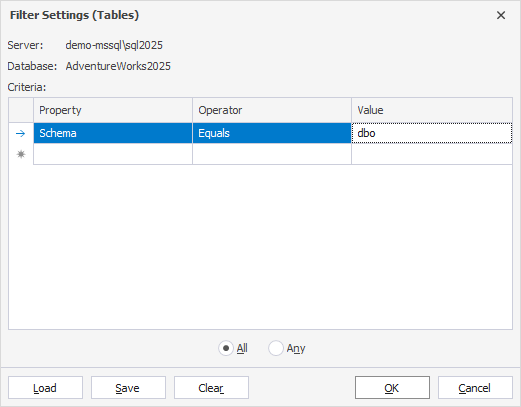
2. In the Filter Settings dialog, configure the filter criteria.
2.1. In the Property column, select the property by which you want to filter objects. The available values are: Name (default), Schema, Owner, and Creation Date.
2.2. In the Operator column, select a comparison operator. The available values are: Equals, Not Equals, Contains (default), Not Contains, Starts With, and Ends With.
Note
If Property is set to Creation Date, the available values are Equals (default), Less Than, Less Than or Equal, Greater Than, Greater Than or Equal, Between, and Not Between.
2.3. In the Value column, enter a value for filtering.
Note
If Property is set to Creation Date, enter a date or select it from the calendar picker.
3. Optional: Repeat steps 2.1-2.3 to add more filter criteria.
4. Specify how to apply filter criteria:
-
All – Displays the objects that match all specified criteria.
-
Any – Displays the objects that match at least one of the specified criteria.
5. Optional: To save the current filter criteria, click Save, then select the directory where to save the .filter file.
6. Optional: To load filter settings from a file, click Load, then select the .filter file.
7. Optional: To remove all filter criteria, click Clear.
8. Click OK.
After you apply the filter, the affected object node displays (filtered: N), where N is the number of objects that match the specified criteria.
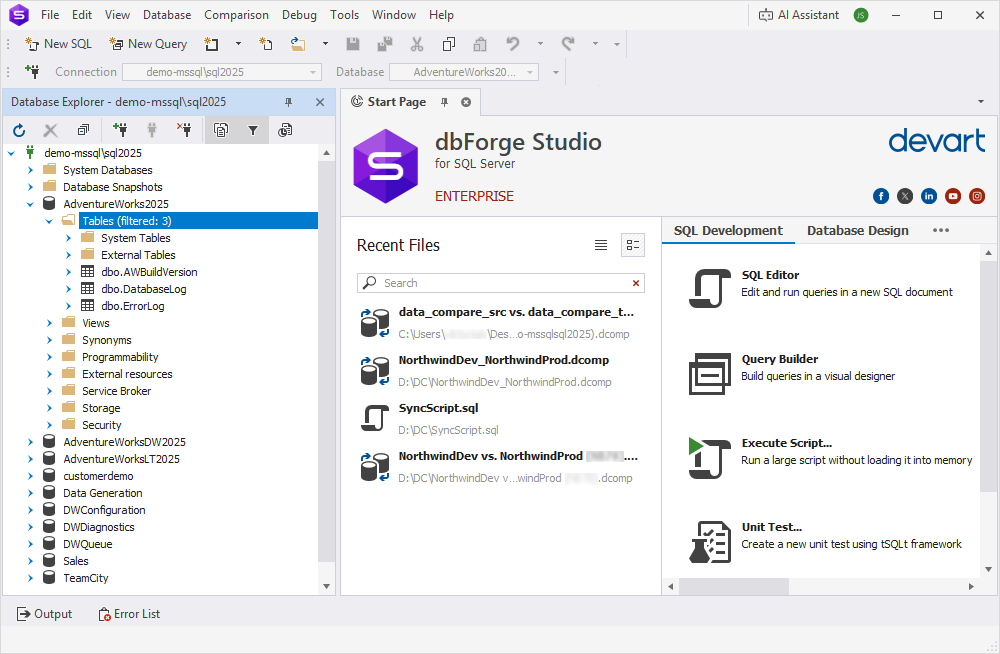
To remove the filter, right-click the filtered node, then select Clear Filter.