Table Designer tab - Constraints
On the Constraints tab, you can manage primary keys, foreign keys, unique keys, and check constraints.
Constraints grid
The Constraints grid shows existing constraints and lets you add or remove them and view their details.
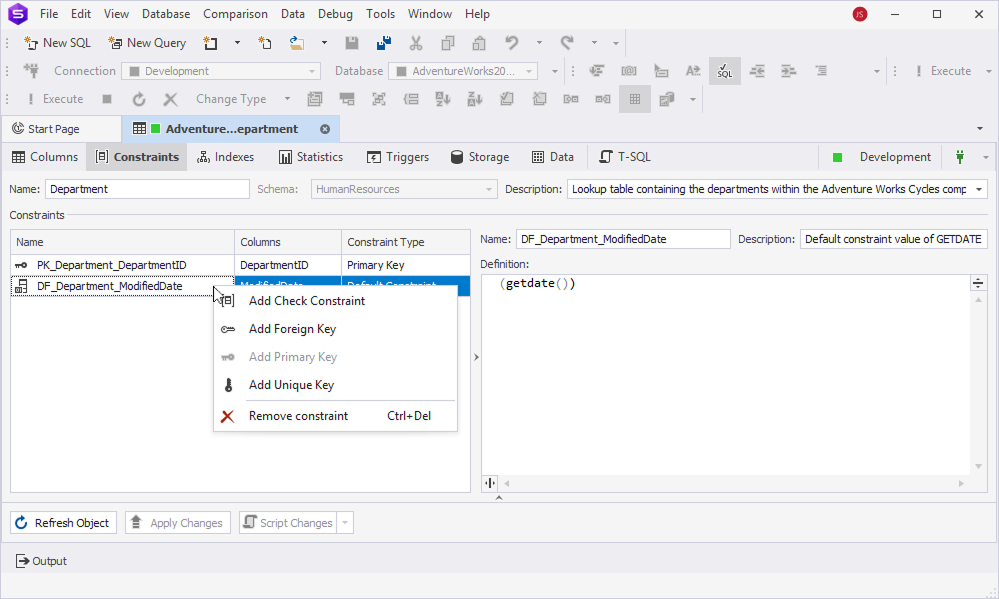
Add constraints
To add a constraint, right-click the Constraints grid and select one of the following options:
- Add Check Constraint – Creates a
CHECKconstraint. - Add Foreign Key – Creates a foreign key.
- Add Primary Key – Creates a primary key.
- Add Unique Key – Creates a unique key.
Note
The following prefixes are added to the constraint name by default:
PK_– Indicates a primary key.FK_– Indicates a foreign key.UQ_– Indicates a unique key.CK_– Indicates a check constraint.
Remove constraints
To remove a constraint, select it in the Constraints grid, right-click the grid, then select Remove Constraint. Alternatively, press Ctrl+Del.
View constraint details
The Constraints grid displays the following constraint details:
- Name – Displays the constraint name.
- Columns – Displays the column selected for the constraint.
- Constraint Type – Displays the constraint type.
Note
If a column already has a primary key, the Add Primary Key option is unavailable.
Constraint detail panels
When you select a constraint in the Constraints grid, the corresponding detail panel opens, where you can configure the constraint properties.
Check constraint detail panel
The following table describes the available properties.
| Name | Description |
|---|---|
| Name | Specifies the check constraint name. |
| Description | Specifies the check constraint description. |
| Condition | Defines the condition for a check constraint. |
| Enabled | Validates new or updated data against the condition, rejecting rows that don’t meet the condition. When a check constraint is turned off, no validation is performed, and data that doesn’t meet the condition can be inserted or updated without error. By default, a check constraint is turned on. |
| Not for Replication | Specifies whether the check constraint is enforced during replication operations. When enabled, SQL Server does not enforce the check constraint for data changes made by replication agents. The check constraint remains enforced for all other operations. |
| Check Existing Data | Verifies that all pre-existing rows comply with the constraint before enforcing it. By default, the option is selected. |
Foreign key detail panel
The following table describes the available properties.
| Name | Description |
|---|---|
| Name | Specifies the foreign key name. |
| Description | Specifies the foreign key description. |
| Delete Rule | Defines the action to take when the referenced row is deleted. The options are NO ACTION, RESTRICT, CASCADE, or SET NULL. |
| Update Rule | Defines the action to take when the referenced row is updated. The options are NO ACTION, RESTRICT, CASCADE, or SET NULL. |
| Referenced Schema Name | Specifies the schema in which the referenced table or object resides. To update the list of schemas, click  . .Shortcut: Ctrl+R |
| Referenced Table Name | Specifies the parent table to which a foreign key points. To update the list of tables, click .Shortcut: Ctrl+R |
| Enabled | Checks that each value of the foreign key column from the child table matches a value in the parent table. If not, it rejects any insert or update operations that violate this rule. When a foreign key is turned off, the constraint still exists but is not enforced. You can insert or update rows with values that don’t exist in the parent table. By default, a foreign key is enabled. |
| Not for Replication | Turns on or off a foreign key whenever a replication operation occurs on this table. |
| Check Existing Data | Enforces the foreign key on existing data that was present in the table before the foreign key was added. By default, the option is selected. |
Constraint columns
| Name | Description |
|---|---|
| Name | Specifies the constraint column. |
| Data Type | Indicates the data type of the constraint column. |
| Not Null | Indicates whether the constraint column is NOT NULL. |
| Remove | Removes the selected constraint column. Alternatively, select Remove Column from the shortcut menu. Shortcut: Ctrl+Del |
| Move up | Moves the selected column up. Alternatively, select Move Column Up from the shortcut menu. Shortcut: Ctrl+Up |
| Move down | Moves the selected column down. Alternatively, select Move Column Down from the shortcut menu. Shortcut: Ctrl+Down |
Referenced columns
| Name | Description |
|---|---|
| Name | Specifies the referenced column. |
| Data Type | Indicates the data type of the referenced column. |
| Not Null | Indicates whether the referenced column is NOT NULL. |
| Remove | Removes the selected referenced column. Alternatively, select Remove Column from the shortcut menu. Shortcut: Ctrl+Del |
| Move up | Moves the selected column up. Alternatively, select Move Column Up from the shortcut menu. Shortcut: Ctrl+Up |
| Move down | Moves the selected column down. Alternatively, select Move Column Down from the shortcut menu. Shortcut: Ctrl+Down |
Primary and unique key detail panel
General
The following table describes the general properties.
| Name | Description |
|---|---|
| Name | Specifies the primary or unique key name. |
| Description | Specifies the primary or unique key description. |
| Index Type | Specifies the index type for the column: Clustered or Nonclustered. |
Constraint columns
The following table describes the properties for the constraint columns.
| Name | Description |
|---|---|
| Name | Specifies the constraint column. |
| Data Type | Indicates a data type of the constraint column. |
| Not Null | Indicates whether the constraint column is NOT NULL. |
| Remove | Removes the selected constraint column. Alternatively, select Remove Column from the shortcut menu. Shortcut: Ctrl+Del |
| Move up | Moves the selected column up. Alternatively, select Move Column Up from the shortcut menu. Shortcut: Ctrl+Up |
| Move down | Moves the selected column down. Alternatively, select Move Column Down from the shortcut menu. Shortcut: Ctrl+Down |
Options
The following table describes options of the primary or unique key.
| Name | Description | Default value |
|---|---|---|
| Auto recompute statistics | Automatically updates the statistics as data changes. | On |
| Ignore duplicate values | Ignores duplicate rows instead of causing an error. | Off |
| Allow page locks | Locks entire pages of data when accessing the primary or unique key. When the checkbox is cleared, SQL Server doesn’t acquire page locks on the index and uses row-level or table-level locks instead. Note: This may lead to blocking or deadlocks if multiple users try to access rows on the same page. |
On |
| Allow row locks | Locks individual rows in the index or table. When the checkbox is cleared, SQL Server cannot acquire row-level locks for that index and uses page-level or table-level locks instead. Note: This may lead to blocking or deadlocks if multiple users try to access rows on the same page. |
On |
| Maximum degree of parallelism | Controls how many CPU cores SQL Server can use in parallel to build or rebuild that index. | 0 |
| Fill factor | Specifies the percentage of space to fill on each leaf-level page with data, reserving the remaining space for future inserts or updates. | 0 |
| Pad Index | Applies the FILLFACTOR option to the intermediate-level pages of the index. When the checkbox is cleared, SQL Server fills the intermediate index pages almost fully, with minimal space left for one additional maximum-sized row. |
Off |
| Sort in tempdb | Uses the tempdb system database for sorting during index creation, after which the completed index is written to the target database. When the checkbox is cleared, SQL Server performs the sort operation within the user database. |
Off |
| Expression | Specifies a WHERE clause to include only specific rows. |
Storage
The following table describes storage options for the primary or unique key.
| Name | Description |
|---|---|
| Regular data space | Specifies the filegroup where the main table data will be physically stored. To update the list of filegroups, click .Note: PRIMARY is the default filegroup created with the database unless otherwise specified.Shortcut: Ctrl+R |
| Partition column | Defines the column that splits the data into multiple partitions, each stored in a different filegroup. When the option is turned off, partitioning is not configured for this table. |
| Filestream data space | Defines where SQL Server will store FILESTREAM-enabled columns. When it is set to <Default>, it implies that FILESTREAM data (binary large objects, such as documents or images) will use the default storage settings. To update the list of filegroups, click .Shortcut: Ctrl+R |
| Text/Image filegroup | Controls where to store TEXT, NTEXT, or IMAGE data types.To update the list of filegroups, click .Shortcut: Ctrl+R |
Fragmentation
The fragmentation properties determine how data is distributed and stored in a database based on the primary or unique key. They include size, leaf-level rows, average row size, maximum and minimum row size.
Note
When you select a constraint in the grid, it is highlighted in the T-SQL preview pane.
Save the changes
An asterisk (*) on the Table Designer tab indicates unsaved changes.
To save and apply them, in the bottom panel, select Apply Changes.
Note
To discard all changes made since Table Designer was opened or last saved, on the standard toolbar, click
. The object is reloaded from the server, and all unsaved changes are permanently lost. You can’t redo changes after an undo operation for database objects.