Work with SQL Editor
SQL Editor is a text editing interface for writing, editing, and running SQL queries, scripts, and statements against your databases. It includes code-specific features, such as syntax highlighting, code completion (IntelliSense), formatting, error detection, code snippets and templates, and navigation tools.
You can open multiple SQL documents to view and edit SQL code simultaneously. To switch between open documents, use the Window menu, which lists all active documents.
Open SQL Editor
You can open SQL Editor by using Database Explorer, the menu bar, the Standard toolbar, the Start Page, or a keyboard shortcut.
Open using Database Explorer
To open SQL Editor, right-click a required server connection or a database, then select New SQL.
Open using the menu bar
To open SQL Editor, use one of the following ways:
- Select File > New > SQL.
- Select File > New > File:
- In the New File dialog that opens, select SQL Server > SQL File.
- Click Create.
Open using the standard toolbar
To open SQL Editor, use one of the following ways:
-
Click New SQL.
-
Click
 .
.- In the New File dialog that opens, select SQL Server > SQL File.
- Click Create.
Open using the Start Page
To open SQL Editor, click SQL Development > SQL Editor.
Open using the keyboard shortcut
To open SQL Editor, press Ctrl+N.
Note
The XML editor provides similar text-editing functionality and includes syntax highlighting for XML. To customize XML highlighting and color settings, select Tools > Options > Environment > Fonts and Colors.
User interface
SQL Editor consists of the following components:
- Code pane: The main area where you write, view, edit, navigate, format, and execute SQL code.
- Indicator margin: A gray column on the left side of the editor that shows markers for breakpoints and bookmarks. Click this margin to add or remove a breakpoint on a specific line.
- Selection margin: A column between the indicator margin and the code pane. Click to select entire lines of code.
- Horizontal and vertical scroll bars: Horizontal and vertical scroll bars that let you navigate through code that extends beyond the visible area of the editor.
- Status bar: An area that displays information about the current connection and query execution.
Use the SQL Editor toolbar
The toolbar provides quick access to features such as code completion, commenting and uncommenting code, bookmarks, and other editing tools.

The table describes SQL Editor toolbar commands.
| Icon | Name | Description | Keyboard shortcut |
|---|---|---|---|
 |
Display an Object Member List | Displays valid database objects, such as databases, tables, and columns. To insert an item, select it, press Tab, type a space, or type a period. |
Ctrl+K, Ctrl+L |
 |
Display a Parameter Info | Displays parameter information when you type a function or stored procedure followed by an opening parenthesis (. |
Ctrl+Shift+Space |
 |
Display Quick Info | Displays general information about an identifier when you hover over it. | Ctrl+K, I |
 |
Display Word Completion | Displays completion suggestions for the word you’re typing. | Ctrl+K, W |
|
Refresh Suggestions | Refreshes code completion suggestions to reflect recent changes. | Ctrl+Shift+R |
|
Enable/Disable Code Completion for current document | Turns code completion on or off for the active document. | |
 |
Decrease Line Indent | Moves selected lines one indentation level to the left. | |
 |
Increase Line Indent | Moves selected lines one indentation level to the right. | |
 |
Comment out the selected lines | Turns the selected lines into comments, making them non-executable. | Ctrl+K, C |
 |
Uncomment the selected lines | Removes comment markers from the selected lines, making the code executable. | Ctrl+K, U |
 |
Toggle a bookmark on the current line | Adds or removes a bookmark on the selected line. | Ctrl+K, K |
 |
Move the caret to the previous bookmark | Moves the cursor to the previous bookmark. | Ctrl+K, Ctrl+P |
 |
Move the caret to the next bookmark | Moves the cursor to the next bookmark. | Ctrl+K, Ctrl+N |
 |
Clear all bookmarks in the current document | Removes all bookmarks from the active document. | Ctrl+K, L |
 |
Format Document | Formats SQL code in the active document. | Ctrl+K, D |
 |
Format Current Statement | Formats the SQL statement at the cursor position. | Ctrl+K, S |
 |
Analyze Code | Scans the SQL script to identify syntax errors, logical issues, and best practice violations before execution. |
Configure SQL Editor settings
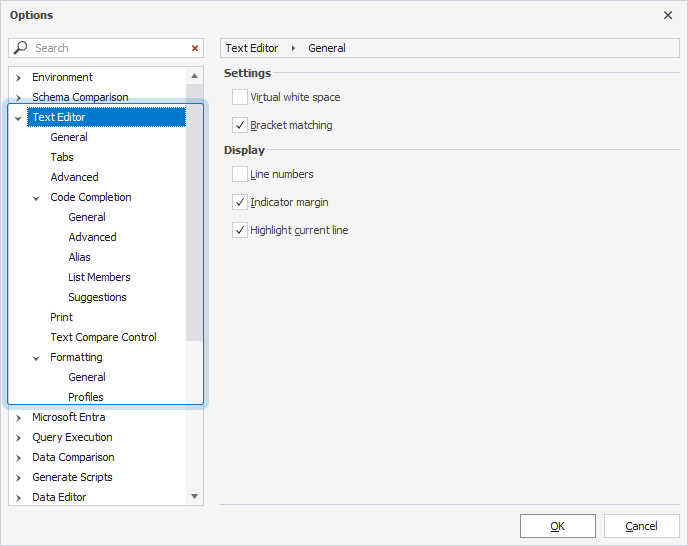
To configure SQL Editor settings, use one of the following ways:
- On the menu bar, select Tools > Options > Text Editor.
- Right-click anywhere in SQL Editor and select Settings > Options.
View connection and execution status bar
The status bar displays information about the current database connection, including the connection status, server, user, and selected database.

When you run a query, the status bar displays its execution status. After execution, it also displays the query execution time.
