Navigate SQL code in SQL Editor
Navigate text and code
You can move through code using the keyboard or mouse. SQL Editor supports several navigation methods:
- Use the arrow keys to move the cursor one character or line at a time.
- Press Ctrl+Left arrow key or Ctrl+Right arrow key to move the cursor one word at a time.
- Click anywhere in the editor to move the cursor to that position.
- Use the scroll wheel or scroll bars to navigate through the code without moving the cursor.
- Press Home or End to move the cursor to the beginning or end of a line.
- Press Page Up or Page Down to scroll one screen at a time.
- Press Ctrl+Page Up to move the cursor to the top of the visible window.
- Press Ctrl+Page Down to move the cursor to the bottom of the visible window.
- Press Ctrl+Up arrow key or Ctrl+Down arrow key to scroll the view without moving the cursor.
Go to a specific line
You can use the Go To Line command to navigate to a specific line number in your document.
To go to a specific line:
1. Select the document.
2. On the menu bar, select Edit > Go To Line.
3. In the dialog that opens, enter the line number.
4. Click OK.
If line numbers aren’t visible, enable them:
1. On the menu bar, select Tools > Options.
2. In the Options dialog, go to Text Editor > General.
3. Select the Line numbers checkbox.
4. Click OK.
Work with bookmarks
Add bookmarks
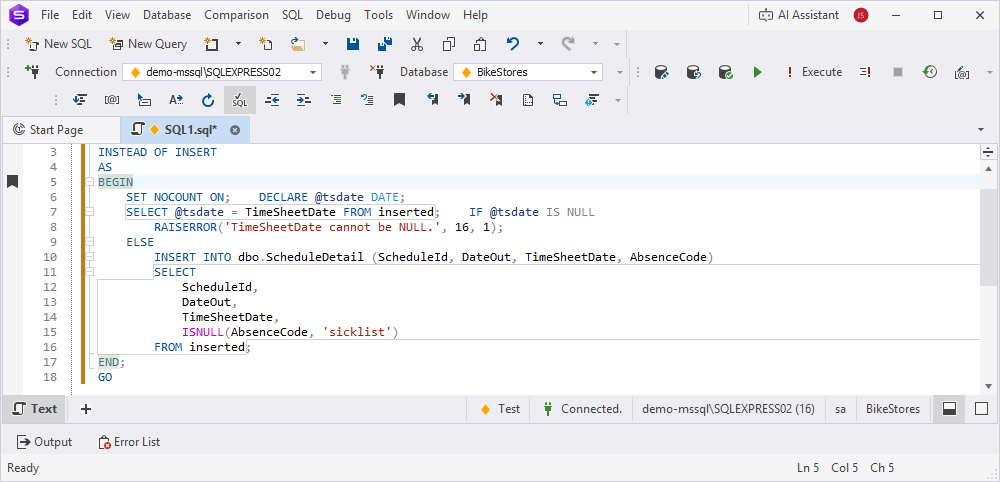
You can add a bookmark to any line in your SQL document to navigate the code.
To add a bookmark, use one of the following ways:
-
On the menu bar, select Edit > Bookmarks > Toggle Bookmark.
-
On the toolbar, click
 Toggle a bookmark on the current line.
-
Press Ctrl+K, K.
Note
Bookmarks are added to the line where the cursor is positioned.
Navigate bookmarks
To move your cursor to the previous bookmark, use one of the following ways:
-
On the menu bar, select Edit > Bookmarks > Previous Bookmark.
-
On the toolbar, click
 Move the caret to the previous bookmark.
-
Press Ctrl+K, Ctrl+P.
To move your cursor to the next bookmark, use one of the following ways:
-
On the menu bar, select Edit > Bookmarks > Next Bookmark.
-
On the toolbar, click
 Move the caret to the next bookmark.
-
Press Ctrl+K, Ctrl+N.
Remove all bookmarks
To remove all bookmarks from the active document, use one of the following ways:
-
On the menu bar, select Edit > Bookmarks > Clear Bookmarks.
-
On the toolbar, click
 Clear all bookmarks in the current document.
-
Press Ctrl+K, L.