Insert columns with the column picker
The column picker in dbForge Studio for SQL Server enables the selection of multiple columns for tables or views. The column picker appears in SELECT and INSERT statements and in GROUP BY and ORDER BY clauses.
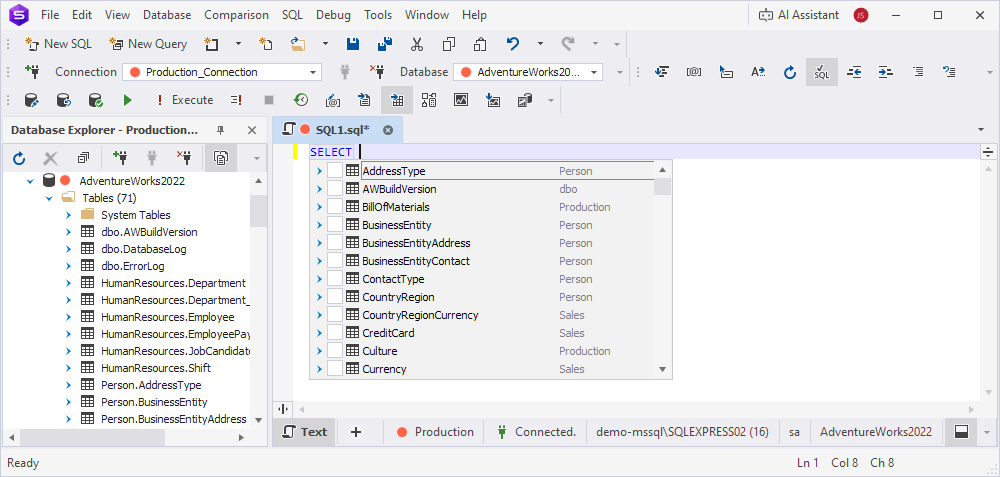
When you start typing the column name, the list of columns is filtered to show only those that match the entered characters.
After you select and insert the columns you need, the statement or clause is automatically completed with the selected columns and a FROM clause that includes the corresponding table or view.
Here are the examples of what the column picker displays depending on where it’s invoked:
- In the
SELECTstatement with the table indicated in theFROMclause.
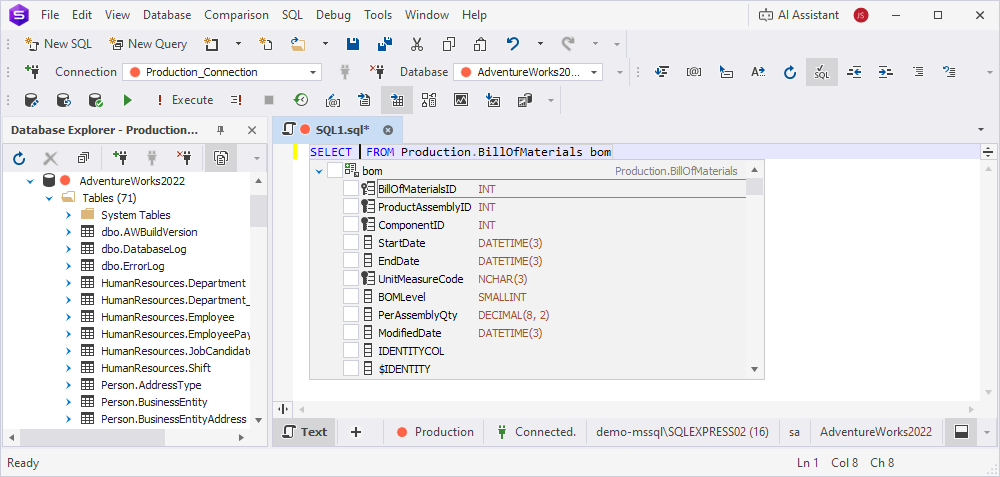
- In the
SELECTstatement followed by theJOINclause.
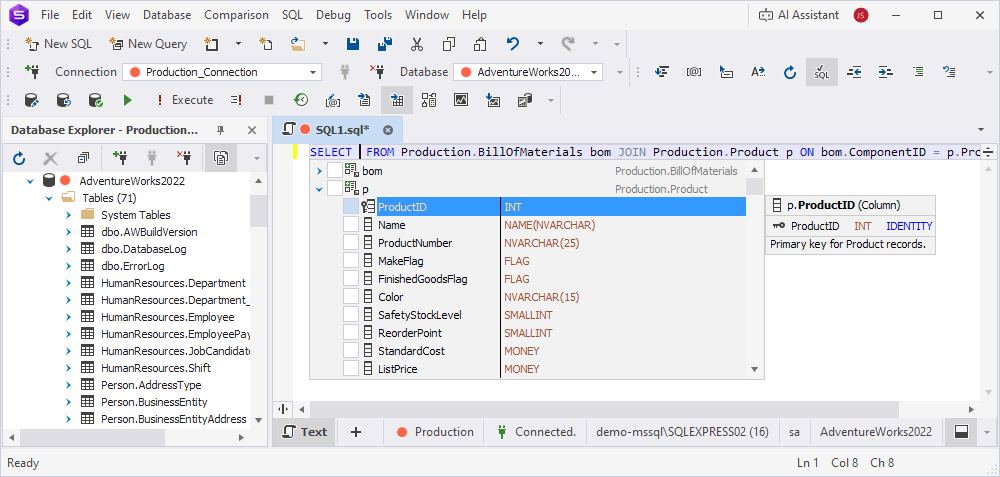
- In the
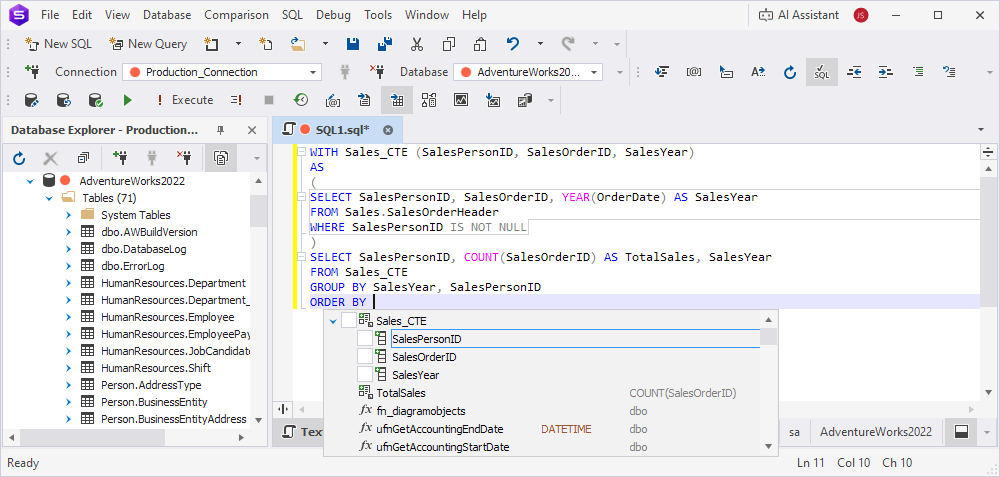
ORDER BYclause for a CTE query.
Select columns
-
Press the Up and Down arrow keys to navigate through the list.
-
Press the Spacebar or the Insert key to select or deselect columns in the column picker.
Insert selected columns
Press Enter to insert the selected columns. The columns are inserted in the order in which you selected them.
Qualified column names
Inserted column names are qualified in the following cases:
-
The Qualify column name with table alias or Qualify column name (no table alias) option is enabled in Tools > Options > Text Editor > Code Completion > Advanced.
-
Multiple tables are specified in the
FROMclause, which can result in ambiguous column names. Only columns that appear in more than one table are automatically qualified.
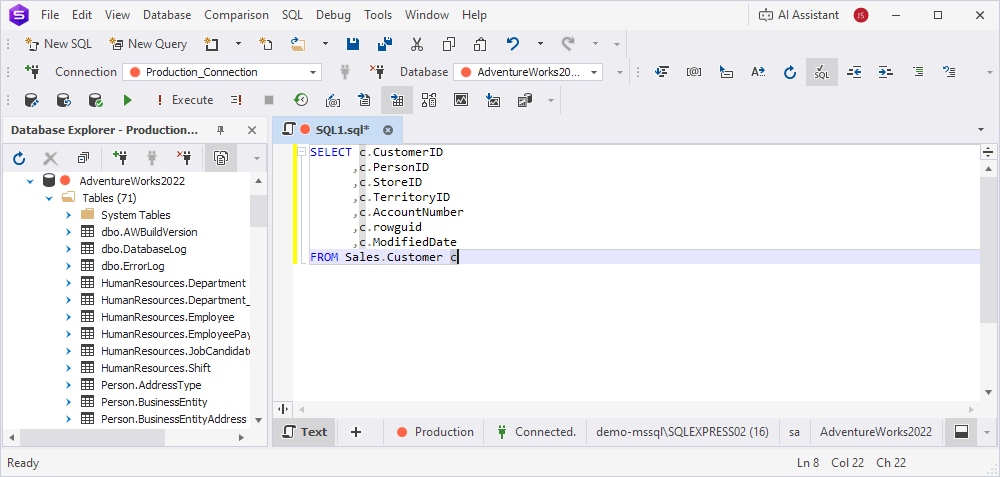
Example 1.
The Qualify column name with table alias option is enabled, and the table has an alias. The Studio qualifies the inserted columns with the table alias.
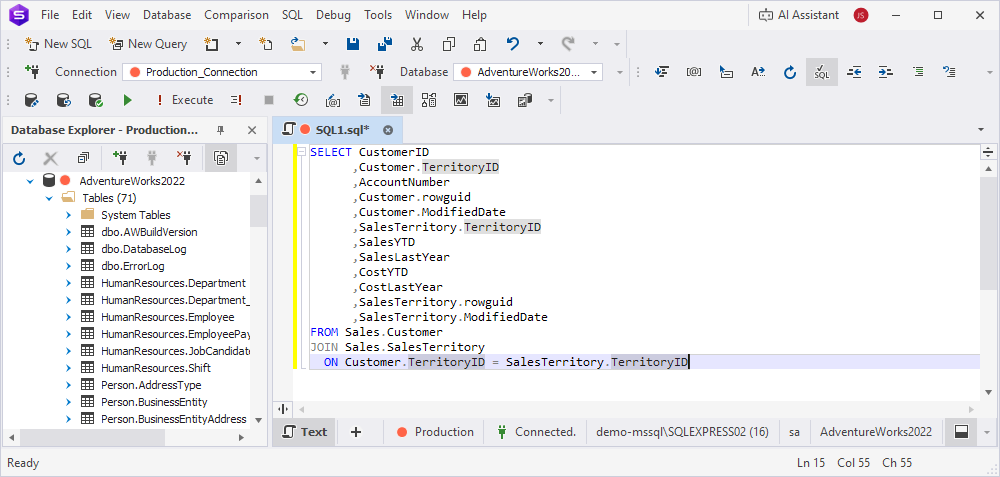
Example 2.
The Qualify column name with table alias and Qualify column name (no table alias) options are disabled. The Studio automatically qualifies certain columns with corresponding table names to avoid ambiguity.
Non-aggregated columns in GROUP BY
After you type the GROUP BY keyword and a space, a suggestion box with a list of non-aggregated columns appears.
You can insert all non-aggregated columns at once by selecting the SELECT List checkbox, or select them one by one in the needed order. When you select a column, it’s automatically added to the query.
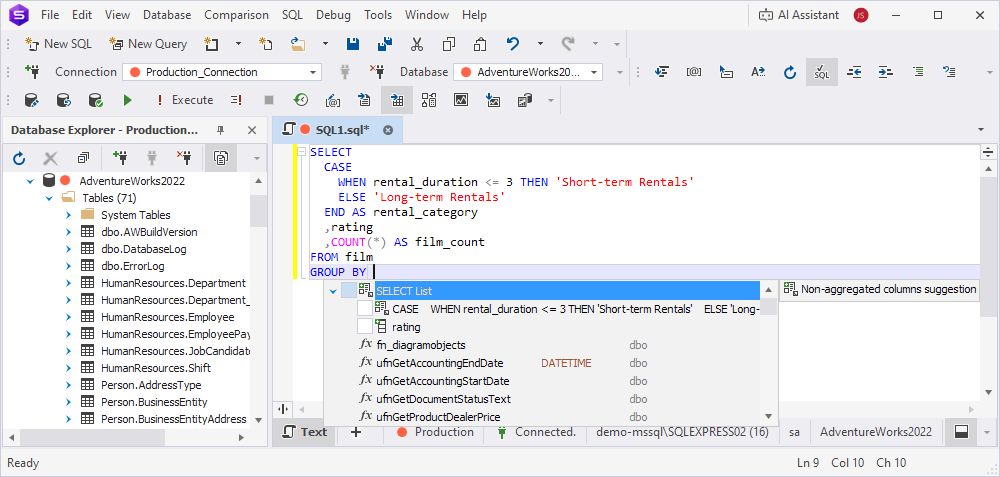
If you start typing a column name when the suggestion box is open, the Studio filters the columns in the SELECT list by the entered characters.