dbForge Studio for SQL Server v2025.3 release notes
This release brings new productivity improvements for daily SQL work in dbForge Studio for SQL Server. It adds faster navigation in large scripts, expanded integration options, and new editor and diagram enhancements that help you write, format, and explore database objects more efficiently.
What’s new
Scroll bar annotations
Scroll bar annotations are now available to help you navigate large scripts and quickly locate important areas in the editor. Colored markers on the vertical scroll bar show modified lines (saved and unsaved), bookmarks and breakpoints, identifier occurrences, server and parsing syntax errors, warnings (including Code Analyzer warnings), Code Analyzer errors, and the current caret position.
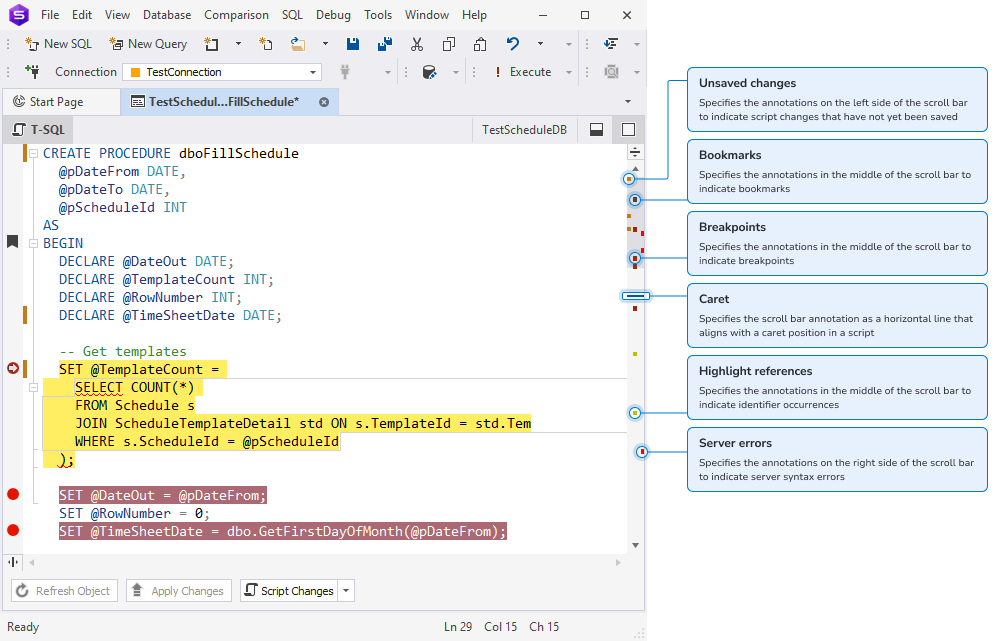
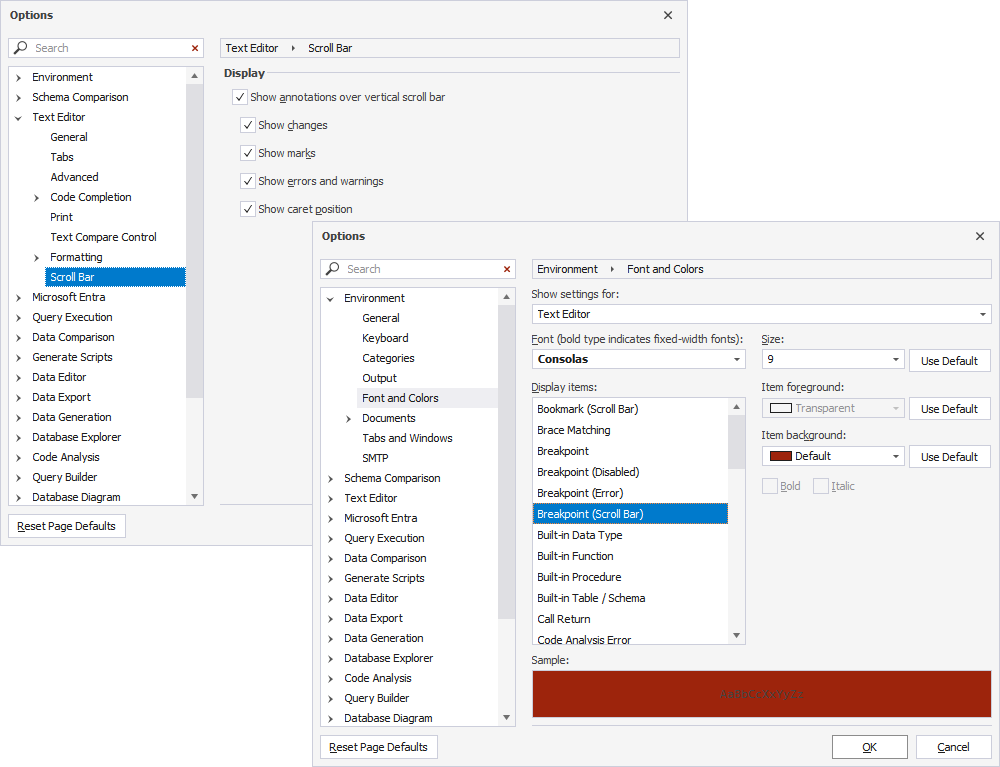
You can enable and configure annotations in Tools > Options > Text Editor > Scroll Bar by selecting Show annotations over vertical scroll bar and choosing which annotation types to display. You can also customize most annotation colors in Tools > Options > Environment > Font and Colors.
Automatically surround selections
Automatically surround selections is now available in the SQL Editor to speed up editing and reduce manual typing. When you select text and type an opening character, dbForge Studio for SQL Server wraps the selection with the matching pair.
The feature supports ( ), [ ], { }, < >, " ", ' ', and ` `.It is enabled by default and can be turned off in Tools > Options > Text Editor > General by clearing Automatically surround selections when typing quotes or brackets.
Search in Database Diagram
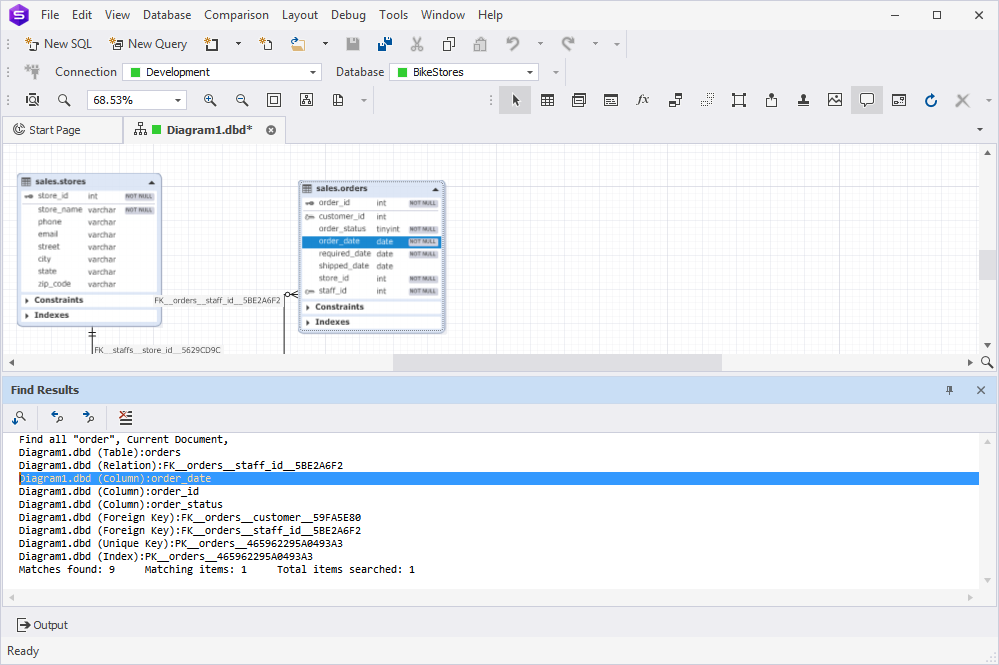
Search is now available in Database Diagram, so you can find text and objects directly on the diagram and jump to the matching items. In addition to object names, the search covers stamp fields (company and project name), notes, relationships, and container names.
You can search across the current diagram or all open documents and refine results with options such as Match case, Match whole word, and support for regular expressions or wildcards. Matches are highlighted in blue, and you can step through them with Find Next or display all matches in the Find Results pane and open any result by double-clicking it.
camelCase formatting for identifiers
Formatting profiles now support camelCase for identifiers to help you align scripts with common team naming conventions. A new camelCase option has been added to the Text Case settings across Alias Case, Built-in Datatype Case, Built-in Function Case, Identifier Case, and Variable Case.
To make case options clearer and more consistent, Initial caps has been renamed to Capitalized, and Initial caps each word has been renamed to PascalCase. PascalCase is also now available in Alias Case.
Previously saved formatting profiles remain compatible and continue to work without changes.