Specify parameters for a report from the command line
When generating data reports using the dbForge Studio for SQL Server command-line interface, you can specify parameter values directly in the command. This lets you reuse the same report template to generate different outputs by supplying new parameter values each time you run the report.
To pass a parameter from the command line, create a report template with a query that includes the report parameter, then reference the parameter name when running the report from the command line.
Note
Parameter values specified in the command line override the corresponding parameter values defined in your template.
For example, you need to create a report that filters sales data by territory name and pass a different territory name each time you generate the report, without modifying the template. To do this, create a parameterized report that uses the @territory_name variable in the query. When you run the report from the command line, specify the value for this variable directly in the command. The report will use that value to filter the data.
Prerequisites
Prepare a query for the report template
The query must contain the parameter that you will reference from the command line. The following example shows a parameterized query that retrieves sales orders from the AdventureWorks2025 database. You will pass the parameter value from the command line when generating the report:
SELECT
  st.Name AS territoryname
,soh.SalesOrderID
,soh.OrderDate
,soh.TotalDue
,p.FirstName
,p.LastName
FROM Sales.SalesOrderHeader soh
JOIN Sales.SalesTerritory st
  ON soh.TerritoryID = st.TerritoryID
JOIN Sales.SalesPerson sp
  ON soh.SalesPersonID = sp.BusinessEntityID
JOIN Person.Person p
  ON sp.BusinessEntityID = p.BusinessEntityID
WHERE st.Name = @territory_name
ORDER BY soh.OrderDate DESC;
where @territory_name is the parameter that will be specified from the command line.
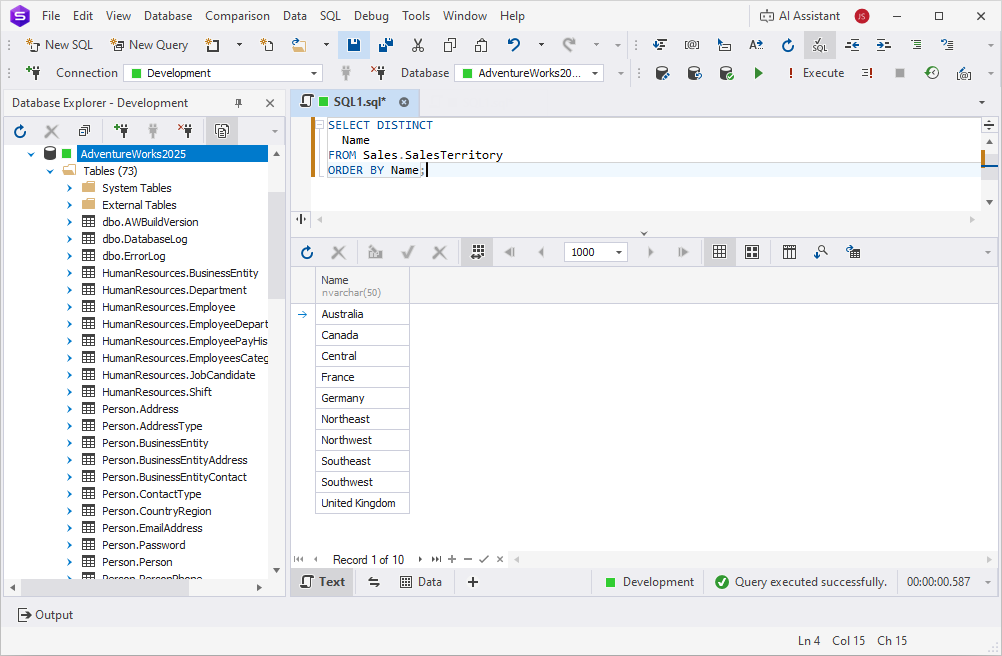
To view the list of sales territory names that can be used as parameter values, run the following query:
SELECT DISTINCT Name FROM Sales.SalesTerritory ORDER BY Name;
Configure email settings
To send the generated report by email, configure your SMTP account settings in dbForge Studio before running the command. For more information, see Configure email account settings.
Step 1: Create a report template
1. Open the Data Report Wizard in one of these ways:
- In the Database menu, select Report Designer.
- On the Data Analysis tab of the Start Page, select Design New Report.
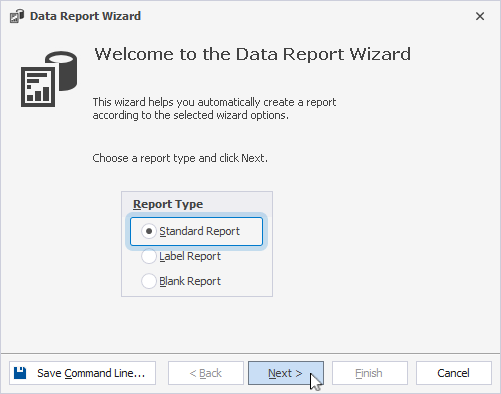
2. In the Data Report Wizard, select Standard Report as the report type, and then click Next.
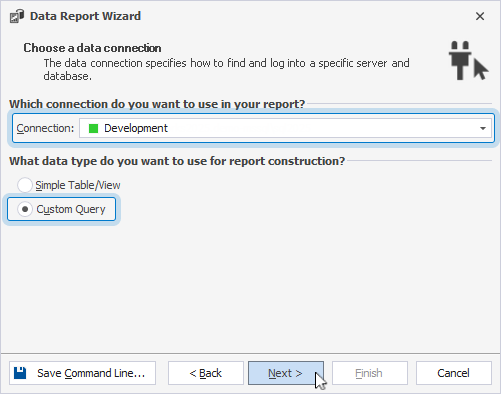
3. On the Choose a data connection page, select your database connection and Custom Query as the data type, then click Next.
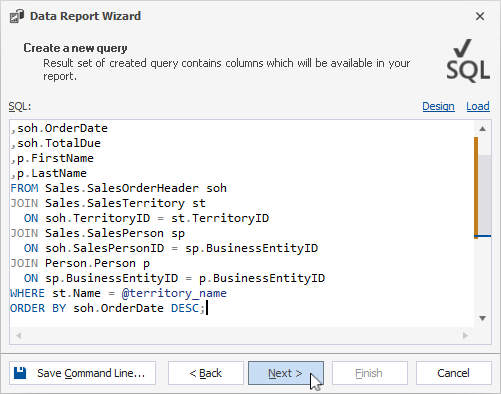
4. On the Create a new query page, enter a parameterized query, then click Next. For more information, see Prepare a query for the report template.
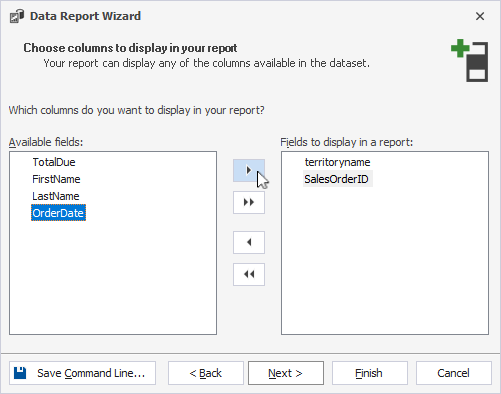
5. On the Choose columns to display in your report page, use the arrow buttons to select the columns you want to include in the report.
6. Optional: Configure grouping levels and report layout.
7. Click Finish.
8. Save the report template.
Step 2: Generate the report from the command line
1. Open Command Prompt and navigate to the folder that contains dbforgesql.com. The default path to this executable depends on where dbForge Studio for SQL Server is installed. If you installed dbForge Studio:
As a standalone tool
C:\Program Files\Devart\dbForge Studio for SQL Server
As part of the dbForge Edge bundle
C:\Program Files\Devart\dbForge Edge\dbForge Studio for SQL Server
2. Run the following command, replacing the placeholders with your actual data:
dbforgesql.com /datareport /reportfile:"D:\Reports\Templates\salesorders-by-territory.rdb" /parameters territory_name:"Northwest" /format:HTML /result folder:"D:\Reports\Generated reports" /resultfilename:"salesorders-northwest"
where:
D:\Reports\Templates\salesorders-by-territory.rdb– The path to the report template created in Step 1.Northwest– The parameter value used to filter the report data.HTML– The output format.D:\Reports\Generated reports– The folder where the report will be saved.
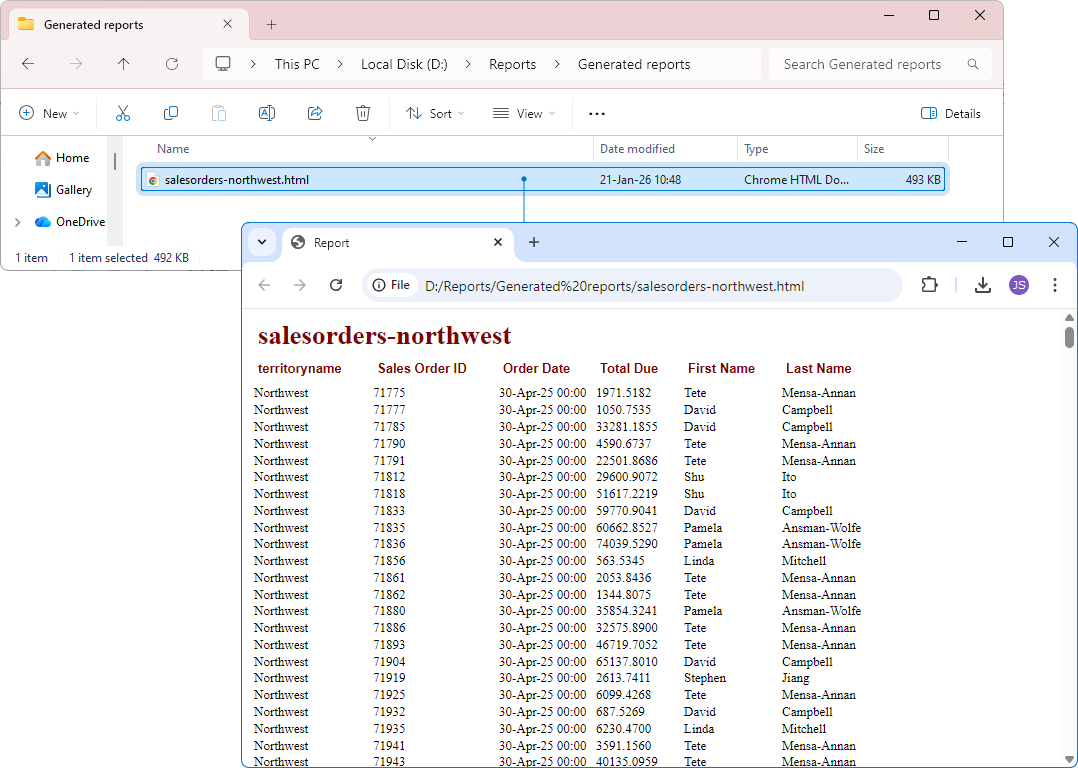
The report is generated and saved to D:\Reports\Generated reports.
For more information about generating reports from the command line, see Report creation.