Migrate databases to SQL Server
dbForge Studio for SQL Server provides several tools to migrate databases to SQL Server. This section describes supported approaches to data migration, which rely on tools such as Data Export/Import, AI Assistant, Schema Compare, and Data Compare.
Tip
Back up your database before you start the migration to avoid data loss.
Migrate a database to a newer version of SQL Server
To upgrade a database to the latest version of SQL Server and ensure access to its latest features, use dbForge Schema Compare and Data Compare. These tools allow you to compare database objects and their contents, then selectively migrate only the items you need.
Alternatively, you can generate a migration script with the required database objects and data, then execute it on the target SQL Server instance.
For detailed instructions, see Overcoming the Challenges of SQL Server Version Upgrades and Downgrades With dbForge Compare Bundle.
Migrate databases between SQL Server instances
Moving databases between servers involves copying a database from a source server and deploying it on a target server. You can use one of the following approaches:
-
Back up and restore.
-
Detach and attach.
-
Synchronize data using Data and Schema Compare tools.
-
Generate a database script, script folder, or schema snapshot, then run it on the target server.
For more information on how to use each method, see Different Methods to Copy Data with dbForge SQL Tools.
Migrate a database using ODBC
To migrate a database using an ODBC driver, connect the source database (for example, MySQL) to SQL Server through the ODBC interface. You can then transfer both schema and data by using the SQL Server Data Import and Export Wizard.
For more information, see How to Convert MySQL Databases to SQL Server.
Migrate an external database using the AI Assistant
The integrated AI Assistant can help you transfer data from external database systems to SQL Server. The Assistant analyzes the script generated from the source and converts it into SQL Server-compatible syntax. Afterward, you can run the resulting script in the target environment using dbForge Studio for SQL Server.
The following sections provide detailed instructions on how to migrate data using the integrated AI Assistant.
Prepare data for migration
Before migrating data, you need to export the source database structure (schema) and its contents to ensure consistency on the target system.
Step 1: Export a database schema
To export the schema of a source database and generate a script for data migration, see Export schema.
Step 2: Export database content
To export the content of a source database and generate a CSV file for data migration, see Export data.
Migrate the database
Data migration from another database system involves converting the schema script into SQL Server-compatible syntax and applying it to the target database. Afterward, import the data to complete the migration.
Step 1: Convert the script to SQL Server syntax
1. On the toolbar, select AI Assistant > Open Chat Window.
2. Enter a prompt to convert the schema script from the source database system (specify the version) to SQL Server (specify the version).
Tips
When handling large external database scripts, divide them into smaller parts and send each segment to the AI Assistant for conversion.
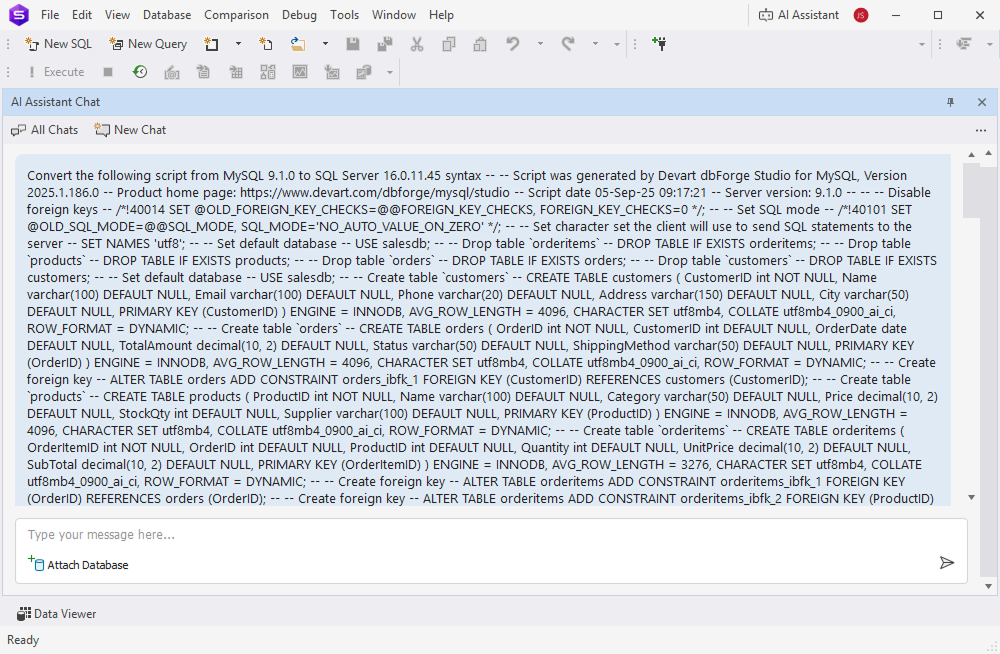
The following example demonstrates how a MySQL schema script can be converted into SQL Server syntax.
3. In File Explorer, go to the folder where you saved the source database schema script.
4. Open the script in a text editor, copy its content, and paste it into the AI Assistant window.
5. Select Send.
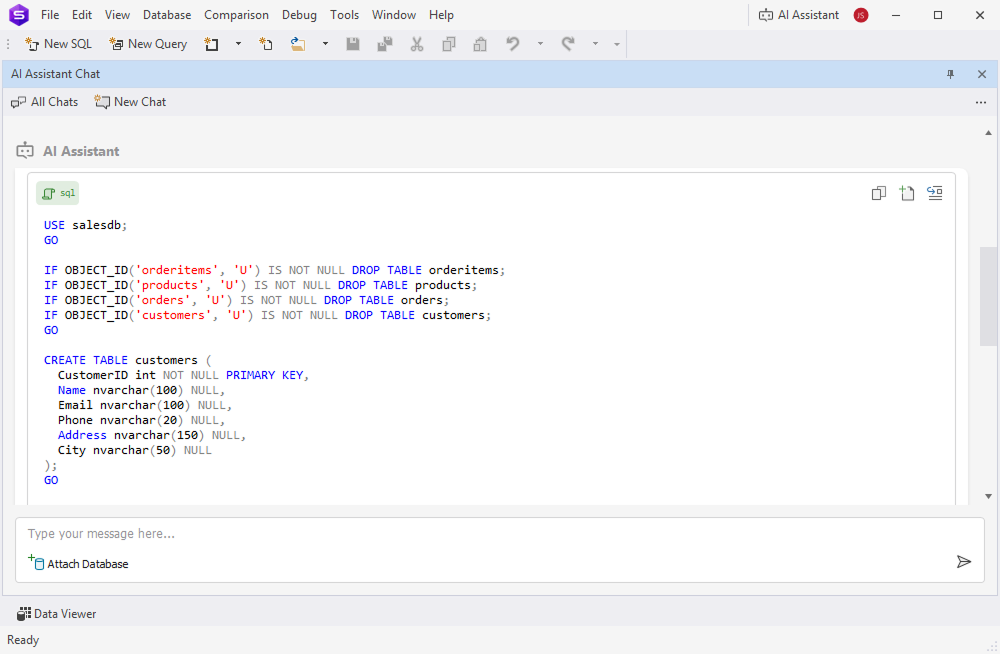
The AI Assistant generates a SQL Server-compatible script.
 Click to open the schema script of MySQL database
--
-- Script was generated by Devart dbForge Studio for MySQL, Version 2025.2.109.0
-- Product home page: https://www.devart.com/dbforge/mysql/studio
-- Script date 13-Nov-25 14:21:44
-- Server version: 9.1.0
--

--
-- Disable foreign keys
--
/*!40014 SET @OLD_FOREIGN_KEY_CHECKS=@@FOREIGN_KEY_CHECKS, FOREIGN_KEY_CHECKS=0 */;

--
-- Set SQL mode
--
/*!40101 SET @OLD_SQL_MODE=@@SQL_MODE, SQL_MODE='NO_AUTO_VALUE_ON_ZERO' */;

--
-- Set character set the client will use to send SQL statements to the server
--
SET NAMES 'utf8';

--
-- Set default database
--
USE salesdb;

--
-- Drop table `orderitems`
--
DROP TABLE IF EXISTS orderitems;

--
-- Drop table `products`
--
DROP TABLE IF EXISTS products;

--
-- Drop table `orders`
--
DROP TABLE IF EXISTS orders;

--
-- Drop table `customers`
--
DROP TABLE IF EXISTS customers;

--
-- Set default database
--
USE salesdb;

--
-- Create table `customers`
--
CREATE TABLE customers (
  CustomerID int NOT NULL,
  Name varchar(100) DEFAULT NULL,
  Email varchar(100) DEFAULT NULL,
  Phone varchar(20) DEFAULT NULL,
  Address varchar(150) DEFAULT NULL,
  City varchar(50) DEFAULT NULL,
  PRIMARY KEY (CustomerID)
)
ENGINE = INNODB,
AVG_ROW_LENGTH = 4096,
CHARACTER SET utf8mb4,
COLLATE utf8mb4_0900_ai_ci,
ROW_FORMAT = DYNAMIC;

--
-- Create table `orders`
--
CREATE TABLE orders (
  OrderID int NOT NULL,
  CustomerID int DEFAULT NULL,
  OrderDate date DEFAULT NULL,
  TotalAmount decimal(10, 2) DEFAULT NULL,
  Status varchar(50) DEFAULT NULL,
  ShippingMethod varchar(50) DEFAULT NULL,
  PRIMARY KEY (OrderID)
)
ENGINE = INNODB,
AVG_ROW_LENGTH = 4096,
CHARACTER SET utf8mb4,
COLLATE utf8mb4_0900_ai_ci,
ROW_FORMAT = DYNAMIC;

--
-- Create foreign key
--
ALTER TABLE orders
ADD CONSTRAINT orders_ibfk_1 FOREIGN KEY (CustomerID)
REFERENCES customers (CustomerID);

--
-- Create table `products`
--
CREATE TABLE products (
  ProductID int NOT NULL,
  Name varchar(100) DEFAULT NULL,
  Category varchar(50) DEFAULT NULL,
  Price decimal(10, 2) DEFAULT NULL,
  StockQty int DEFAULT NULL,
  Supplier varchar(100) DEFAULT NULL,
  PRIMARY KEY (ProductID)
)
ENGINE = INNODB,
AVG_ROW_LENGTH = 4096,
CHARACTER SET utf8mb4,
COLLATE utf8mb4_0900_ai_ci,
ROW_FORMAT = DYNAMIC;

--
-- Create table `orderitems`
--
CREATE TABLE orderitems (
  OrderItemID int NOT NULL,
  OrderID int DEFAULT NULL,
  ProductID int DEFAULT NULL,
  Quantity int DEFAULT NULL,
  UnitPrice decimal(10, 2) DEFAULT NULL,
  SubTotal decimal(10, 2) DEFAULT NULL,
  PRIMARY KEY (OrderItemID)
)
ENGINE = INNODB,
AVG_ROW_LENGTH = 3276,
CHARACTER SET utf8mb4,
COLLATE utf8mb4_0900_ai_ci,
ROW_FORMAT = DYNAMIC;

--
-- Create foreign key
--
ALTER TABLE orderitems
ADD CONSTRAINT orderitems_ibfk_1 FOREIGN KEY (OrderID)
REFERENCES orders (OrderID);

--
-- Create foreign key
--
ALTER TABLE orderitems
ADD CONSTRAINT orderitems_ibfk_2 FOREIGN KEY (ProductID)
REFERENCES products (ProductID);

--
-- Restore previous SQL mode
--
/*!40101 SET SQL_MODE=@OLD_SQL_MODE */;

--
-- Enable foreign keys
--
/*!40014 SET FOREIGN_KEY_CHECKS = @OLD_FOREIGN_KEY_CHECKS */;
Click to open the SQL-compatible schema script
 -- Use the target database
USE salesdb;
GO

-- Drop tables if exist in correct order due to FKs
IF OBJECT_ID('dbo.orderitems', 'U') IS NOT NULL DROP TABLE dbo.orderitems;
IF OBJECT_ID('dbo.products', 'U') IS NOT NULL DROP TABLE dbo.products;
IF OBJECT_ID('dbo.orders', 'U') IS NOT NULL DROP TABLE dbo.orders;
IF OBJECT_ID('dbo.customers', 'U') IS NOT NULL DROP TABLE dbo.customers;
GO

-- Create table customers
CREATE TABLE dbo.customers (
  CustomerID int NOT NULL PRIMARY KEY,
  Name nvarchar(100) NULL,
  Email nvarchar(100) NULL,
  Phone nvarchar(20) NULL,
  Address nvarchar(150) NULL,
  City nvarchar(50) NULL
);
GO

-- Create table orders
CREATE TABLE dbo.orders (
  OrderID int NOT NULL PRIMARY KEY,
  CustomerID int NULL,
  OrderDate date NULL,
  TotalAmount decimal(10, 2) NULL,
  Status nvarchar(50) NULL,
  ShippingMethod nvarchar(50) NULL,
  CONSTRAINT FK_orders_customers FOREIGN KEY (CustomerID) REFERENCES dbo.customers(CustomerID)
);
GO

-- Create table products
CREATE TABLE dbo.products (
  ProductID int NOT NULL PRIMARY KEY,
  Name nvarchar(100) NULL,
  Category nvarchar(50) NULL,
  Price decimal(10, 2) NULL,
  StockQty int NULL,
  Supplier nvarchar(100) NULL
);
GO

-- Create table orderitems
CREATE TABLE dbo.orderitems (
  OrderItemID int NOT NULL PRIMARY KEY,
  OrderID int NULL,
  ProductID int NULL,
  Quantity int NULL,
  UnitPrice decimal(10, 2) NULL,
  SubTotal decimal(10, 2) NULL,
  CONSTRAINT FK_orderitems_orders FOREIGN KEY (OrderID) REFERENCES dbo.orders(OrderID),
  CONSTRAINT FK_orderitems_products FOREIGN KEY (ProductID) REFERENCES dbo.products(ProductID)
);
GO

-- Set database default collation if needed externally (not within table creation)
-- UTF8 requires SQL Server 2019+ and specifying COLLATE Latin1_General_100_CI_AS_SC_UTF8 on VARCHAR columns for Unicode UTF-8 storage.
-- Here we use NVARCHAR for Unicode storage.
Step 2: Execute the script
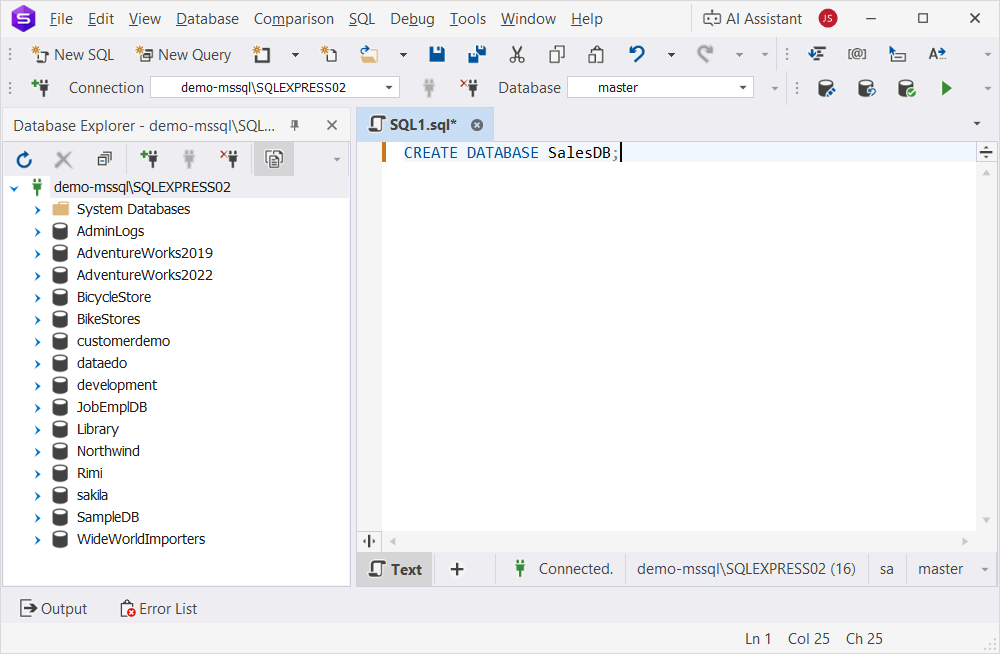
1. On the toolbar, select New SQL to open a new SQL document.
2. Create the database by running the following command, replacing your_database_name with the actual name.
CREATE DATABASE your_database_name;
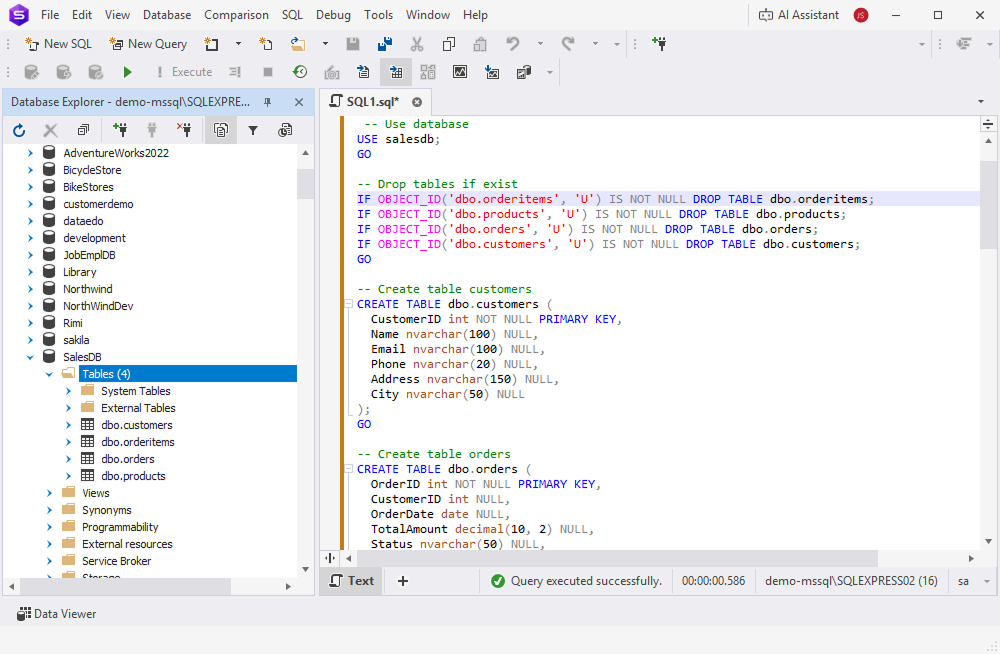
3. Copy the script generated by AI Assistant.
4. Paste the script into the SQL document and click Execute.
Step 3: Import database content
To import the source database content from the previously exported data file, see Import data.
Check data integrity after migration
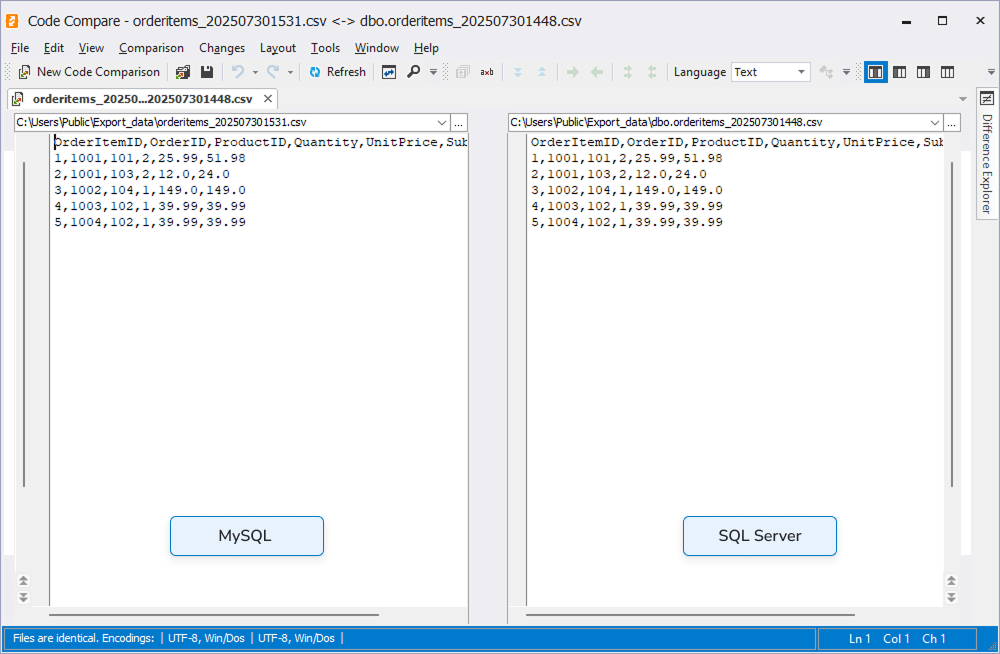
After migration, verify that the source and target databases contain identical data. You can do this by exporting the data from both systems in the same format and comparing the results in Code Compare.
To verify data integrity, first export the content from the target database in the same format as the source database. Then, compare the two exports in a specialized tool such as Code Compare.
Step 1: Export data from the target database
To export the migrated database, see Export data.
Step 2: Compare the source and target data
1. Open Code Compare.
2. On the menu bar, select File > Open First File, and then choose the CSV file exported from the source database (for example, MySQL).
3. Click Open Second File, then select the CSV file exported from the target database.
4. Review the side-by-side comparison to identify any differences.
Recommendations
Follow these recommendations to ensure an effective database migration.
| Migration Best Practice | Description |
|---|---|
| Plan migration | Determine the data volume for migration, its relationships, and schedule the process when source and target systems are least loaded. |
| Test migration | Test the migration in a development environment. |
| Back up a database | Always back up a source database before migration. |
| Divide large datasets into smaller parts | For large volumes of data, split the migration into stages, and also divide the data, for example, by years. |
| Ensure correct schema mapping | For the stage of mapping data from a source to a target schema, review it carefully because even if data fields have identical names, they may have different lengths or content (for example, the meaning of a timestamp in MySQL differs from one in SQL Server). |
| Ensure encoding consistency | When importing string data, verify that the file encoding matches the encoding of the target database column. |
| Observe resource usage | During import/export operations, use monitoring tools to observe server resource usage. |
| Document migration | Document the entire process, and ensure that all personnel are informed about the process start and end times. |
| Review data | Ensure that all constraints such as unique keys or check constraints are enabled during data import to ensure that invalid data is not imported into the database; the same applies to triggers. |
| Enable data logging | During the export/import process, enable data logging so you can understand on which data a potential failure occurred. |
| Limit access to storage locations | When exporting or importing sensitive data, ensure that only authorized personnel can access the storage locations used for the operation. |