Manage database encryption
Database encryption helps protect sensitive information by converting data stored in a database into an unreadable, encoded format (ciphertext).
dbForge Studio allows you to view and manage database encryption, including operations with Transparent Data Encryption (TDE). TDE protects data at rest by encrypting database and log files with a Database Encryption Key (DEK). This key is secured by either a certificate protected by the Database Master Key (DMK) of the master database, or an asymmetric key managed through an Extensible Key Management (EKM) module.
This guide describes how to manage database encryption using dbForge Studio for SQL Server, including:
- Encrypting a database.
- Generating a new encryption key with the selected algorithm.
- Re-encrypting the key by changing the method to protect the existing database encryption key.
Permissions
To manage database encryption in SQL Server, ensure the following requirements are met:
- Membership in
sysadminordb_ownerto perform operations related to database encryption. CREATE CERTIFICATEandCREATE ASYMMETRIC KEYto create certificates and asymmetric keys in the master database.CONTROL SERVERto configure encryption features, such as transparent data encryption (TDE), certificates, and encryption keys.ALTER ANY CERTIFICATEto create, modify, or back up certificates.ALTER ANY SYMMETRIC KEYto manage symmetric keys.ALTER ANY DATABASEandVIEW SERVER STATEor database ownership to enable TDE in the database.VIEW DEFINITIONon certificates and keys to inspect their properties.
Prerequisites
- Create a database master key (DMK) in the master database.
- Create a certificate or asymmetric key.
Create a database encryption key
1. In Database Explorer, right-click the database and select Tasks > Manage Database Encryption.
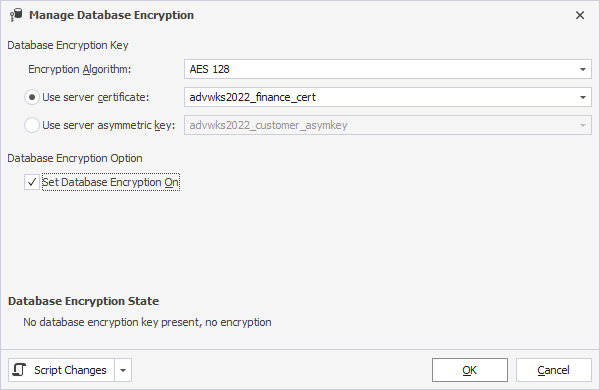
2. Under Database Encryption Key, configure database encryption key settings:
2.1. In Encryption Algorithm, select the algorithm for the database encryption key. The supported encryption algorithms are: AES 128 (default), AES 192, AES 256, and Triple DES.
2.2. Select a method to encrypt the database:
- Use server certificate – Encrypts the database using a certificate stored on the server.
- Use server asymmetric key – Encrypts the database using an asymmetric key stored on the server.
3. Under Database Encryption Option, select Set Database Encryption On to encrypt the database.
Note
When the Set Database Encryption On option isn’t selected, the database encryption key is created, but the database remains unencrypted.
Tip
Under Database Encryption State, you can check the current TDE status of the database, whether it is encrypted or unencrypted, or the DEK isn’t created.
4. Optional: To generate a script for database encryption, click Script Changes, then select the option:
- To New SQL Window – Opens the script in a new SQL document.
- To Clipboard – Copies the script to the clipboard.
USE [database_name]
GO
CREATE DATABASE ENCRYPTION KEY
WITH ALGORITHM = { AES_128 | AES_192 | AES_256 | TRIPLE_DES }
ENCRYPTION BY SERVER
    {
        CERTIFICATE encryptor_name |
        ASYMMETRIC KEY encryptor_name
    }
GO
ALTER DATABASE [database_name] SET ENCRYPTION ON
GO
where:
database_name– The name of the database where the database encryption key is created.encryptor_name– The certificate or an asymmetric key created in the master database.
5. Click OK to save the changes.
Click Cancel to discard the changes.
Encrypt the database
1. In Database Explorer, right-click the database and select Tasks > Manage Database Encryption.
2. Under Database Encryption Option, select Set Database Encryption On.
3. Click OK.
Generate a new encryption key
1. In Database Explorer, right-click the database and select Tasks > Manage Database Encryption.
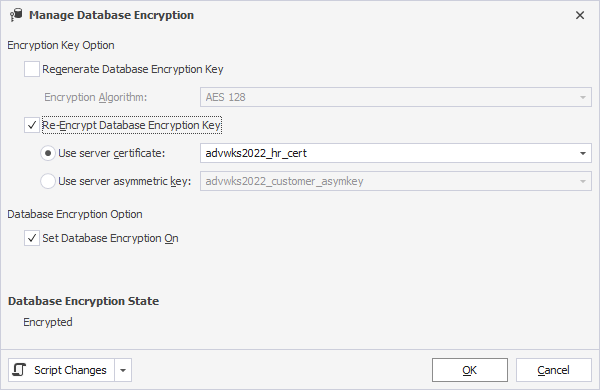
2. Under Encryption Key Option, select Regenerate Database Encryption Key.
3. In Encryption Algorithm, select the algorithm for the new database encryption key.
4. Click OK.
The generated script may look as follows:
USE [database_name]
GO
ALTER DATABASE ENCRYPTION KEY REGENERATE WITH ALGORITHM = { AES_128 | AES_192 | AES_256 | TRIPLE_DES }
Re-encrypt the database encryption key
1. In Database Explorer, right-click the database and select Tasks > Manage Database Encryption.
2. Under Encryption Key Option, select Re-Encrypt Database Encryption Key.
Note
The Re-Encrypt Database Encryption Key option doesn’t create a new database encryption key. If you want to create a new DEK, select Regenerate Database Encryption Key, then select the algorithm.
3. Select a method to encrypt the database:
- Use server certificate
- Use server asymmetric key
4. Click OK.
The generated script may look as follows:
USE [database_name]
GO
ALTER DATABASE ENCRYPTION KEY ENCRYPTION BY SERVER CERTIFICATE [Encryptor_Name]