Generate database scripts using the Generate Scripts Wizard
This topic explains how to generate database scripts using the Generate Scripts Wizard in dbForge Studio for SQL Server.
Generate a script
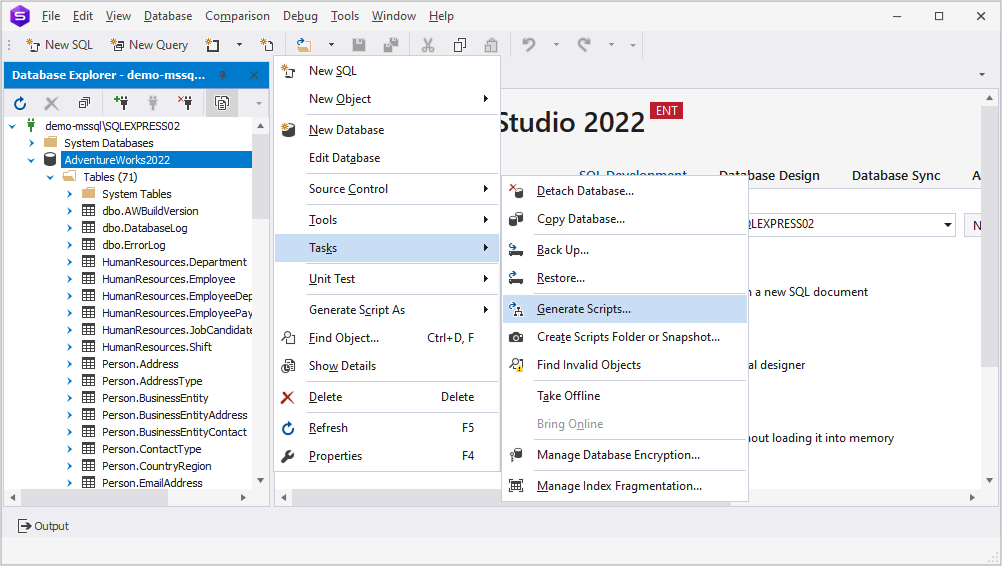
1. On the Database menu, select Tasks > Generate Scripts.
2. Optional: Click Open to load a previously saved project.
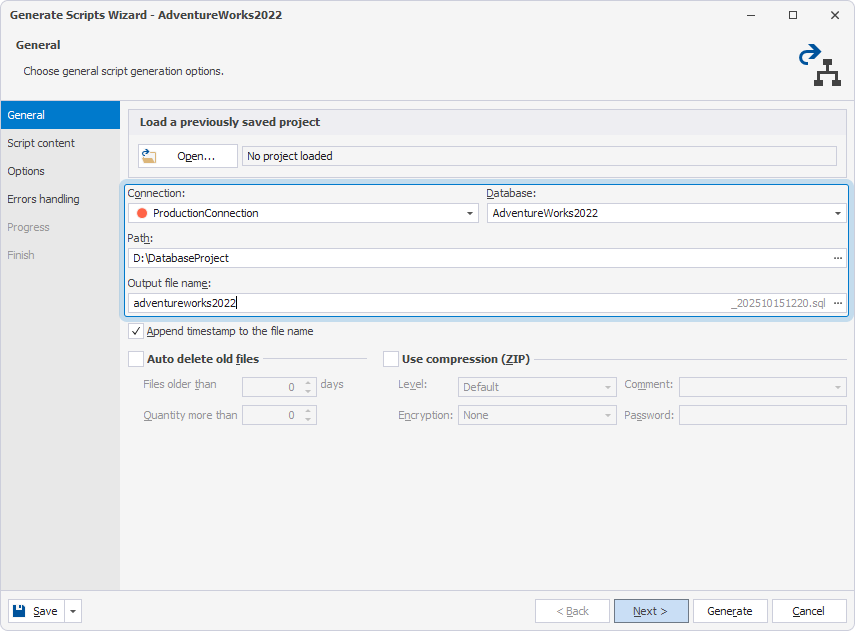
3. On the General page, fill out the fields:
- Connection – Select the source server.
- Database – Select the source database.
- Path – Specify the folder to save the script file. To browse for a location, click the ellipsis (…).
- Output file name – Enter a name for the script file.
4. Optional: Configure additional options:
- Append timestamp to the file name – Adds date and time to the file name. By default, this option is selected.
-
Auto delete old files – Automatically removes old script files based on the specified parameters. By default, this option isn’t selected.
- Files older than – Deletes files that are older than the specified number of days. For example, if you set 7 days, any file older than 7 days will be removed.
- Quantity more than – Deletes files when the total number of files exceeds the specified limit, starting with the oldest ones. For example, if you set 10, and there are already 10 files, the oldest file will be deleted when a new one is created.
-
Use compression (ZIP) – Compresses the script file based on the specified parameters. By default, this option isn’t selected.
- Level – Sets the level of compression.
- Comment – Adds the comment you enter in this field to the archive.
- Encryption – Specifies the type of encryption.
- Password – Sets a password for opening or extracting the encrypted file.
5. Click Next.
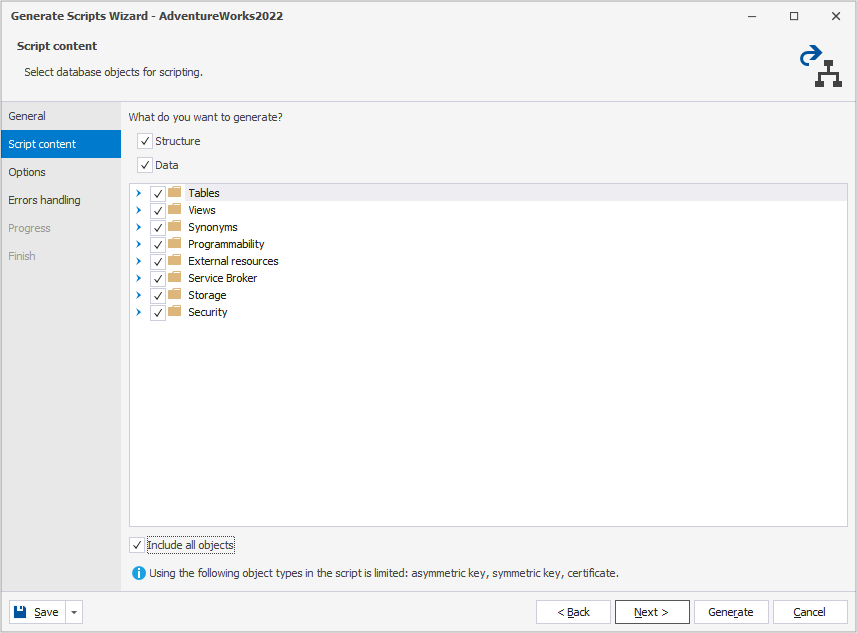
6. On the Script content page, choose what you want to include in the script:
- Structure – Includes the database schema and object definitions.
- Data – Includes the table data.
By default, both options are selected.
7. Select specific database objects to include in the script. By default, all objects are selected.
Tip
To cancel the selection for all objects, clear the Include all objects checkbox. To select all objects, select the Include all objects checkbox.
8. Click Next.
9. On the Options page, configure the script generation according to your preferences, then click Next. For the list of options and their descriptions, see Options.
Tip
To save your configuration to be used by default, click Save As My Defaults. Alternatively, you can set up your custom configuration in Tools > Options > Generate Scripts > General.
To restore the out-of-the-box configuration, click Devart Defaults.
To apply your custom configuration, click My Defaults.
10. On the Errors handling page, define how the generation process should respond to errors:
-
Abort at the first error – Stop the generation immediately when the first error occurs. This option is selected by default.
-
Prompt a user for an action – Pause the generation and prompt the user to choose how to proceed when an error occurs.
-
Ignore all errors – Continue the generation process, skipping any errors without interruption.
11. Optional: To have a log file generated, select Write a report to a log file and enter the full path of the file in Log file. By default, this option isn’t selected.
12. Click Generate.
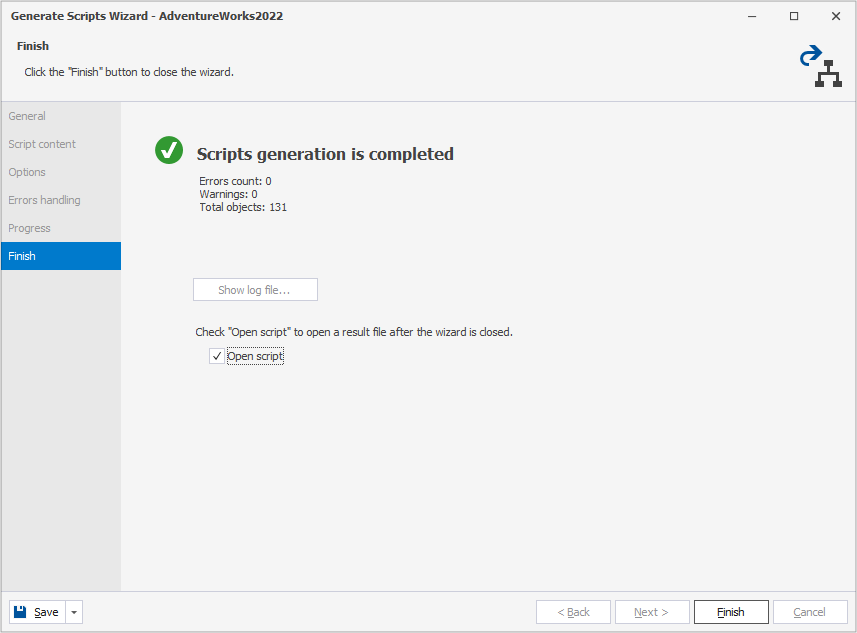
The script generation starts. When it completes, the Finish page appears, indicating whether the script generation completed successfully or failed.
Tip
To reuse your script generation settings, click the arrow next to Save and select your option:
- Save Project – Saves the project as a .backup file.
- Save Command Line – Saves the settings as a .bat file.
13. Optional: To open the generated script in the Studio after the Generate Scripts Wizard closes, select Open script. You can then execute the script in SQL Editor.
Tip
If the generated script is large, you can execute it using the Execute Script Wizard.
14. Click Finish.
Options
On the Options page of the Generate Scripts Wizard, you can configure script generation using the following options.
| Option | Description | Default state |
|---|---|---|
| Common | ||
| Check for object existence | Adds an additional check to the synchronization script (before each object DDL) to verify that the object exists in the target database. | Not selected |
| Enclose identifiers within square brackets | Encloses all identifiers in the script within square brackets. | Not selected |
| Generate comments in the script | Inserts comments into the script. | Selected |
| Script authorization | Includes AUTHORIZATION clauses in the script. |
Selected |
| Script collation | Adds collation information to the script. | Not selected |
| Script CREATE DATABASE | Generates the CREATE DATABASE statement. |
Not selected |
| Script extended properties | Includes extended properties of database objects in the script. | Selected |
| Script logins | Includes all logins available on the server in the script. Passwords aren’t included. | Not selected |
| Script security permissions | Includes security permissions in the script. | Not selected |
| Script statistics | Includes statistics in the script. | Not selected |
| Script USE DATABASE | Generates the USE DATABASE statement. Depends on the Script CREATE DATABASE option. |
Selected |
| Specify object name with its schema | Prefixes object names with their schema. | Selected |
| Tables and Views | ||
| Decrypt encrypted objects | Decrypts bodies of encrypted objects for comparison and synchronization. They are shown in the comparison results as usual script objects. If you compare encrypted objects in large datasets, selecting this option slightly slows down the comparison. | Not selected |
| Script change tracking | Includes CHANGE_TRACKING clauses and statements when comparing and synchronizing databases. |
Not selected |
| Script check constraints | Includes CHECK constraints in the script. |
Selected |
| Script DATA_COMPRESSION for indexes, primary and unique constraints | Adds DATA_COMPRESSION clauses for indexes and primary and unique key constraints. |
Not selected |
| Script default constraints | Includes default constraints and schema defaults in the script. | Selected |
| Script DML triggers | Includes DML triggers in the script. | Selected |
| Script foreign keys | Includes CREATE statements for foreign keys on the tables in the script. |
Selected |
| Script full-text search | Includes full-text stoplists, catalogs, and indexes in the script. | Not selected |
| Script indexes | Includes CREATE statements for indexes on the tables in the script. |
Selected |
| Script primary keys | Includes CREATE statements for primary keys on the tables in the script. |
Selected |
| Script sensitivity classification | Adds the ADD SENSITIVITY CLASSIFICATION statement to the script to retain column sensitivity metadata. |
Selected |
| Script unique keys | Includes CREATE statements for unique keys on the tables in the script. |
Selected |
| Data | ||
| Disable foreign keys | Drops foreign keys before synchronization and restores them afterward. | Not selected |
| Disable primary keys, indexes and unique constraints | Drops primary keys, indexes, and unique constraints before synchronization and attempts to restore them afterward. If a primary key, an index, or a unique constraint is used as a comparison key, it can’t be dropped. | Not selected |
| Include column names into INSERT statements | Adds column names to INSERT statements in the script. |
Selected |