Automate database scripts generation
You can automate the generation of database scripts by creating a task in Windows Task Scheduler that will run at a specified time or after a specific event.
Schedule the script generation
1. Open Task Scheduler.
2. On the Action menu, select Create Basic Task.
3. In Name, enter a name for the task, then click Next.
4. On the Trigger page, select when you want the task to start, then click Next, and complete an additional step depending on your selection:
- Daily – Specify the start time and recurrence frequency, then click Next.
- Weekly – Specify the start time, days of the week, and recurrence frequency, then click Next.
- Monthly – Specify the start time, days, and months, then click Next.
- One time – Specify the start time, then click Next.
- When the computer starts – No additional step.
- When I log on – No additional step.
- When a specific event is logged – Specify the log, source, and event ID, then click Next.
5. On the Action page, select Start a Program, then click Next.
6. Under Program/script, enter the full path of the dbforgesql.com file. The default path is "C:\Program Files\Devart\dbForge Studio for SQL Server\dbforgesql.com".
7. In Add arguments, specify the command-line arguments. For example:
/script /connection:"Data Source=DBMSSQL\MSSQL2022;Integrated Security=False;User ID=your_username;Password=your_password" /projectfile:"D:\Scripts\AdventureWorks2022.backup"
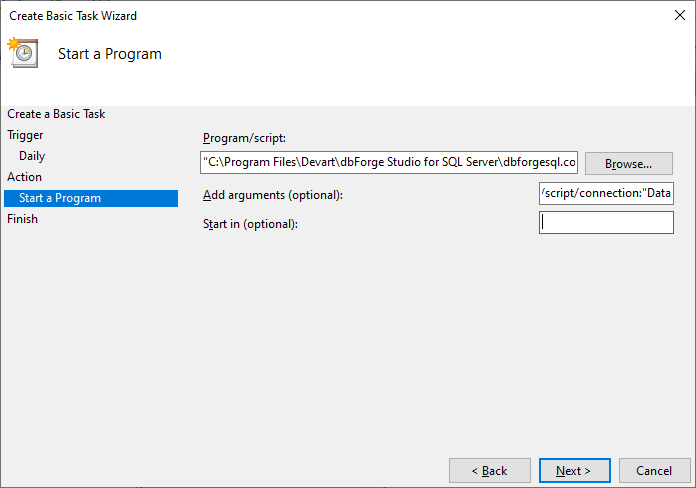
8. Click Next.
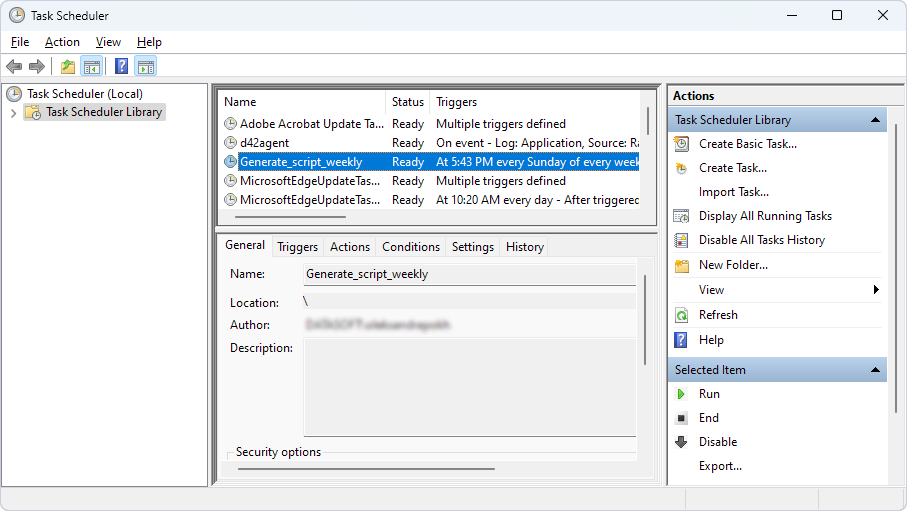
9. Review all settings. If everything is correct, click Finish. To make changes, click Back to adjust the configuration.
The task appears in the Task Scheduler Library.
Available command-line arguments
You can use the following command-line arguments (switches) to generate database scripts via Task Scheduler or in custom scripts.
| Argument | Description |
|---|---|
/connection |
Specifies the connection string. Usage: /connection:"your_connection_string" |
/database |
Specifies the database to script. Overrides the database specified in the template or connection string. Usage: /database:"your_database" |
/outputfile |
Specifies the name of the file for storing the database script. Overrides the name specified in the template. Usage: /outputfile:"your_output_file" |
/password |
Specifies the server password. Overrides the password specified in the connection string. Usage: /password:"your_password" |
/projectfile |
Specifies the script template (.backup file). Some options defined in the template can be overridden by switches. Usage: /projectfile:"your_backup_file" |
Exit codes
When you run database script generation through the command-line interface, the following exit codes are returned depending on the execution result.
| Error code | Description | Additional information |
|---|---|---|
| 0 | Success | The operation completed without errors. |
| 1 | Unhandled exception. See the log for more details. | An unexpected error occurred. See the log for details. |
| 2 | Execution terminated with Ctrl+Break | The execution was stopped by Ctrl+Break. |
| 3 | Failed | The operation completed with errors. |
| 10 | Command-line usage error | The command line was used incorrectly (for example, an invalid flag or incorrect syntax was used). |
| 11 | Illegal argument duplication | Some arguments should not appear more than once in a command line. For example, /arg2 depends on /arg1, but you specified /arg2 without specifying /arg1. Alternatively, /arg2 cannot be used with /arg1, but you used them both. |
| 12 | Unsatisfied dependency | There is an unsatisfied argument dependency or violated exclusion. |
| 20 | Trial expired | Software trial period expired or the product was not activated. |
| 30 | Project file corrupted | The project file is corrupted. |
| 40 | Server connection failed | The connection to the server could not be established. |
| 103 | Script executed with errors | The script was executed, but it produced errors. |
| 105 | Resource unavailable | The required file is missing. |
| 108 | No objects to perform the operation | There are no objects available for the selected operation. |
For more information on configuring SQL Server backups on a Windows system, see How to Set Up Every Day Database Auto Backup in SQL Server.