Synonym Designer
Synonym Designer in dbForge Studio for SQL Server provides a simple and intuitive interface for managing synonyms in databases. Synonyms act as aliases for database objects, such as tables, views, or functions, and allow you to reference them using shorter or more convenient names.
Open Synonym Designer
To open the Designer, in Database Explorer, right-click the Synonyms node or a synonym, and select New Synonym.
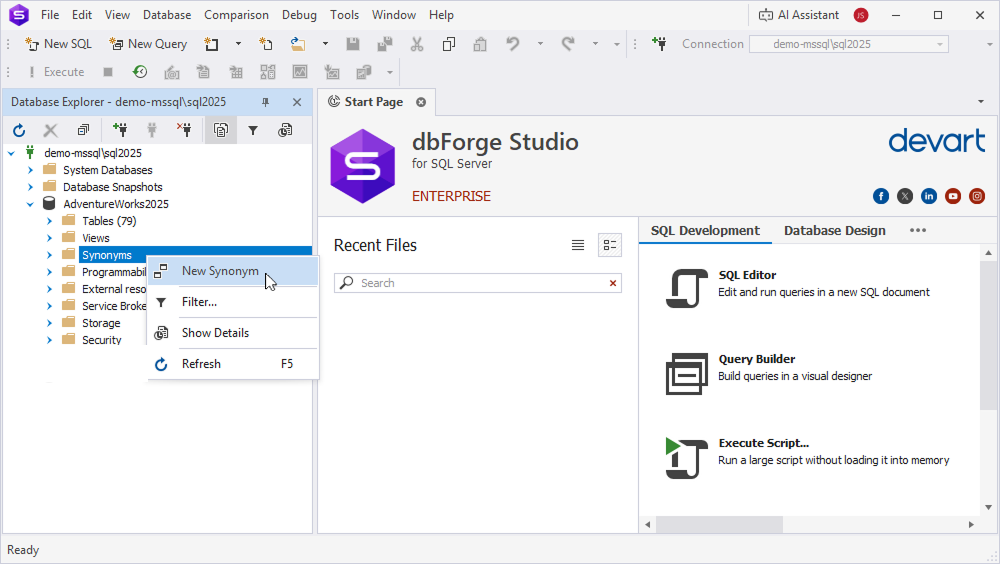
You can also open the Designer in one of these ways:
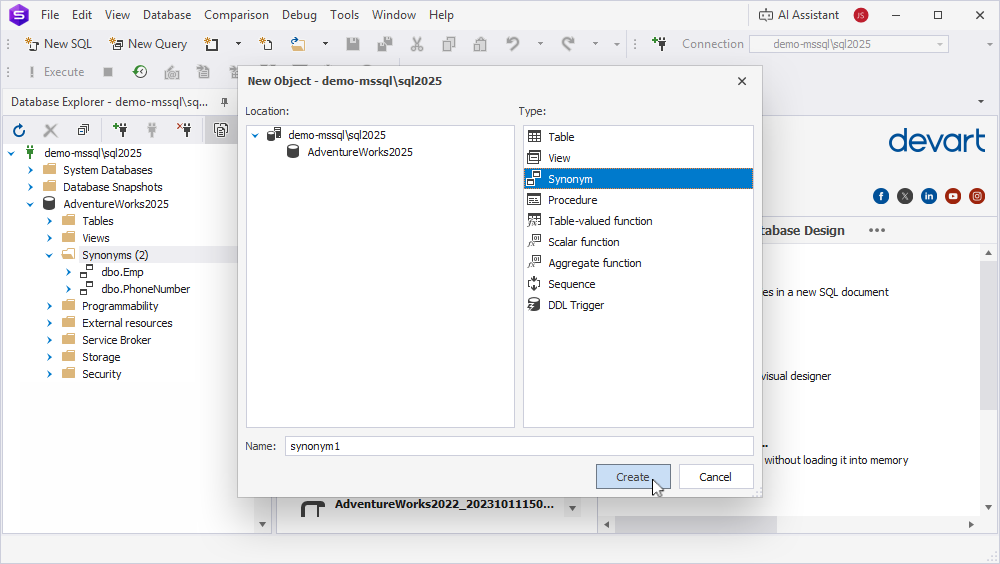
- On the menu bar, select Database > New Database Object. Then select Synonym, enter the synonym name, and click Create.
- On the Start Page, select Database Design > New Database Object. Then select Synonym, enter the synonym name, and click Create.
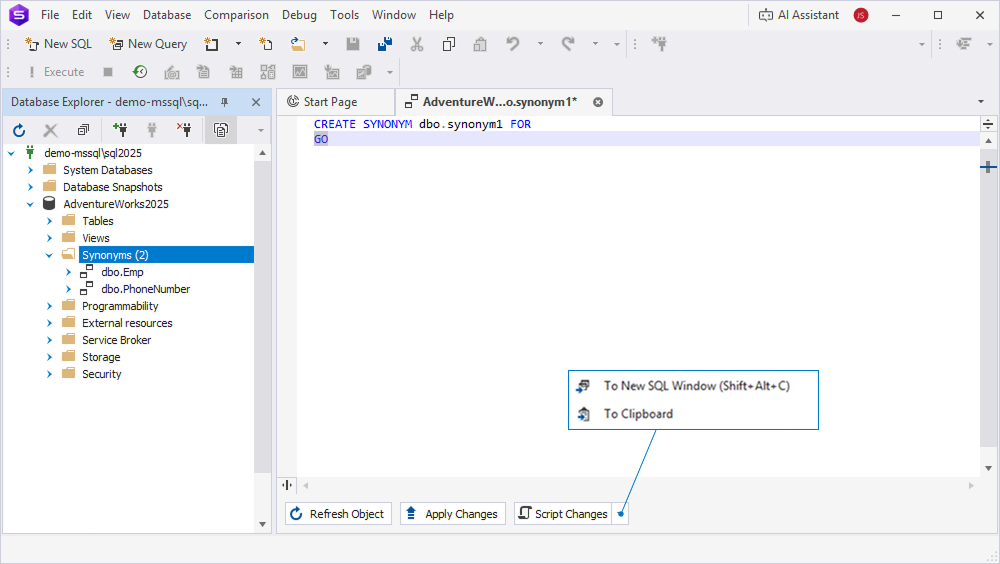
The Designer opens, displaying:
- SQL Editor that contains the
CREATE SYNONYMtemplate. - Bottom panel, where you can refresh the object, apply changes, or generate a script for review before execution.
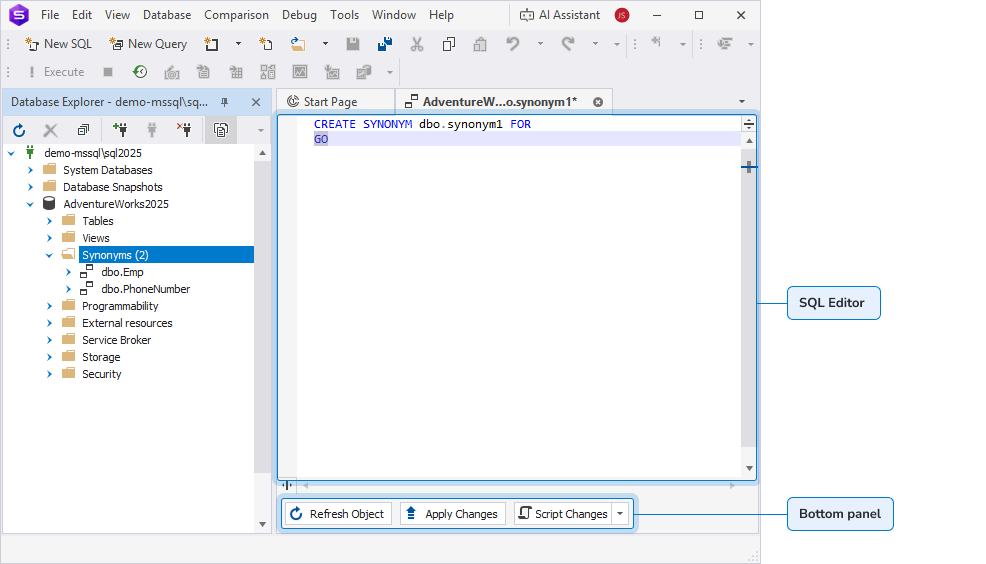
SQL Editor
When SQL Editor opens, you can see the generated template, which you need to customize.
CREATE SYNONYM dbo.synonym1 FOR
GO
The Editor supports IntelliSense, which provides:
- Auto-completion for SQL keywords.
- Suggestions for database objects, such as tables, columns, and schemas.
- Syntax assistance to help ensure code accuracy.
IntelliSense suggestions are also available for editing existing synonyms.
Bottom panel
You can use the bottom panel to:
- Refresh Object (Shift+Alt+R) – Reloads an object state from a database.
- Apply Changes (Shift+Alt+A) – Runs a SQL script and saves changes to a database.
-
Script Changes – Generates the script in a new SQL document that includes all your changes without applying them to the database.
Click the arrow next to Script Changes and select:
- To New SQL Window (Shift+Alt+C) – Opens the script in a new SQL document.
- To Clipboard – Copies the script to the clipboard.