Scalar-valued Function Designer
Scalar-valued Function Designer is a visual tool for creating, editing, and generating scripts for scalar-valued functions.
A scalar-valued function is a user-defined function that returns a single scalar value based on the input parameters passed to it.
Open Scalar-valued Function Designer
You can open Scalar-valued Function Designer in one of these ways:
- In Database Explorer, expand Programmability > Functions, right-click the Scalar-valued Functions node or a scalar function, then select New Scalar Function.
- On the menu bar, select Database > New Database Object. Then select Scalar function, enter the function name, and click Create.
- On the Start Page, select Database Design > New Database Object. Then select Scalar function, enter the function name, and click Create.
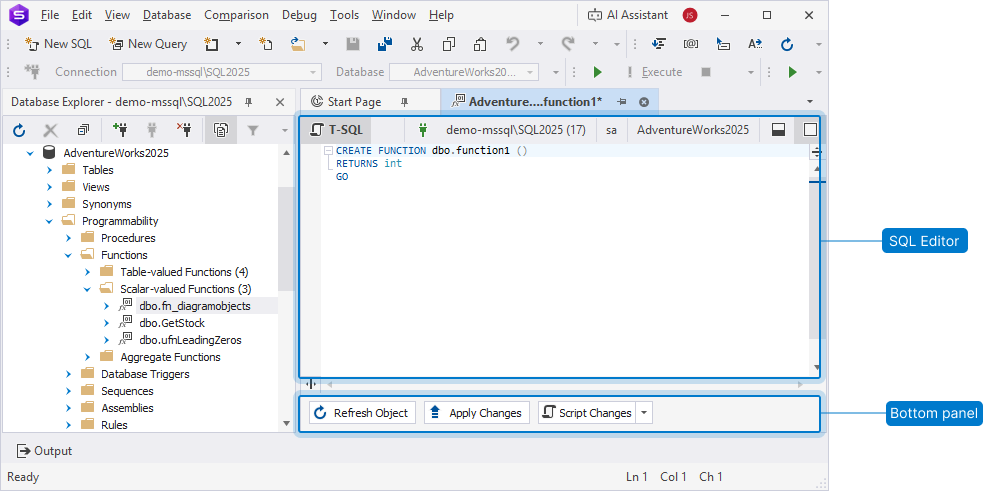
The Designer opens, displaying:
- SQL Editor – Shows the
CREATE FUNCTIONtemplate. - Bottom panel – Lets you refresh the object, apply changes, or generate a script for review before execution.
You can also open Scalar-valued Function Designer for an existing scalar-valued function:
- In Database Explorer, expand Programmability > Functions > Scalar-valued Functions, right-click the required scalar-valued function, then select Open Editor. The
CREATE FUNCTIONdefinition opens, which you can use to change the code or rename the function.
SQL Editor
You can use SQL Editor to create and edit the scalar-valued function script.
CREATE FUNCTION dbo.function1 ()
RETURNS int
GO
The default function name is function1. If a function with this name already exists, dbForge Studio assigns the next available name, such as function2, function3, and so on. To use a different name, enter it in the template.
SQL Editor supports IntelliSense-style suggestions, quick object information, and parameter information, which you can use for writing and editing scripts.
Bottom panel
You can use the bottom panel to:
- Refresh Object (Shift+Alt+R) – Reloads the object from the database.
- Apply Changes (Shift+Alt+A) – Runs a SQL script and saves the changes to the database.
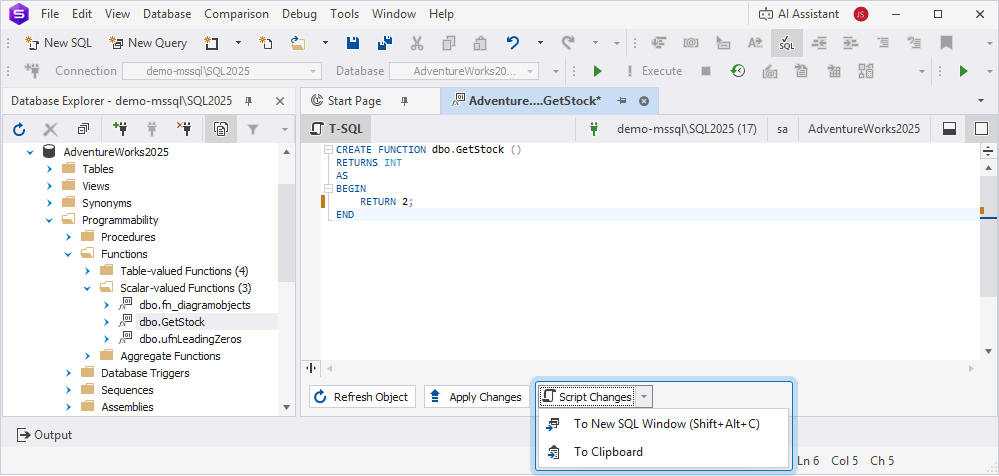
- Script Changes – Generates the script in a new SQL document that includes all your changes without applying them to the database.
You can click the arrow next to Script Changes and select:
- To New SQL Window (Shift+Alt+C) – Opens the script in a new SQL document.
- To Clipboard – Copies the script to the clipboard.