Configure logging
Log files record details about application behavior. They include messages about handled exceptions and other issues that do not prevent the application from running. Logs can help support teams diagnose and resolve issues.
By default, dbForge Studio for SQL Server stores log files in C:\Users\<user_name>\AppData\Roaming\Devart\dbForge Studio for SQL Server
where <user_name> is your Windows account name.
Note
Enable logging only when necessary. Continuous logging can generate large files and may reduce application performance.
Step 1: Configure logging options
1. In the top menu, select Tools > Options.
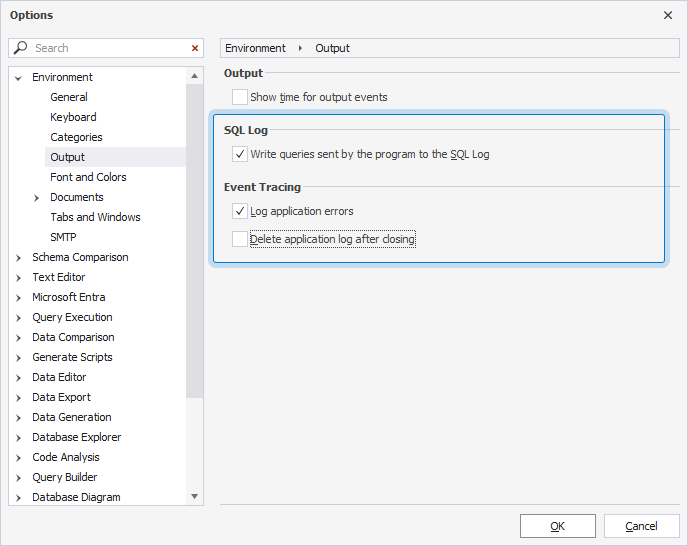
2. Navigate to Environment > Output.
3. Select Write queries sent by the program to the SQL Log and Log application errors.
4. Clear Delete application log after closing.
5. Click OK to save the changes.
Step 2: Change the application settings
To record schema and data differences in logs, update the application configuration file.
1. Open the file in a text editor with administrator permissions:
- For the GUI:
C:\Program Files\Devart\dbForge Studio for SQL Server\dbforgesql.exe.config
- For the command line:
C:\Program Files\Devart\dbForge Studio for SQL Server\dbforgesql.com.config
3. In the <appSettings> section, add the following line:
C:\Program Files\Devart\dbForge Studio for SQL Server\dbforgesql.exe.config– If you work in the GUIC:\Program Files\Devart\dbForge Studio for SQL Server\dbforgesql.com.config– If you work via the CLI
Warning
Updating or reinstalling dbForge Studio for SQL Server can overwrite changes to the configuration file.
4. Example:
  <appSettings>
    <add key="id" value="AA8AFE9C-7D62-4564-B477-C12E62E0F440"/>
    <add key="LocalizedPerfCounter" value="false"/>
    <add key="culture" value="en-US"/>
    <add key="LogDifference" value="true" />
  </appSettings>
5. Save the file and restart dbForge Studio.
Step 3: Reproduce the issue and send the log file
1. Reproduce the issue.
2. Copy the log file with the latest date from the C:\Users\User_name\AppData\Roaming\Devart\dbForge Studio for SQL Server folder.
3. Send the file to the support.