Map tables and columns
After you select data sources for your schema comparison project, dbForge Studio automatically maps tables and columns that share the same name in both the source and target.
You can manually map tables and columns with different names to prevent data loss when objects are renamed.
For example, if you map the 1A source table to the 1B target table, dbForge Studio treats them as the same object. During deployment, the table won’t be dropped and recreated; instead, only the changes will be synchronized.
You can view or manage the mapping of tables and columns on the Table mapping page of the New Schema Comparison wizard.
The table displays mapped objects.
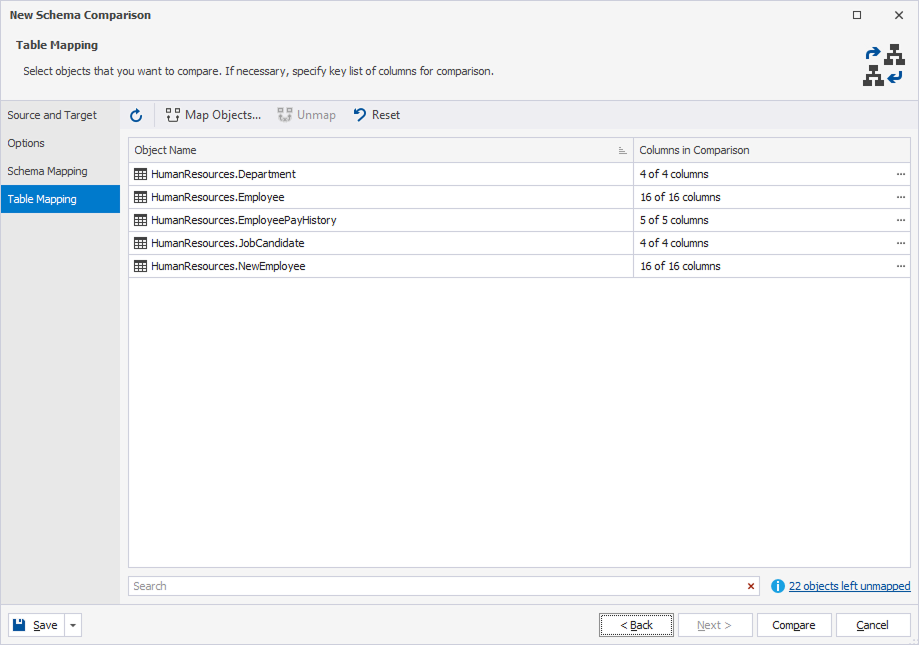
Manage table mapping
The number of unmapped objects, in the lower-right corner of the wizard, click < number_of > objects left unmapped ( ).
).
To restore default mapping, click Restore.
To refresh a list of tables, click Refresh on the toolbar.
Map tables
1. Open the Objects Mapping dialog by doing one of the following:
- In the lower-right corner of the wizard, click < number_of > objects left unmapped.
- On the toolbar, click Map Objects.
2. Select the tables you want to map.
3. Click Map to map the tables.
4. Click Close to close the dialog.
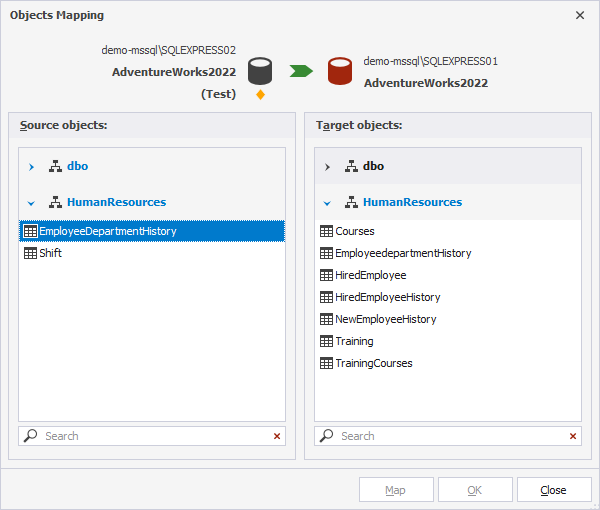
dbForge Studio will move the selected tables to the list of mapped tables.
Unmap tables
1. Select the tables you want to unmap.
2. On the toolbar, click Unmap.
dbForge Studio will move the selected tables to the list of unmapped tables.
Manage column mapping
dbForge Studio automatically maps columns with similar names. To compare columns with different names, map them manually.
Note
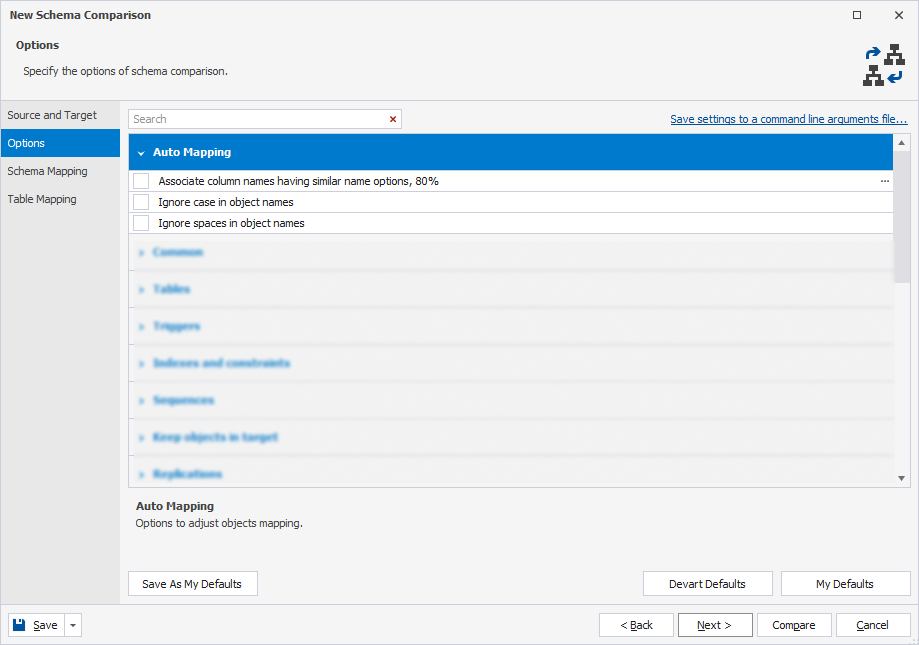
You can configure the Ignore case in object names and Ignore spaces in object names options under Auto Mapping on the Options page.
Map columns
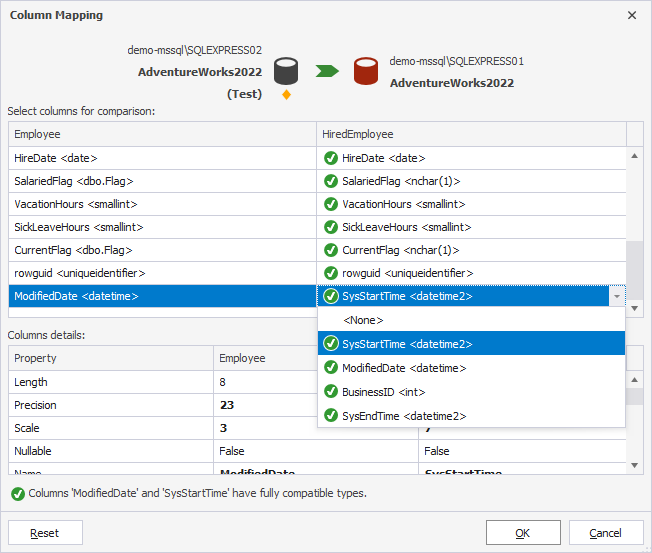
1. In Columns in Comparison, click the ellipsis (…) next to the tables whose columns you want to map.
2. In the Column Mapping dialog, select the columns you want to map from the list.
3. Click OK to save the changes.
Unmap columns
1. In Columns in Comparison, click the ellipsis (…) next to the tables whose columns you want to unmap.
2. In the Column Mapping dialog, click the column you want to unmap and select < None > from the list.
3. Click OK to save the changes.
Search for objects
You can search for objects to be mapped by entering text in the search box. The list filters automatically to show only options that contain the search term.
The default search mode is case-insensitive. For example, searching for human will display both Human or human. Matching text is highlighted, and the search box shows the number of matches. If you enter multiple words separated by spaces, each word highlights matching results separately.
To clear the search, click  in the search box.
Keyboard shortcuts in the search box
The table describes the keyboard shortcuts you can use in the search box.
| Keyboard shortcut | Description |
|---|---|
| Ctrl+A | Selects all. |
| Ctrl+Left Arrow (←) | Moves the caret to the beginning of the word. |
| Ctrl+Right Arrow (→) | Moves the caret to the end of the word. |
| Ctrl+Shift+Left Arrow (←) | Selects text from the current caret position to the beginning of the current word and moves the caret to the beginning of the word. |
| Ctrl+Shift+Right Arrow (→) | Selects text from the current caret position to the end of the current word and moves the caret to the end of the word. |
| Ctrl+Backspace | Deletes the word to the left of the caret. |