Compare data in multiple databases from the command line
This topic describes how to compare data across multiple SQL Server databases and automate their synchronization across different SQL Server instances, all from the command line.
Workflow
The process for comparing data across multiple databases includes the following steps:
1. Creating a .txt file with the source and target databases and servers.
2. Creating a .bat file to automate data comparison between source and target databases.
3. Comparing the source and target databases from the command line.
Create a text file with the source and target databases and servers
1. Open any text editor.
2. Enter the connection details for the source servers and databases. Separate each value with a comma.
server_name1, database_name1, TestUser1, Password1
server_name2, database_name2, TestUser2, Password2
where:
server_name1andserver_name2– Specify the names of the source servers where the source databases reside.database_name1anddatabase_name2– Specify the names of the source databases you want to compare.TestUser1,TestUser2,Password1, andPassword2– Specify the login credentials for those servers.
3. Save the .txt file, for example, as source_servers_databases.txt.
4. Repeat the same process for the target servers and databases, and save the file as target_servers_databases.txt.
Note
You can add as many servers and databases as you need.
server_name1, database_name1, TestUser1, Password1
server_name2, database_name2, TestUser2, Password2
server_name3, database_name3, TestUser3, Password3
server_nameN, database_nameN, TestUserN, PasswordN
Create a .bat file to automate data comparison between source and target databases
1. Open a text editor.
2. Create a new file and enter the following script:
Set Compare="path_to_app"

FOR /F "eol=; tokens=1,2,3,4* delims=, " %%e in (source_servers_databases.txt) do (

FOR /F "eol=; tokens=1,2,3,4* delims=, " %%i in (target_servers_databases.txt) do (

%Compare% /datacompare /source connection:"Data Source=%%e;Encrypt=False;Enlist=False;Initial Catalog=%%f;Integrated Security=False;User ID=%%g;Password=%%h;Pooling=False;Transaction Scope Local=True" /target connection:"Data Source=%%i;Encrypt=False;Enlist=False;Initial Catalog=%%j;Integrated Security=False;User ID=%%k;Password=%%l;Pooling=False;Transaction Scope Local=True" /log:"data_compare_sql_log.log"

)

)
where:
Set Compare– Specifies the default installation path for dbForge Studio for SQL Server. If you installed dbForge Studio in a different location, update the path to thedbforgesql.comfile.source_servers_databases.txt– Specifies the text file that contains the source servers and databases.target_servers_databases.txt– Specifies the text file that contains the target servers and databases.data_compare_sql_log.log– Specifies the path to the log file that will store the results.
3. Save the file with a .bat extension, for example, run_compare.bat.
Compare one database to multiple target databases (single run)
1. Add the database you want to compare to source_servers_databases.txt, then save the changes.
2. Add required databases to target_servers_databases.txt, then save the changes.
3. Run the .bat file.
When you run the .bat file, it compares the source database to each of the target databases listed in the target_servers_databases.txt file in a single run.
Compare one or more databases in separate runs
1. Create copies of the source_servers_databases.txt, target_servers_databases.txt, and .bat files with different names.
source_servers_databases01.txttarget_servers_databases01.txtrun01.bat
2. Add the required databases for the first comparison to source_servers_databases01.txt and target_servers_databases01.txt, then save them.
3. For each additional comparison, create new .txt and .bat files. For example:
-
For the second comparison:
source_servers_databases02.txttarget_servers_databases02.txtrun02.bat
-
For the third comparison:
source_servers_databases03.txttarget_servers_databases03.txtrun03.bat
-
Continue this pattern for subsequent comparisons.
4. Create a new .bat file (for example, run_all.bat) that will execute the comparison scripts in sequence.
call run01.bat
call run02.bat
Each call command runs the respective .bat file (such as run01.bat and run02.bat), performing the comparison defined in those files.
Note
Ensure that the
run01.batandrun02.batfiles do not contain anypausecommands; otherwise, subsequent run operations will not start.
Compare source and target databases from the command line
1. Open Command Prompt (CMD).
2. Execute the .bat file.
A log file containing the output results will be generated automatically.
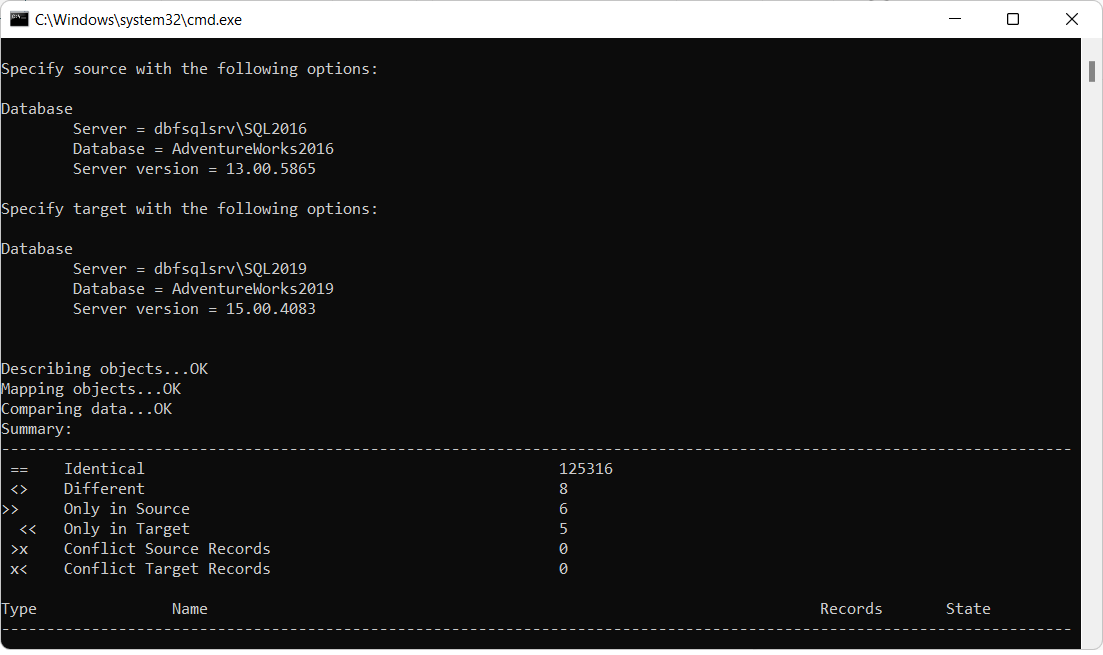
Result - Comparing the BicycleStoreDev and BicycleStoreProd databases from the command line
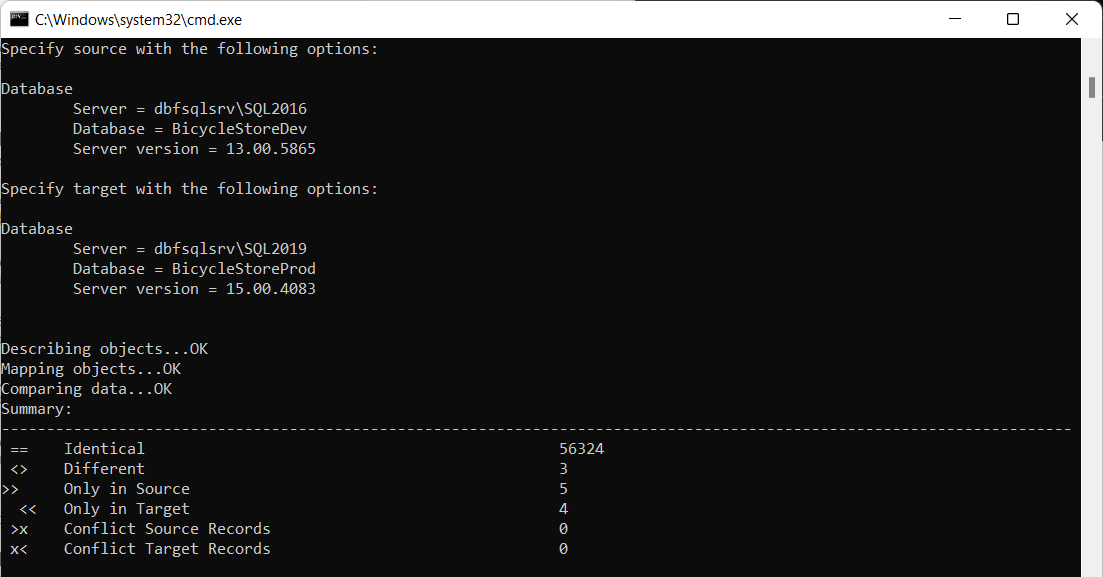
Result - Comparing between the AdventureWorks2016 and AdventureWorks2019 databases from the command line