Configure synchronization options
You can configure the synchronization options on the Options page of the Data Synchronization Wizard.
Open the Data Synchronization Wizard
You can open the Data Synchronization Wizard in one of these ways:
-
At the top of the document, click
 .
. -
Right-click the grid and select Synchronize.
-
Press F8.
-
On the Comparison toolbar, click
 .
.
The options are grouped in collapsible categories. When you select an option, its description appears below the options grid.
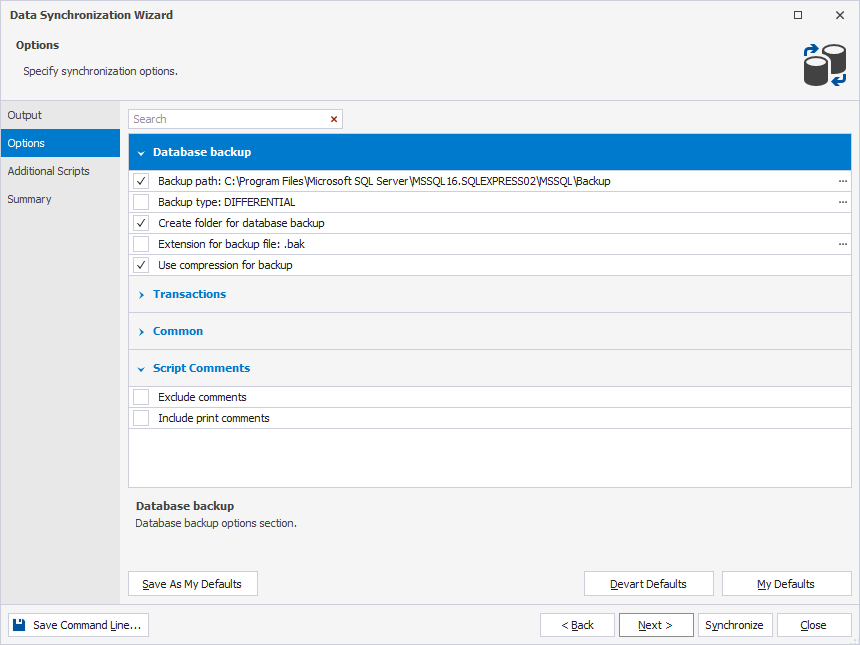
Set up synchronization behavior
To turn an option on, select its checkbox. To turn it off, clear the checkbox.
Use default options
You can save your preferred synchronization settings and restore them at any time.
- To save the current selection of options as defaults for all new projects, click Save As My Defaults.
- To restore your saved defaults, click My Defaults.
- To reset all options to the original settings, click Devart Defaults.
Search for options
To search for options, type a search query in the search box.
Search behavior:
- Matching text is highlighted in yellow.
- The number of matches appears in the search box.
- The search is case-insensitive. For example, searching for Tab matches Tab and tab.
- If the query contains multiple words, each word is matched separately, and all matches are highlighted.
To clear the search results, click  in the search box.
Keyboard shortcuts in the search box
The table provides keyboard shortcuts you can use in the search box.
| Keyboard shortcut | Description |
|---|---|
| Ctrl+A | Selects all. |
| Ctrl+Left Arrow (←) | Moves the caret to the beginning of the word. |
| Ctrl+Right Arrow (→) | Moves the caret to the end of the word. |
| Ctrl+Shift+Left Arrow (←) | Selects text from the current caret position to the beginning of the current word and moves the caret to the beginning of the word. |
| Ctrl+Shift+Right Arrow (→) | Selects text from the current caret position to the end of the current word and moves the caret to the end of the word. |
| Ctrl+Backspace | Deletes the word to the left of the caret. |
Save the synchronization options
You can save synchronization options as a .dcomp file to reuse them or schedule synchronization automatically.
To save the synchronization options:
1. On the Options page, configure the synchronization options.
2. Close the wizard.
3. Save the file in one of these ways:
-
On the standard toolbar, click
 or
or  .
. -
In the top menu, select File > Save .dcomp or Save All.
-
Press Ctrl+S or Ctrl+Shift+S.
Note
If you save the .dcomp file before configuring synchronization options, the file includes the data comparison options you set in the New Data Comparison wizard and the default synchronization settings.
Data Compare synchronization options
The table provides a list of data synchronization options available on the Options page of the Data Synchronization Wizard.
| Name | Group | Description | Default State |
|---|---|---|---|
| Backup path | Database backup | Creates a backup. You can specify the location of the target database backup file. The backup file name will be generated in the following format: <database_name>_yyyy_MM_dd_hh_mm.bak |
On |
| Backup type | Database backup | Creates a backup in the selected mode. A differential backup requires a previous full backup. If no full backup exists, one is created automatically. |
Off |
| Create folder for database backup | Database backup | Creates a folder on the server for a database backup. | On |
| Extension for backup file | Database backup | Specifies the extension for a backup file. If the option isn’t selected, the default .bak extension is used. |
Off |
| Use compression for backup | Database backup | Performs the backup compression. This option is available for SQL Server 2008 or later versions. |
On |
| Use a single transaction | Transactions | Executes a synchronization script as a single transaction. All the changes to the databases will be rolled back if any error occurs during the script execution. | On |
| Add error handling statements | Transactions | Stops executing a script when encountering an error. | Off |
| Set transaction isolation level to | Transactions | Sets the transaction isolation level. This option is available when Use a single transaction is selected. You can specify the following transaction isolation levels: SERIALIZABLE, SNAPSHOT, REPEATABLE READ, READ UNCOMMITTED, and READ COMMITTED. |
On |
| Check for concurrency updates | Common | Prevents accidental data overwriting by adding the WHERE clause with a non-key column values to the UPDATE and DELETE statements and adding the IF NOT EXISTS statement before the INSERT statement. |
Off |
| Disable check constraints | Common | Drops the CHECK and NOT NULL constraints at the beginning of the synchronization process. After synchronization, those constraints are restored using the WITH NOCHECK parameter. To restore the constraints with the WITH CHECK parameter, select Restore constraints using WITH CHECK. |
Off |
| Disable DDL triggers | Common | Disables DDL triggers before synchronization. After synchronization, the triggers are enabled. |
Off |
| Disable DML triggers | Common | Disables DML triggers before synchronization. After synchronization, the triggers are enabled. The option is applicable to tables and views. |
On |
| Disable foreign keys | Common | Drops foreign keys before synchronization. After synchronization, the foreign keys are restored. |
On |
| Disable primary keys, indexes, and unique constraints | Common | Drops primary keys, indexes, and unique constraints before synchronization. After synchronization, they are restored. If a primary key, index, or unique constraint is used as a comparison key, it cannot be dropped. |
Off |
| Generate fully qualified object names | Common | Generates fully qualified object names in the synchronization script. If the option is selected, the names of objects in the synchronization script will include a schema name. | On |
| Include USE <database_name> | Common | Adds the USE <database_name> clause to the script. |
On |
| Reseed identity columns | Common | Reseeds the current value for identity columns. | On |
| Restore constraints using WITH CHECK | Common | Creates constraints with the WITH CHECK parameter.If the option isn’t selected, constraints will be created in the fast mode with the WITH NOCHECK parameter |
Off |
| Synchronize database in the single user mode | Common | Synchronizes a database in the single user mode. | Off |
| Synchronize via files path | Common | Creates a separate file using the OPENROWSET function for each value which size is greater than 1MB. To upload these files on a remote server, specify a shared network folder accessible both from the client and server machines. |
Off |
| Exclude comments | Script Comments | Prevents comments generation in the synchronization script. | Off |
| Include print comments | Script Comments | Adds comments to the output during the script execution. Including print comments helps identify items in the output more easily. |
Off |