Review the action plan and warnings
You can review the data population action plan and any warnings that may affect the process on the Summary page of the Data Population Wizard.
Action plan
On the Action Plan tab, you can view data population actions in the order they are to be performed. The action plan is organized in collapsible categories.
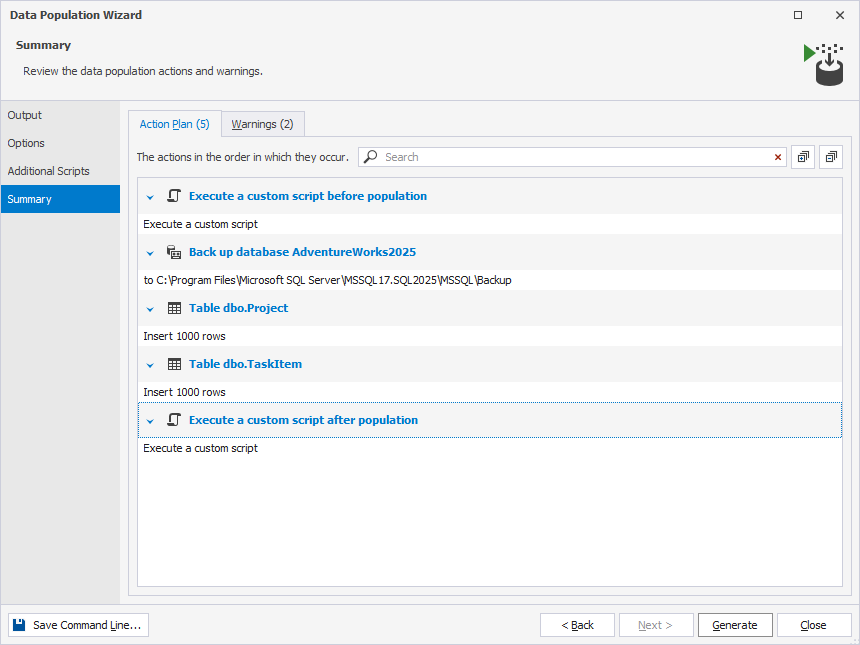
Expand the action plan
You can expand all sections in the action plan in one of these ways:
-
Right-click the action plan and select Expand all.
-
In the upper-right corner of the page, click
 .
.
Collapse the action plan
You can collapse all sections in the action plan in one of these ways:
-
Right-click the action plan and select Collapse all.
-
In the upper-right corner of the page, click
 .
.
Find options
To find options, type a search query in the search box.
Search behavior:
- Matching text is highlighted in yellow.
- The number of matches appears in the search box.
- The search is case-insensitive. For example, searching for Backup matches Backup and backup.
- If the query contains multiple words, each word is matched separately, and all matches are highlighted.
To clear the search results, click  in the search box.
Keyboard shortcuts in the search box
The table provides keyboard shortcuts you can use in the search box.
| Keyboard shortcut | Description |
|---|---|
| Ctrl+A | Selects all. |
| Ctrl+Left Arrow (←) | Moves the caret to the beginning of the word. |
| Ctrl+Right Arrow (→) | Moves the caret to the end of the word. |
| Ctrl+Shift+Left Arrow (←) | Selects text from the current caret position to the beginning of the current word and moves the caret to the beginning of the word. |
| Ctrl+Shift+Right Arrow (→) | Selects text from the current caret position to the end of the current word and moves the caret to the end of the word. |
| Ctrl+Backspace | Deletes the word to the left of the caret. |
Warnings
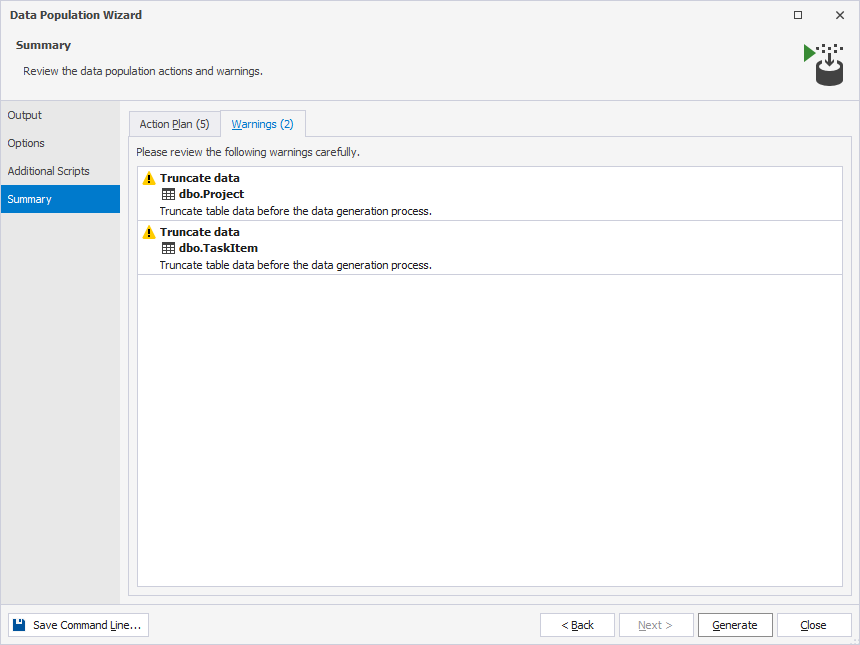
On the Warnings tab, you can view issues that may cause data generation failure or data loss.
Tip
To return to the previous step and review or change your settings, click Back.
To save the data population settings to a .bat file to automate recurring scenarios from the command line, click Save Command Line.
After you’ve configured data population settings and reviewed the action plan and warnings, click Generate to populate the tables with data.