Automate schema comparison between a scripts folder and a database
The topic describes how to automate schema comparison between a scripts folder and a database by using a PowerShell script.
Prerequisites
- Prepare a file with filters based on which schema comparison will be run.
- Prepare a database scripts folder linked to a remote repository.
Set up schema comparison using the PowerShell script
1. Open PowerShell Integrated Scripting Environment (ISE).
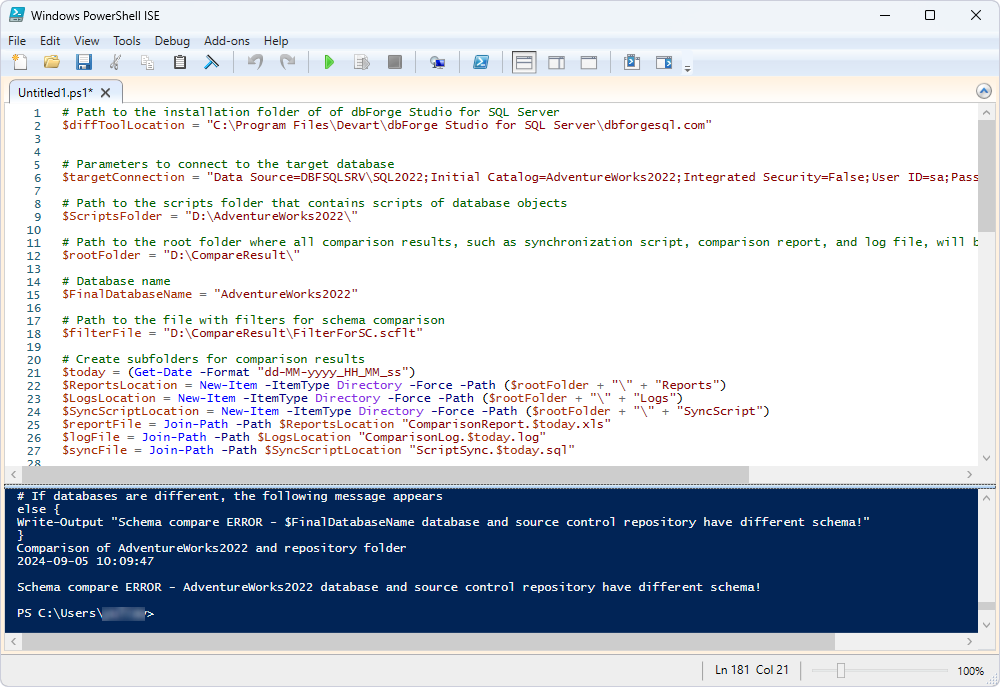
2. Enter the PowerShell commands to compare schemas. Replace the values with your actual data.
# Path to the dbforgesql.com executable located in the dbForge Studio for SQL Server installation folder
$diffToolLocation = "C:\Program Files\Devart\dbForge Studio for SQL Server\dbforgesql.com"


# Parameters to connect to the target database
$targetConnection = "Data Source=demo-mssql\SQL2025;Initial Catalog=AdventureWorks2025;Integrated Security=False;User ID=sa;Password=<your_password>;"

# Path to the scripts folder that contains scripts of database objects
$ScriptsFolder = "D:\AdventureWorks2025\"

# Path to the root folder where all comparison results, such as synchronization script, comparison report, and log file, will be stored
$rootFolder = "D:\CompareResult\"

# Database name
$FinalDatabaseName = "AdventureWorks2025"

# Path to the file with filters for schema comparison
$filterFile = "D:\CompareResult\FilterForSC.scflt"

# Create subfolders for comparison results
$today = (Get-Date -Format "dd-MM-yyyy_HH_mm_ss")
$ReportsLocation = New-Item -ItemType Directory -Force -Path ($rootFolder + "\" + "Reports")
$LogsLocation = New-Item -ItemType Directory -Force -Path ($rootFolder + "\" + "Logs")
$SyncScriptLocation = New-Item -ItemType Directory -Force -Path ($rootFolder + "\" + "SyncScript")
$reportFile = Join-Path -Path $ReportsLocation "ComparisonReport.$today.xls"
$logFile = Join-Path -Path $LogsLocation "ComparisonLog.$today.log"
$syncFile = Join-Path -Path $SyncScriptLocation "ScriptSync.$today.sql"

# Start schema comparison with enabled options
Write-Output "Comparison of $FinalDatabaseName and repository folder"
Get-Date -Format "yyyy-MM-dd HH:mm:ss"
Write-Output ""

$process = Start-Process -FilePath $diffToolLocation -ArgumentList "/schemacompare
/source scriptsfolder:`"$ScriptsFolder`" serverversion:`"17.0.1000`" collation:`"SQL_Latin1_General_CP1_CI_AS`"
/target connection:`"$targetConnection`"
/MappingIgnoreSpaces:No
/IncludeUseDatabase:No
/IgnoreDatabaseExtendedProperties:No
/IncludePrintComments:Yes
/filter:`"$filterFile`"
/report:`"$reportFile`"
/reportformat:xls
/sync:`"$syncFile`"
/log:`"$logFile`" " -PassThru -Wait -WindowStyle Hidden

# If databases are identical, the script will return exitcode 112
if ($process.ExitCode -eq 112) {
Write-Output "CHECK OK - There are no schema differences found between $FinalDatabaseName and the source control repository."
}

# If databases are different, the following message appears
else {
Write-Output "Schema compare ERROR - $FinalDatabaseName database and source control repository have different schema!"
}
3. In the syntax above, customize the variables to match your project-specific requirements.
$diffToolLocation– Indicates the full path to thedbforgesql.comexecutable located in the dbForge Studio for SQL Server installation folder. If you installed dbForge Studio as:- Part of the dbForge Edge bundle, specify
"C:\Program Files\Devart\dbForge Edge\dbForge Studio for SQL Server". - Standalone IDE, specify
"C:\Program Files\Devart\dbForge Studio for SQL Server".
- Part of the dbForge Edge bundle, specify
$targetConnection– Indicates connection details for the target database.$ScriptsFolder– Specifies the path to the folder with the scripts for database objects.$rootFolder– Specifies the path to the root folder that will store all comparison results, such as a synchronization script, a comparison report, and a log file.$FinalDatabaseName– Indicates a database name.$filterFile– Specifies the path to the file containing filters to be applied to schema comparison.
4. Press F5 to execute the script.
For more information about exit codes, see Command-line exit codes.
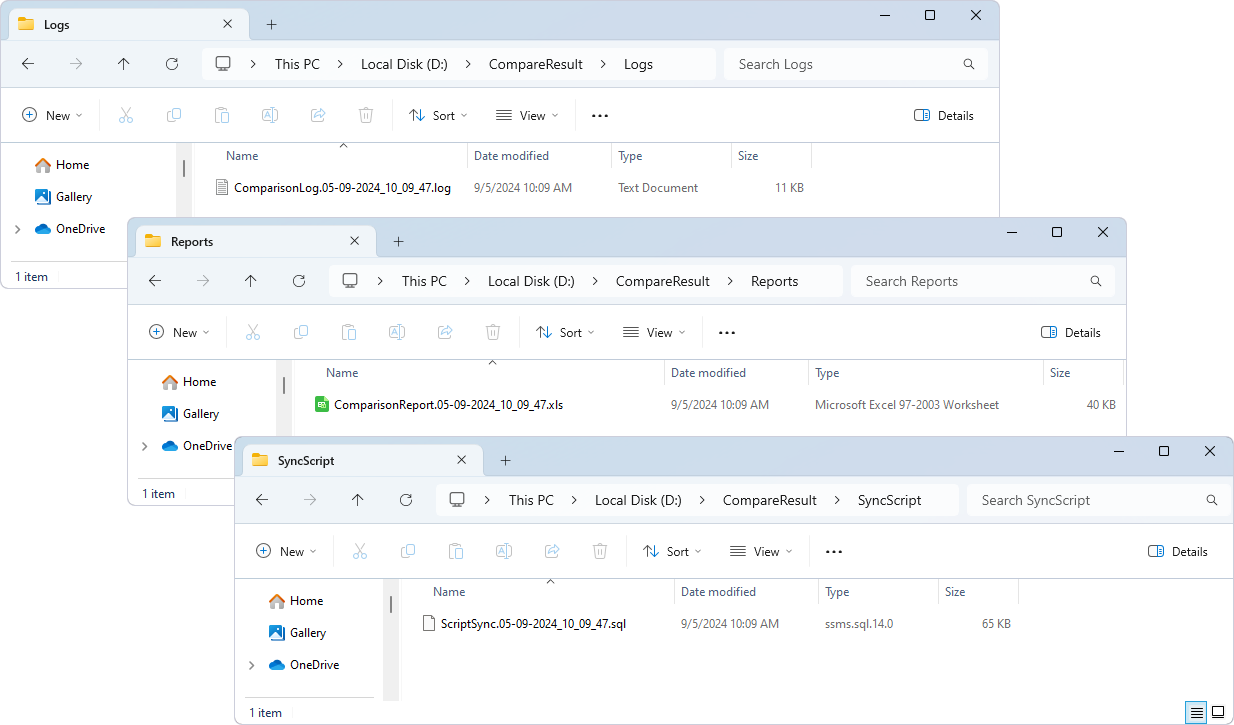
The script automatically generates a comparison report, a log file, and a synchronization script.
Note
The synchronization script is not generated if the databases are identical.