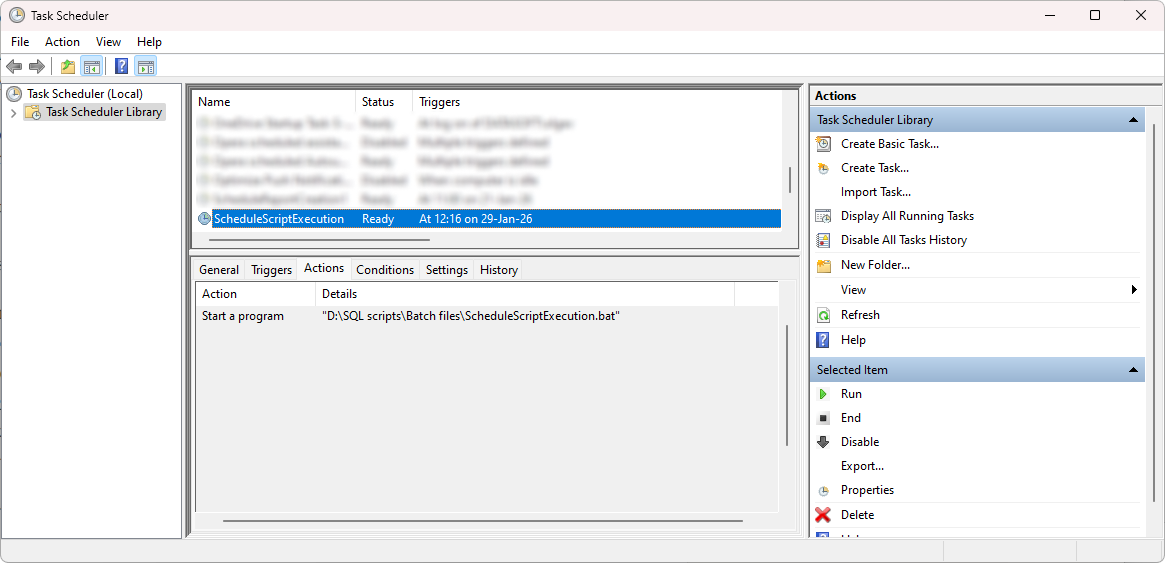
Schedule SQL script execution
You can schedule SQL script execution using Task Scheduler, which lets you create tasks that run automatically at specified times.
Prerequisite
- Create a .bat file with command-line settings that will be used to execute a SQL script.
Create a task to execute SQL scripts using Task Scheduler
1. Open Task Scheduler.
2. Under Actions, click Create Basic Task to open the Create Basic Task Wizard.
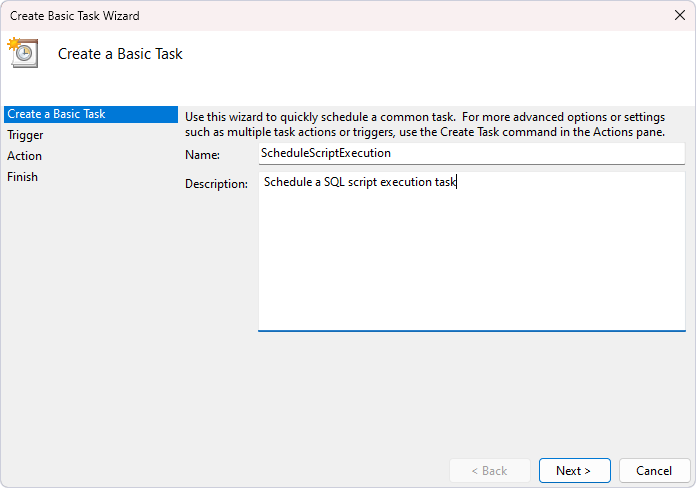
3. On the Create a Basic Task page, specify a name and optional description for the task, then click Next.
4. On the Trigger page, select a schedule, then click Next.
5. Depending on your selection, specify the start time and date, and the recurrence frequency, then click Next.
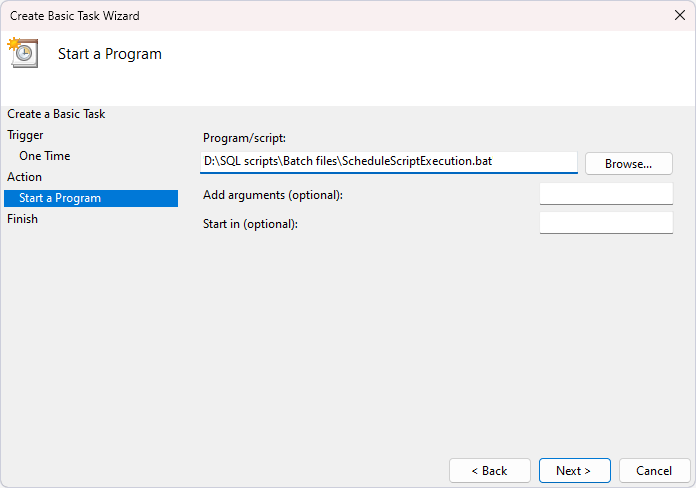
6. On the Action page, select Start a Program, then click Next.
7. On the Start a Program page, click Browse to select the .bat file, then click Next.
8. On the Finish page, verify the settings.
9. Optional: To update settings, click Back.
10. Click Finish to close the wizard.
The task appears in the Task Scheduler Library.