The Test step
Synopsis
Runs unit tests on a deployed database.
Description
The Test step ensures the quality and stability of your database by running unit tests on a deployed database. This step validates that the recent changes to the database schema, configurations, and data migration scripts have not introduced any issues or unexpected behavior.
Create the Test step
1. In the left navigation menu, select Projects, then under your project, click Build.
2. In the top right corner, use the Settings toggle to switch to editing mode.
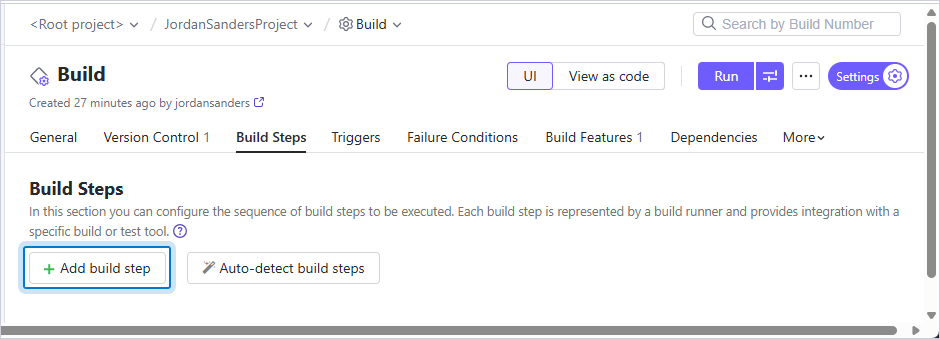
3. Navigate to the Build Steps tab and click Add build step.
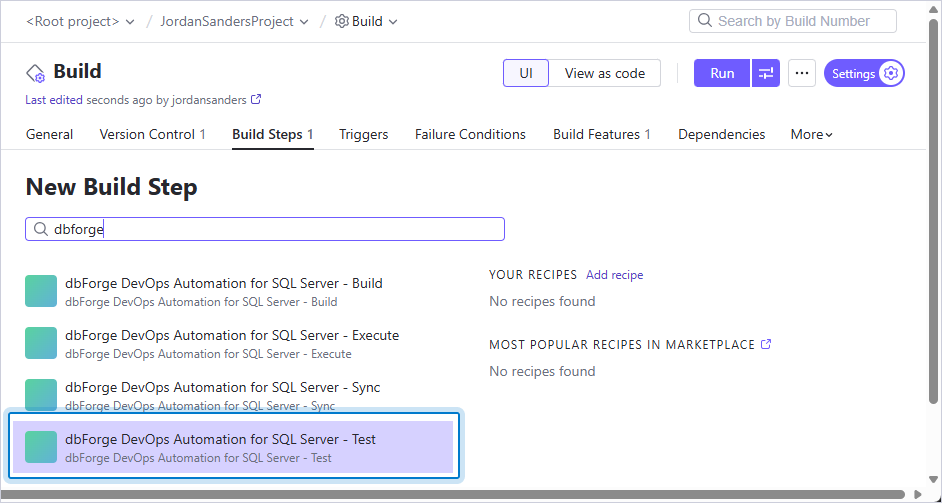
4. In the search box, enter dbforge, then select dbForge DevOps Automation for SQL Server – Test.
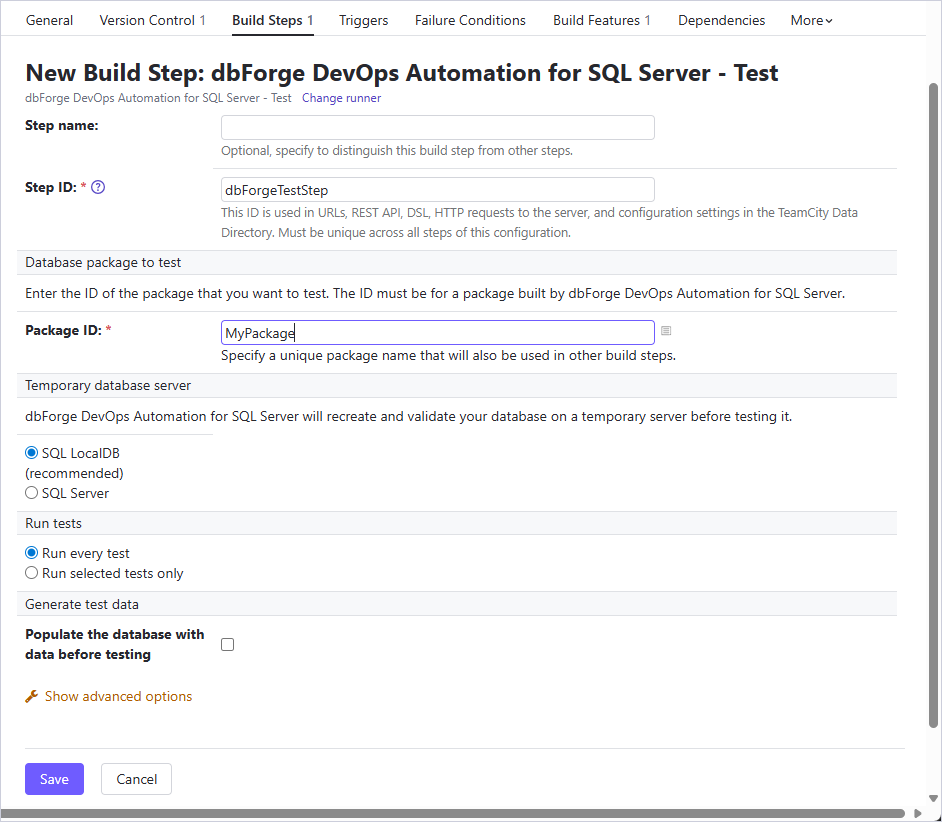
5. Configure the step settings.
The table provides a list of options you can customize for the Test step.
| Name | Description |
|---|---|
| Step name | Optional: Specify the step name to distinguish it from other steps. |
| Package ID | Specify a unique package name that will also be used in other build steps. |
| Temporary database server | Specify the temporary server for dbForge DevOps Automation for SQL Server to recreate and validate your database on. The available options are:
|
| Run tests | Select the test run mode:
|
| Generate test data | Enable test data generation mode before running tSQLt unit tests. |
| Schema Compare options | Specify additional Schema Compare options. |
| Schema Compare filter | Specify a path to an alternative filter file which will be used for validating the schema to override .scflt filter file that is present in the input. Note: You can filter data by using a filter file (.scflt) that defines the filtering rules. After generating the file, add it to your version control system (VCS) so it can be used in the CI process. |
Note
To generate test data before completing the step, you must first create the data generation project file (.dgen). This file contains settings and rules for generating test data. It should be located in the version control system, so the path to it is set according to the checkout directory.
6. Click Save.